Page starters give you a useful first layout for a records tool, customer view or operational dashboard. Start with clearly labeled demonstration data, customize the page, then connect the endpoints your customers are allowed to use.
Open Pages, choose Create Page, then Page starters. Search by name or purpose. Form, Table, Authentication and Custom page creation remain available from the same creation panel.
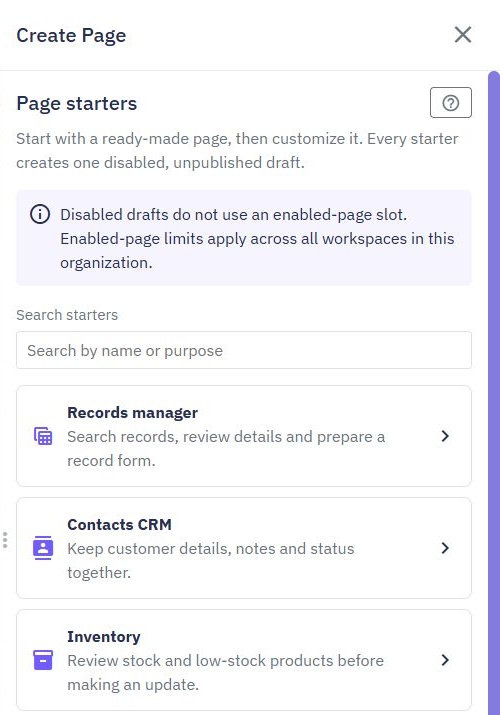
Scroll through the gallery to see all eight starters.
Records manager: Search records and explore a sample details view and form.
Contacts CRM: Organize contact details, email and status.
Inventory: Review products, stock and a low-stock example.
Orders: Explore an order queue and prepare a status-update flow.
Support tickets: Organize tickets with assignee and status information.
KPI dashboard: Explore demonstration metrics, a chart and supporting records.
Approvals: Review requests before configuring deliberate decisions.
Customer portal: Prepare a customer view before configuring sign-in and permitted records.
Each starter creates one page. Details and other example views use that page's existing layouts, rather than creating more pages or another workspace.
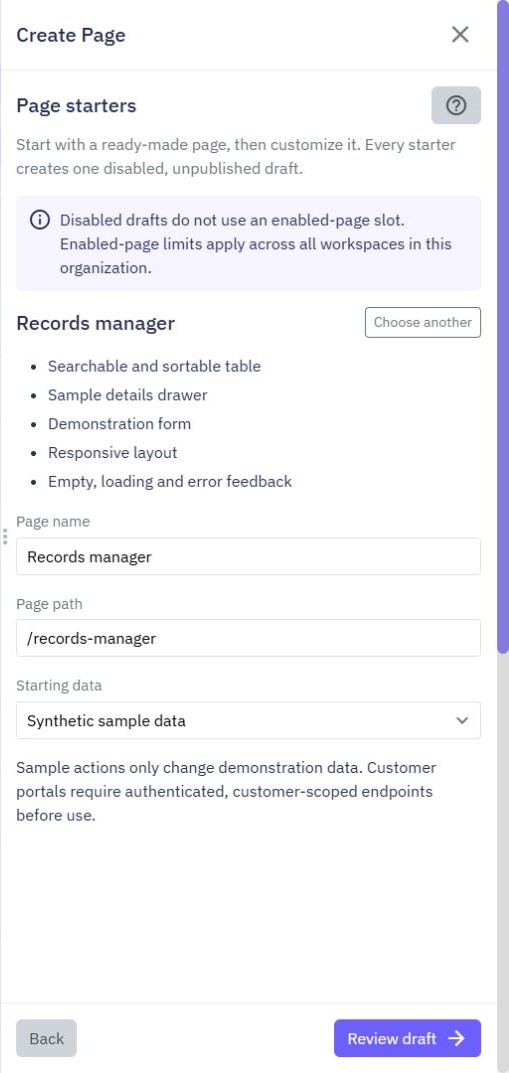
Select a starter and review the included features.
Enter Page name and a unique Page path, such as /stock.
Keep Starting data set to Synthetic sample data.
Choose Review draft in the sidebar footer. Check the sample table, included features and setup reminders.
Choose Create draft in the sidebar footer.
Use Back in the footer to return from the review to setup without losing your entries. From setup, Back returns to the Page starters gallery; from the gallery it returns to the page-type choices. The footer stays available while you scroll through the setup or review. Back is unavailable while a request is running or a draft creation still needs confirmation.
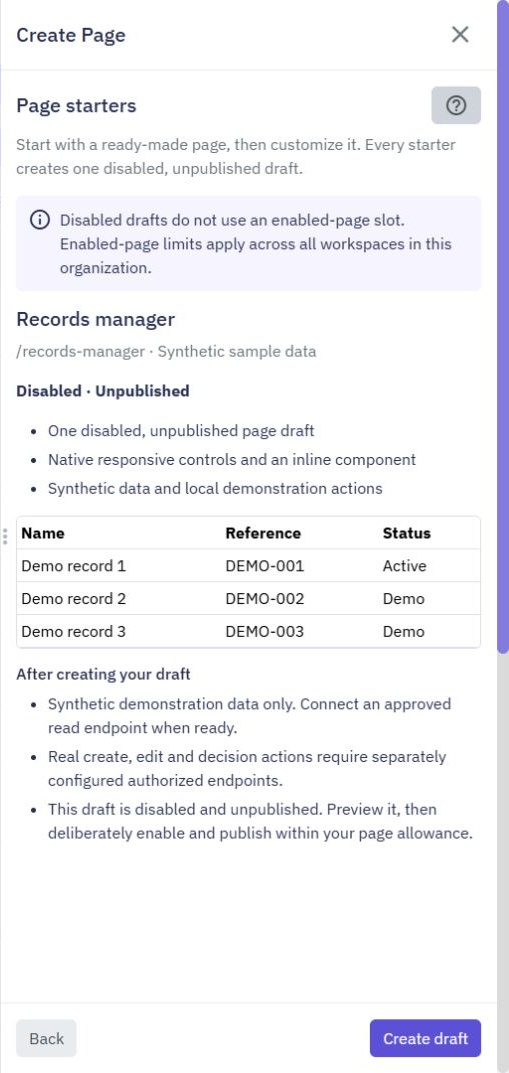
The new page opens in the editor. It is disabled and unpublished. Creating it does not call an endpoint, create a database table, publish a workflow or change customer records.
Use Preview to explore the sample. Demonstration actions only change the current page preview; they do not save changes to your database. Reloading the sample restores its starting data. Read the setup information included in the page before connecting real data.
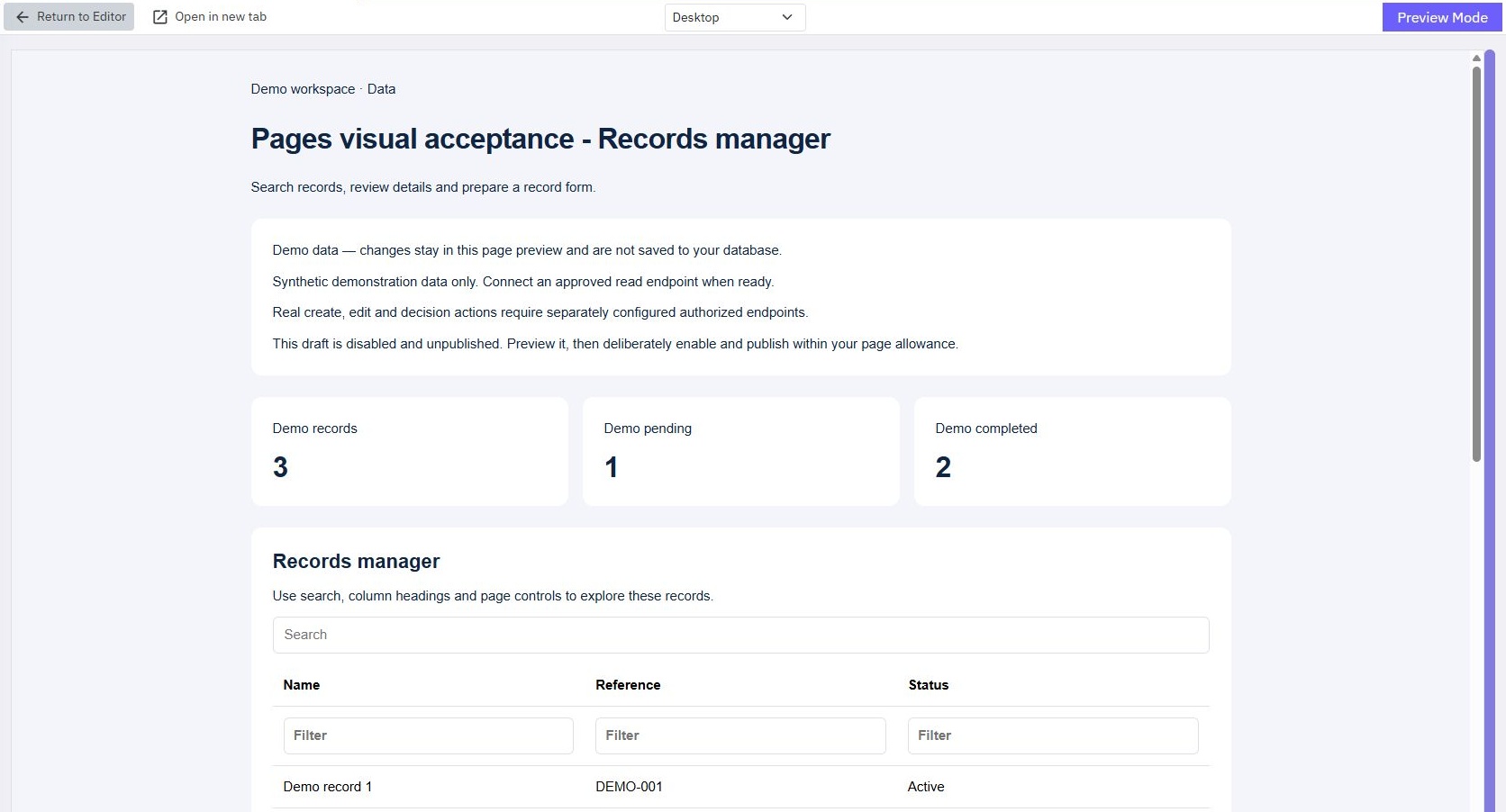
Use Return to Editor to continue editing. Reopening Preview restores the starter's saved sample records and clears demonstration form changes from the previous preview.
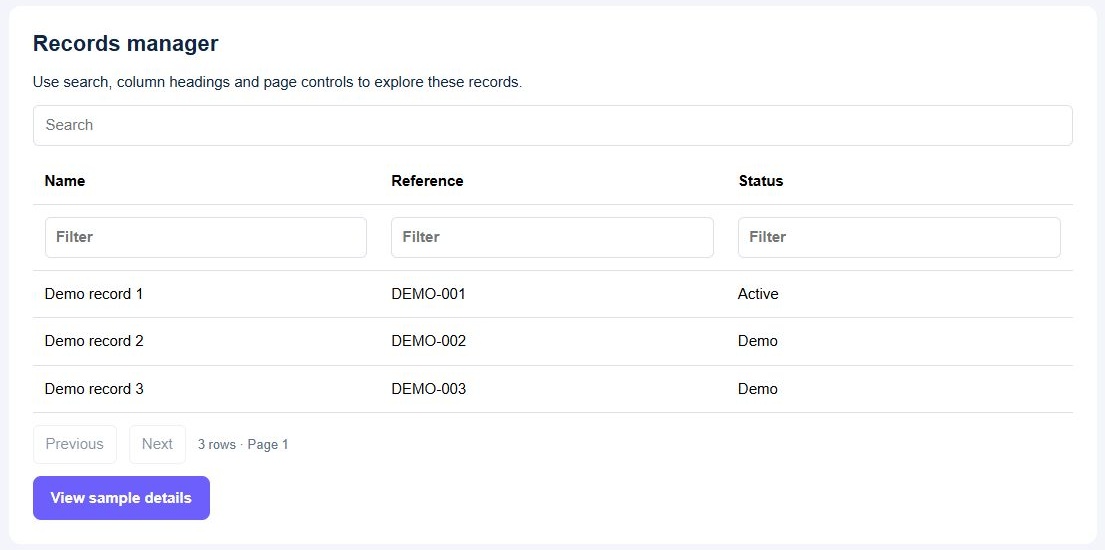
The records table below is part of a starter's sample preview. It includes search, column filters, paging and a sample details view.
The creation panel explains your current enabled-page allowance. The Free plan allows two enabled pages per organization, including pages in other workspaces in that organization.
A disabled draft does not use an enabled-page slot. You can prepare and preview it even when all enabled-page slots are in use. Making it available still requires an available slot and the normal enable and publish steps.
Starters use the workspace you already selected. They do not create another workspace or increase the account's workspace allowance. Endpoint choices come only from that workspace.
You can connect a starter's table to an existing read endpoint instead of the sample records.
Choose Existing read endpoint under Starting data.
Search for and select an approved, public published GET endpoint with a fixed path and no request-authentication requirement. Paths with parameters are not offered here.
Enter the result field for each column. These paths describe one record: for example, product.title or status.
Set Rows result field to the list in the response and Total result field to the total number of matching records. The defaults are rows and total.
Review the draft and its remaining setup, then create it.
For a response containing a list at data.records and a count at meta.total, enter those two paths. Column fields still refer to an individual record inside data.records.
Opening the wizard, reviewing or creating the draft does not call the endpoint. This starter connection does not supply an authentication header. Choose only an approved public endpoint containing nonconfidential data; do not remove authentication from an existing protected endpoint to make it appear here. Keep protected records in sample mode until authenticated access is configured and tested separately.
Requests can run when you preview the connected page, so choose an approved test endpoint while setting it up. See Page tables for paging, sorting and response requirements.
Connecting the list does not connect create, edit, approve or reject actions. Configure those separately with endpoints that check whether the signed-in customer is allowed to perform the action. Dashboard totals and charts remain labeled demonstrations until their own sources are configured.
A Customer portal is sample-only in this starter wizard. It also needs existing authentication and customer-scoped endpoints, connected and tested separately before use. The starter does not create customer accounts, supply authenticated requests or decide who owns a record. Hiding rows or buttons on a page does not restrict access to the underlying endpoint.
If you copy a connected Page to another workspace, the copy starts disabled and its table keeps the original API URL, Rows result field and Total result field. Copying the Page does not automatically reconnect it to an endpoint in the destination workspace. Before using Preview, enabling or publishing the copy, review Load pages from API, its URL and its result fields. Deliberately select the approved data source for the destination; do not assume a copied endpoint has replaced the original connection.
If the connection is interrupted, choose Check creation. The app checks whether that draft was already created. If no receipt is available yet, Retry same creation reuses the saved request rather than creating another copy.
The pending request is retained in this browser tab's session when you close and reopen the creation panel or reload the tab. Keep using the same tab until creation is confirmed. Do not start a second copy in another tab while the first request is unresolved.
For a clear refusal, such as an existing page path, return to setup, correct the details and review again. If the selected account, organization or workspace changes, reopen the panel in the intended workspace before continuing.
Use the editor's Properties, Appearance and Events groups to configure the page. Select an ancestor in the breadcrumbs to move from a nested element to its containing layout. See Page overview and Page tables.
Preview the finished page, test customer access and any actions you configured, then deliberately enable and publish it through the usual page controls. Creating a starter never makes it available automatically.
You can choose Publish to review and save the starter's first version before making any edits. Publishing that first version leaves a disabled Page disabled. After a version is published, the usual review lists subsequent changes before you publish again.
Page Components
Page components are reusable building blocks within the Twidget platform that enhance development efficiency by allowing users to create, manage, and implement consistent UI elements across multiple pages. They serve to encapsulate functionality and design into a single entity, which can be reused a...
Page Commands
The new page commands in Twidget are designed to enhance the interactivity and responsiveness of web pages created with the platform. These commands allow developers to retrieve contextual information about the current page session and manipulate its content dynamically. Key Concepts. - Page Variabl...
Page Variables
Page variables in Twidget are global variables that are accessible throughout an individual page, allowing for dynamic content generation and manipulation within the application. These variables can be utilized in various contexts, such as element settings or page functions, enabling developers to c...
Generating Form Pages
Generating form pages in Twidget enables the automatic creation of user input forms that can be utilized for various purposes such as lead generation, customer information retrieval, and interactive message boards. This functionality allows developers to directly map user inputs to form objects, whi...
Page List Loop
The Page List Loop Element in Twidget is a powerful feature designed to enable dynamic repetition of UI elements based on a data source. By utilizing this component, developers can create interfaces that automatically display lists of content, allowing for more interactive and data-driven applicatio...

