Cache values let an endpoint, server function or event reuse temporary data. For example, save a product summary for five minutes instead of requesting it from another service every time.
A cache is temporary. Keep permanent records in your database and make sure the workflow can obtain the original data again when a cached value is missing.
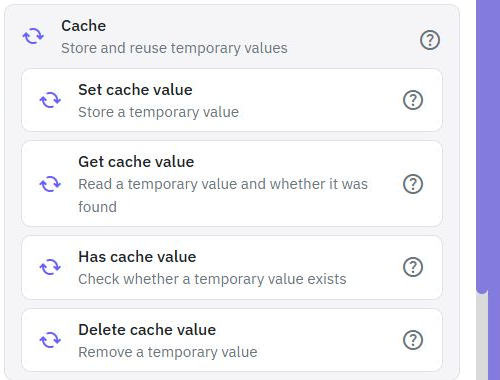
In your workflow, add a command and choose Cache. The four commands use the same key to store, find or remove a value. Keys are case-sensitive: product-summary and Product-summary are different.
Use the familiar value selector to enter a key or choose a workflow variable. Give the command's result a name in Return as so later commands can use it.
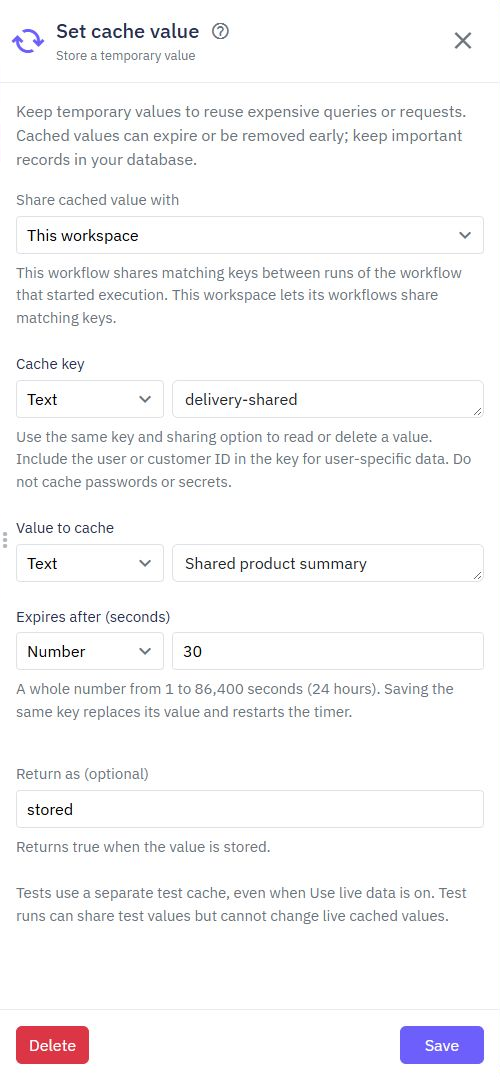
Choose a Key, the Value to save and how many seconds it should last. The default is 300 seconds (five minutes). Choose a whole number from 1 to 86,400 seconds (one day). Saving the same key again replaces its value and starts the chosen duration again.
The result is true when the value was saved and false when temporary storage was unavailable. The workflow should still be able to use the original value if storage fails.
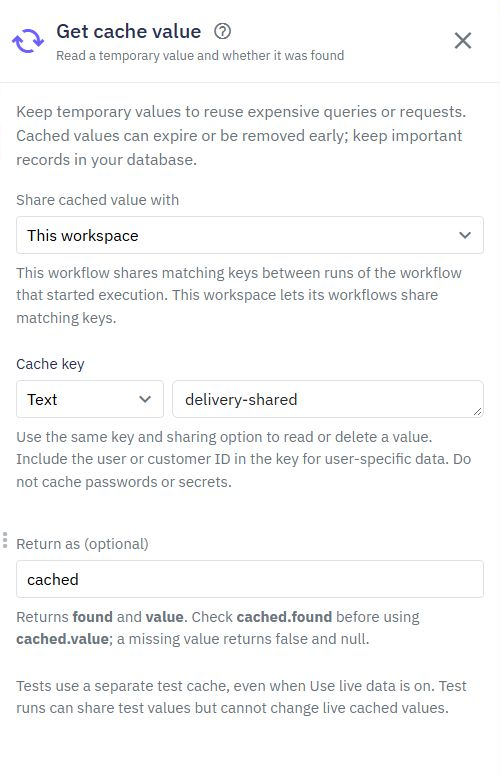
Choose the same key and sharing option used when saving. The result contains:
found: true when the entry is available; false when it has expired, was removed or cannot be read.
value: the saved data when found; otherwise null.
If Return as is cached_summary, check cached_summary.found with a condition. When true, use cached_summary.value. Otherwise, obtain a fresh summary and save it with Set cache value.
Check found rather than testing whether the value is true: false, 0, an empty list and null can all be valid cached values.
Return true if the key currently exists, or false if it is missing or unavailable. This does not return its data. An entry can expire between commands, so use Get's found result when you also need the value.
Remove a key when its original data changes. For example, after updating a product, remove its cached summary so the next request obtains the updated information.
The result is true if an entry was removed and false if it was already missing or storage was unavailable. Use the same sharing option as the Set command.
Tests use their own cache, including tests with Use live data enabled. They do not read or change entries used by real calls. Repeated tests can share test entries, so use Delete or a different key when you need a fresh start.
Try Set, Get, Has and Delete with a short duration. Confirm Get returns found: false after expiry or removal. Cache commands are available in server workflows, not page workflows or database transactions.
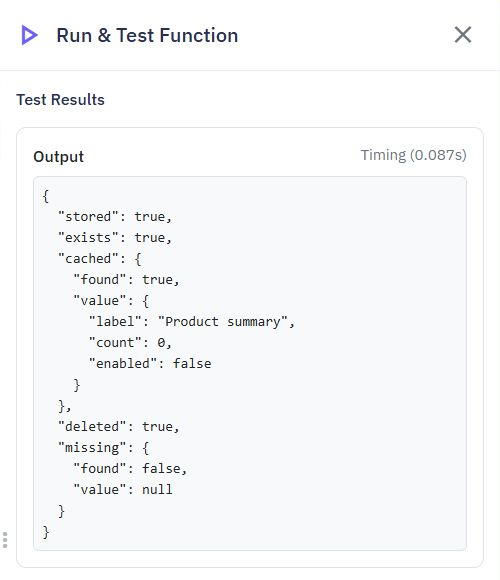
This test stores a summary, reads it, deletes it and then confirms it is missing. The saved zero and false values are preserved.
Keep keys short and meaningful; each key supports up to 1,024 bytes. Values support ordinary text, numbers, booleans, objects, lists and null, up to 2 MiB. Avoid saving files or very large query results.
Dates, including dates within database results, are returned as ISO-formatted text, such as 2026-10-15T10:30:00.000Z. Convert them back to dates if a later command needs a date value.
A workspace supports up to 32 active entries for real calls and a separate 32 for tests. If all entries are in use, saving a new key returns false. Replace an existing key, delete an entry you no longer need or let it expire before saving another.
Entries may disappear before their chosen duration if temporary storage is cleared or unavailable. Choose durations that fit how often the original data changes. Concurrent requests can both miss a key and obtain fresh data; caching is not a lock and does not guarantee that an action runs only once.
Do not use cached values as your only record of payments, stock changes or other important actions. Existing authentication, API limits and workflow permissions still apply.
Send Message
Send SMS Command. With Twidget, you can send SMS messages to phones using the `Send SMS` command. This functionality varies depending on the provider. Currently, we support Twilio as the SMS provider. To use Twilio for SMS integrations, you will need: - A Twilio account ID - Twilio Auth Token - A Tw...
AI connectors
For every command’s inputs, results, examples and common errors, open the [detailed connector reference](/docs/connectors/overview). The command editor’s help button opens its exact reference section. Use an AI provider from an endpoint, server function or event. Choose your organization's connector...
Date
Twidget offers a variety of commands to manipulate date objects. Below are the available commands along with their respective descriptions, inputs, and outputs. Current Date. Description: Returns the current date and time. Output: - Type: DATE Add Time. Description: Returns the date plus a specified...
Conditionals
Condition Command. The Condition Command allows you to perform actions based on whether an expression evaluates to true or false. You can nest other commands within the true or false branches of the condition, enabling complex logic flows. - Expression Builder: Validate two variables to equal true. ...
Conversion
Overview. Twidget's conversion commands allow you to easily convert different data types to the required format. Below is a list of the available conversion commands and examples of how to use them. The `Convert to Text` command converts the provided value to a text (string) format. Examples: - `123...

