Keep reusable workflows in a private library within your workspace. Save a useful endpoint, function, middleware or event, then install independent draft copies when you need the same starting point again. Related workflows are included automatically where supported.
Open Workflow templates from the sidebar. Search the library by name, filter by workflow type or tag, and sort by name or date. This uses your current workspace and existing workspace limits; it does not create another workspace.
Choose Save workflows as template.
Enter a Template name, optional Description and Tags (comma separated).
Use Capture from to choose Current drafts or Published versions. Choose published versions when you want the saved live definition rather than unfinished edits.
Find and select your workflows. Search or filter by type, and use Next workflows for more results. Your selections stay selected across searches and pages.
Choose Review template. Read Included workflows, Required setup, Included text values and What is not included, then choose Save to library.
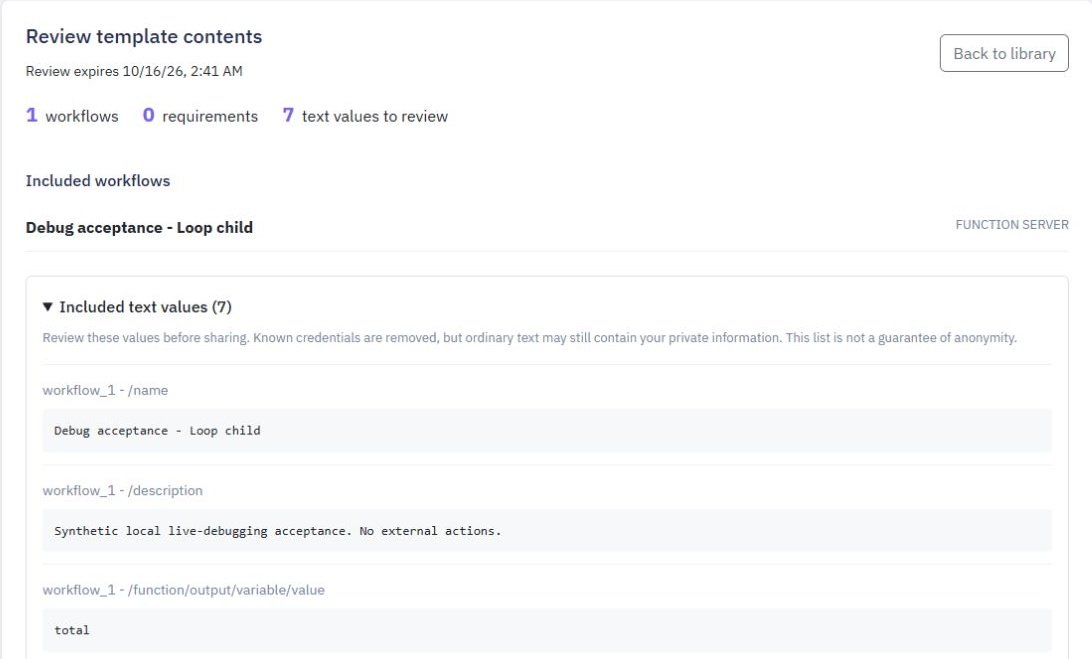
The review includes supported dependencies, such as functions called by your chosen workflow. Inherited middleware is captured as an explicit ordered chain. Installing it does not change the destination workspace's middleware defaults.
Some page-bound or account-specific workflows cannot be saved as templates yet. If a review reports an unsupported command or missing dependency, resolve that issue before trying again. Self-contained client functions can be included when they do not depend on a page or layout.
Saving a template does not install it. Select a library item, choose its Saved version, then choose Install draft copies.
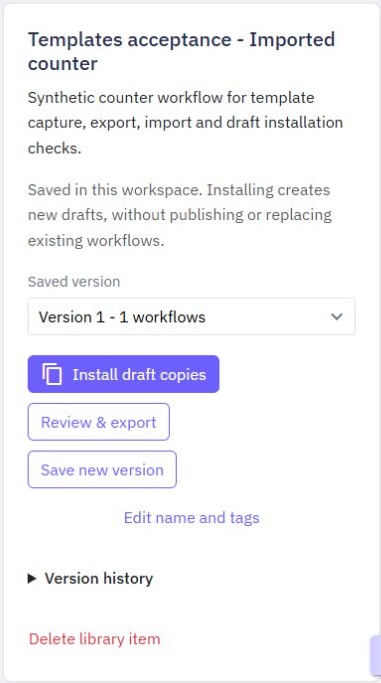
Give each new workflow its own New workflow name, or a New endpoint path for an endpoint. Existing names and paths cannot be overwritten.
Complete any required setup. Use Find an existing resource, Find and Use existing resource to choose compatible tables, secrets, global variables, connections or realtime channels already available in this workspace. Configure missing resources separately, then return to the installation.
Choose Review installation and inspect the proposed copies and setup checklist.
Choose Create draft copies and confirm. Open the links under Your draft copies are ready to check and test them.
Installation does not publish or run anything. Functions and middleware remain unpublished. Endpoints remain disabled and unpublished. Events remain inactive, unpublished and unscheduled; table triggers are not attached automatically. Review inputs, mapped resources and outputs, test the new workflows, and publish or enable them deliberately when ready. See Testing and Publishing.
Copies are independent. Editing a template or saving another version does not update copies you installed earlier. Installing also leaves existing destination resources and their saved values unchanged.
Export downloads a file; it does not install workflows into another workspace.
Select the library item and Saved version you want to share.
Choose Review & export. Read the included workflows, setup requirements and remaining text values carefully.
Select I reviewed the included values and want to download this version., then choose Download JSON.
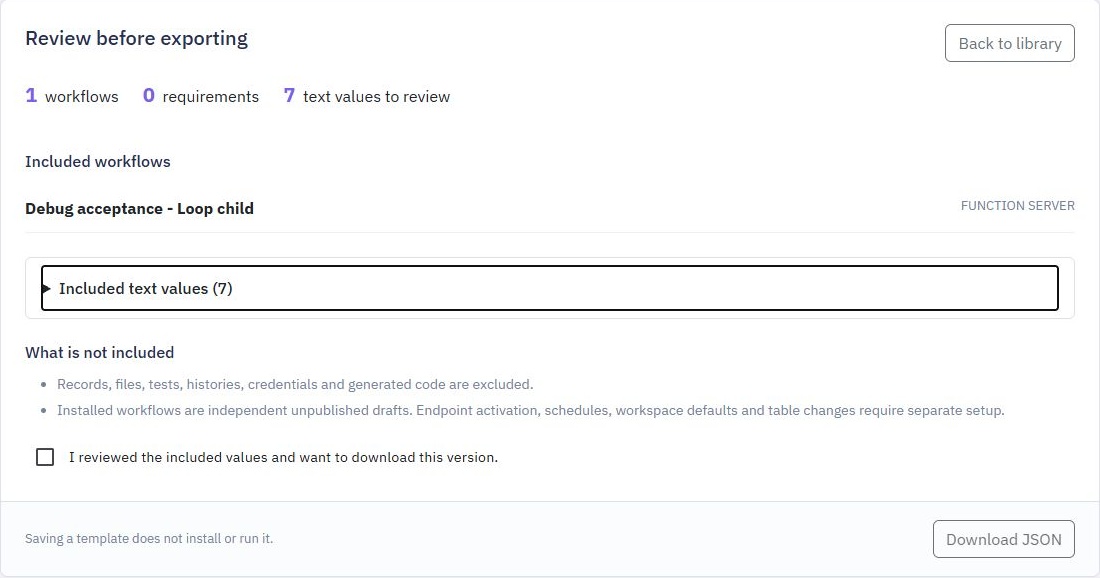
Known credential fields are replaced with setup requirements. Customer records, uploaded files, test data, logs and run history are not included. However, ordinary text values can still contain private information you entered into commands. Review does not guarantee that a template is anonymous or safe to share with everyone. If you find private text, correct the source workflow and save a new template version before exporting it. Share the file only with people who should receive its contents.
Choose Import template.
Select a Template JSON file and enter a Name in your library.
Choose Review imported template. Check its workflows, text values, required setup and exclusions.
Choose Save to library when the review is suitable.
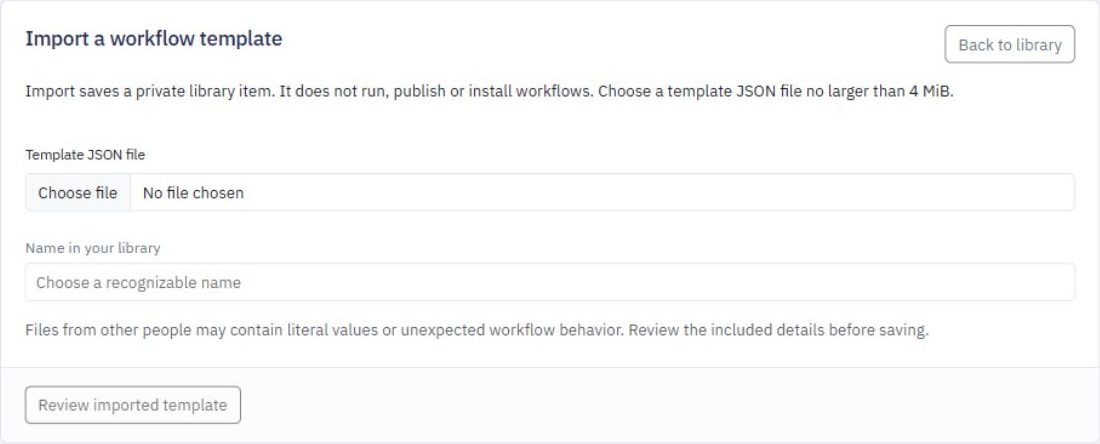
Import saves a new library item. It does not install, publish or execute the contents. Use Install draft copies separately, supply your own destination resources, and test the resulting drafts. Only import files from sources you trust; a valid file does not prove who created it.
Use Save new version to capture a fresh set of workflows into an existing item. Earlier saved versions keep their original contents. Edit name and tags updates the library description without changing those saved workflow definitions.
Use Saved version to choose an older version. Version history shows the saved versions and lets you remove an old version you no longer need. The latest version cannot be removed individually. Delete library item removes the item and its saved versions after confirmation. Neither action deletes installed workflow copies.
A workspace can hold 50 templates, with up to 20 versions each. A template package is limited to 4 MiB, 100 workflows including dependencies, 2,000 commands and 100 setup requirements. Shared storage limits also apply: 64 MiB of saved packages per workspace and 256 MiB per organization. If a limit is reached, remove unneeded library items or old versions, or save a smaller set of workflows.
Reviews expire after 15 minutes. If a review expires or its source or selected resources change, create a fresh review. Up to four unfinished reviews can be held per organization; finish one or wait for it to expire before starting another. Busy shared capacity may also require waiting and retrying.
Installation confirmations are retained for up to 30 days and have separate capacity limits. If installation history is full, wait for older confirmations to expire. Deleting installed workflows does not clear this retained history.
Installation checks the names and paths relevant to the workflows you are copying. Installation was not created confirms that the request was refused without creating new drafts or changing existing workflows.
For a reported name or path conflict, choose different New workflow name or New endpoint path values and review the installation again. If the message asks you to contact support to repair the workspace, contact support before trying again. You do not need to delete or rename existing workflows to keep using them.

This is different from an uncertain outcome. If the connection did not confirm what happened, follow the guidance below and keep checking the same installation.
If the connection is lost during installation, keep the same installation open. Use Check outcome to see whether its copies were created, or Retry same installation when offered. Avoid starting a second installation while the first outcome is unknown. Return to Check this installation to reconcile the pending action before continuing.
Use Reusable Middleware for shared before-and-after logic, or Safer Releases when you want to promote reviewed changes between existing development and production workspaces.
Changes
In Twidget, every modification you make in our no-code builder is meticulously documented and stored as a change. Whether you are creating an input or editing a command, each action is captured in the platform. Important: Please note changes will not go live until they are published. Viewing Changes...
Safer Releases
Move a reviewed set of published workflows from a Dev workspace to a Prod workspace. Releases let you review the changes together, keep a release history and review a rollback if you need to restore the previous workflows. Prepare your workspaces. Use two existing workspaces in the same organization...
Reusable Middleware
Middleware is a reusable workflow that runs before or after an endpoint, function or event. Build it once, then apply it wherever you need the same input checks, response formatting or logging. Create middleware. Open Middleware from the sidebar and choose Create Middleware. Give it a clear name, su...
Command Output
Some commands in Twidget return outputs, which are essential for dynamic and conditional logic within your workflows. These outputs are displayed next to the command and are prefixed with an "as" to indicate the variable name. Using Output Variables. Once a command returns an output, you can use the...
Functions
In Twidget, you can build custom reusable functions. These functions can be utilized across various sections including endpoints, events, and other functions. Instead of creating the same commands repeatedly, you can create a function once and reuse it wherever necessary, making your workflow more e...

