Send live updates to your app while your customers are signed in. Use a channel for order progress, notifications or a shared activity feed, instead of asking the app to repeatedly check for changes.
Realtime messages are temporary notifications. Keep important information in your database so your app can load the latest state when it opens or reconnects.
You need customer authentication in your app. A customer signs in through your authentication endpoint, then uses that login when requesting permission to connect. Your Twidget editor login is not a customer login. See Creating Authentication Endpoints.
Channels belong to the selected workspace. Set them up separately in Dev and Prod; using this feature does not create another workspace or increase your workspace allowance. Copying or promoting a workflow does not copy channel settings or overwrite Prod channels. Before releasing, create the required channel names with the intended access in Prod. Release review checks fixed channel names; review variable-based channel selections yourself. Missing or disabled channels stop the realtime command rather than sending to another audience.
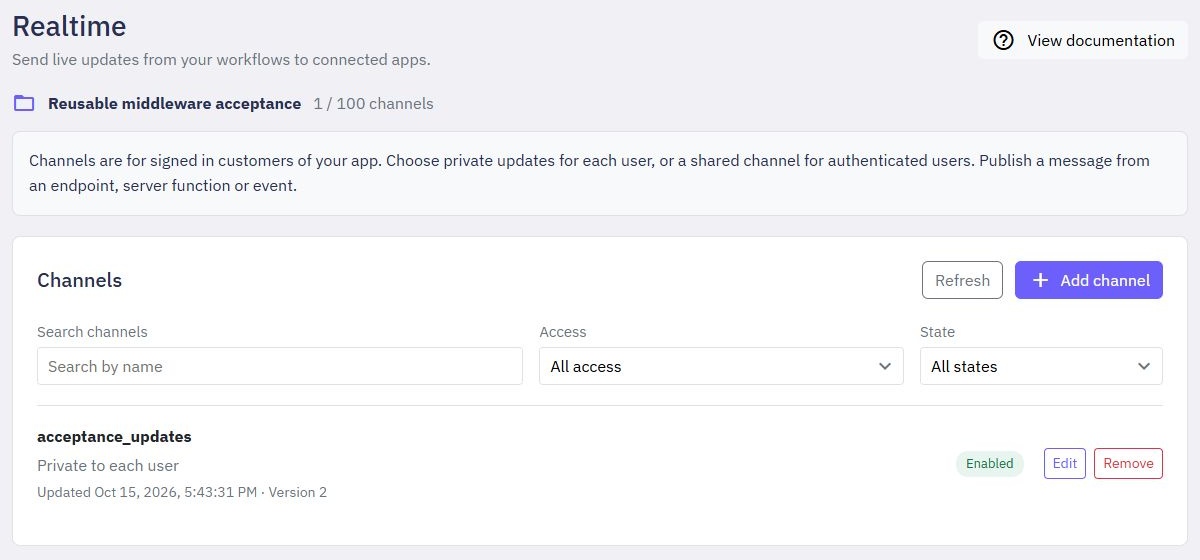
Open Realtime in the sidebar.
Select Add channel.
Enter a name, such as order_updates. Use up to 64 letters, numbers, underscores or hyphens, starting with a letter or number. Names are case-sensitive.
Choose Access and leave State enabled when you are ready to use the channel.
Select Save channel. A notification at the bottom confirms saving.
A workspace supports up to 100 channels. Use the search, access and state filters to find an existing channel before adding another.
Create an endpoint that requires customer authentication. Add Authorize Realtime, choose the channel name and set Return as, for example connection.
Return this result to the signed-in customer's app. It contains a one-use ticket, its expiresAt time, the channel and whether it belongs to a real call or a test.
The ticket lasts 60 seconds. The app sends it in the first message when opening the realtime connection; do not put it in the connection address or share it between customers. An expired or already-used ticket cannot be reused. Obtain a fresh ticket when reconnecting.
A page or an external app needs a realtime client connection to receive messages. Published Twidget pages include an optional TwidgetRealtime connection helper; see the integration example below. Adding a channel alone does not create a live feed or automatically connect your app. See the Realtime command reference for the workflow commands.
Add Publish Realtime Message to an endpoint, server function or event:
channel: the configured channel name, such as order_updates.
event: a short name for the update, such as order_ready.
data: the information your app needs, for example an order ID and its new status.
recipient_id: the customer's ID for a private channel. Leave this empty for a shared channel.
Use the normal variable selector to choose your workflow values. Set Return as to retain the result. A result of true means the message was submitted for live delivery; it does not confirm that a customer received or read it.
Keep messages small. A message must fit within 64 KiB, including its event details. A workspace supports up to 120 publish attempts per minute; each customer can request up to 20 connection tickets per minute.
The channel list shows access, state, last update and version. Edit changes its settings. Renaming a channel means workflows and connected apps must use its new name. Changes to the channel require connected apps to obtain a fresh ticket and reconnect.
Disable a channel to stop new messages without removing its definition. Remove asks for confirmation before deleting the channel. If another editor changed it first, refresh and review the latest settings before trying again.
For a full connection check, use a synthetic customer account in your Dev workspace and call its authenticated API endpoint. This is a real API call in that Dev workspace, using the normal receiving address.
The editor's Test runner cannot issue connection tickets, even with Use live data enabled, because it does not carry a customer login. Publish commands run from editor tests use an isolated test audience and do not reach customers connected to real API calls.
If connection permission fails, check the customer's login, the channel name and whether the channel is enabled. A private publish also needs a valid recipient customer ID. After changing a channel, sign in again if needed and obtain a new ticket.
Connections last up to 15 minutes, or until the customer login expires if that happens sooner. They may close earlier when access changes or the connection is interrupted. Refresh the app's data after reconnecting.
This version supports authenticated live delivery. It does not offer anonymous channels, publishing directly from a client connection, online-member lists, message history or automatic replay of missed messages.
A workspace supports up to 32 active connections, with up to 5 for one customer. Each connection joins one channel. Your app's address must be allowed by the workspace's cross-origin settings; see API Settings. A different app address may need to be added before it can connect.
The app first calls your authenticated ticket endpoint. In the example below, connection is that endpoint's returned authorization result. Replace YOUR-API-HOST with your workspace's actual API host.
const path = '/twgt-realtime';

const handle = TwidgetRealtime.connect({

  url: 'wss://YOUR-API-HOST' + path,

  ticket: connection.ticket,

  onMessage(update) {

    // Use update.event and update.data to refresh the relevant app view.

  },

  onStatus(status) {

    // status.state is connecting, ready, closed or error.

  }

});

handle.ready.catch(() => {

  // Show a connection message; get a new ticket before trying again.

});

// Close when leaving the screen or signing out:

// handle.close();
The helper is available on published Twidget pages. In another frontend, use a compatible receiving client with the same connection protocol. It supports up to eight connections in one browser page, waits up to five seconds for authorization and closes connections when the page is left. It never reconnects automatically with a used ticket.
Keep the address free of query parameters. The first text message must contain only the ticket field. The connection answers with type: "ready", channel, mode and expiresAt. Later messages contain type: "message", id, event, data and createdAt.
The connection only receives updates; sending other messages closes it. Create a fresh authorization result before reconnecting. The authenticated API flow described here returns a real-call ticket for its own workspace. Close the connection and remove callbacks when the app no longer needs them.
Command Output
Some commands in Twidget return outputs, which are essential for dynamic and conditional logic within your workflows. These outputs are displayed next to the command and are prefixed with an "as" to indicate the variable name. Using Output Variables. Once a command returns an output, you can use the...
Output
Each function also has an optional output where you can return an output variable. To simplify the use of functions, you can define an output schema. The output schema acts as an internal documentation detailing what the output of the function will look like. This makes it easier to understand and u...
Data Types
Twidget supports six main data types to facilitate interactions within the platform. These data types are essential for defining inputs, outputs, and table fields, helping users understand the nature of the data being handled. The available data types in Twidget are as follows: Text. - Description: ...
Dynamic variables in JSON and text
Build JSON bodies and messages using values from your workflow. The Insert variable picker lets you choose inputs, earlier command results, nested object fields and list items without typing their references. Choose a nested field or list item. 1. Open a command value or function output and choose J...
Commands in Twidget
Commands are the building blocks of Twidget's no-code platform. They function like code statements and can perform various operations such as creating and updating variables, loops, conditionals, retrieving and manipulating data in the datastore, and much more. Creating a Command. 1. Navigate to the...

