In Twidget, a workspace serves as a dedicated environment for creating resources that contribute to an API's development. An organization can have multiple workspaces, each capable of creating a single API.
Within a workspace, you can create the following resources:
By organizing resources and functionalities within workspaces, Twidget allows for efficient and segregated API development and management for each organizational unit.
After signing in, enter a Workspace name and choose Create A Workspace. No questionnaire is required. The welcome tutorial opens after your first workspace loads, so you can learn the basics and start building.
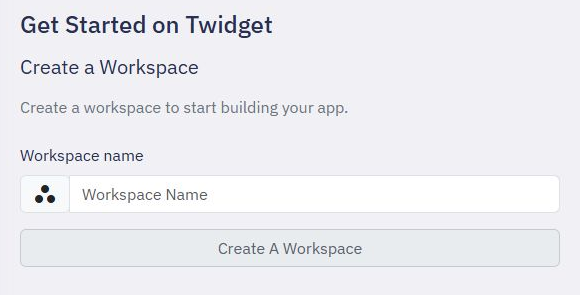
You can replay the tutorial later from Help → Start Tutorial. See Guided walkthroughs.
Choose Dev or Prod in Environment when creating a workspace. On the Workspaces page, use the workspace menu to select Mark as Dev, Mark as Prod or Remove environment label later.
These labels help your team recognise where to work. Changing a label does not move data, publish changes or change permissions. Use a separate workspace with sample data when trying new features.
Open Globals & secrets to manage the selected workspace's ordinary configuration and private values. Existing variables use $global; protected secrets use $secrets in server workflows. Secret values are never shown after saving.
Dev and Prod workspaces can use the same secret names with different values. Changing an environment label does not switch secret values. Copies, releases and rollback keep destination secrets in place; configure required values in that destination before running its workflows. No extra workspace is created, so this also works within your account's existing workspace allowance. See Globals & secrets.
From a Dev workspace's menu, select Copy resources to workspace. Choose the destination and review the selected resources and their required dependencies before confirming the copy.
Copying is allowed from a labeled Dev workspace to another Dev or Prod workspace. A Prod workspace cannot be the source, and an unlabeled workspace cannot be a source or destination. Copies include selected resource structure and required dependencies, not table records or private credentials. Existing matching resources are not overwritten; review any named conflict before retrying.
In this example, selecting workflows also includes the event they need, marked Required dependency. Review all selected resources before choosing Copy.
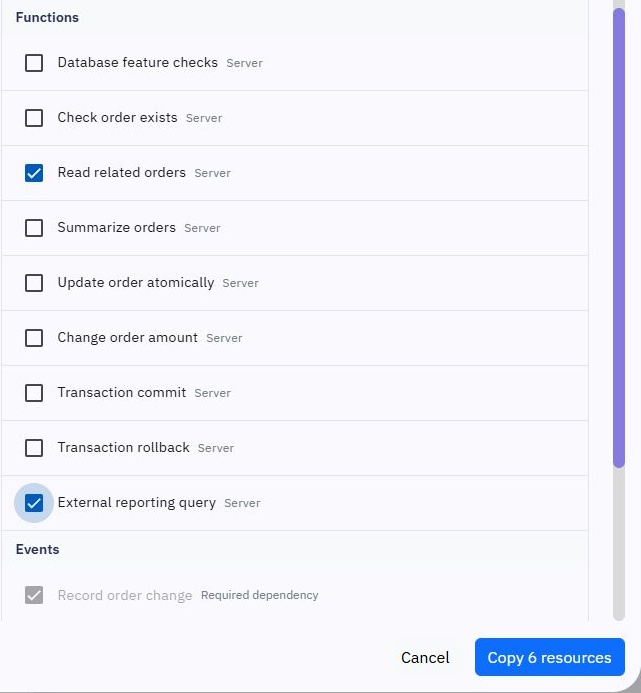
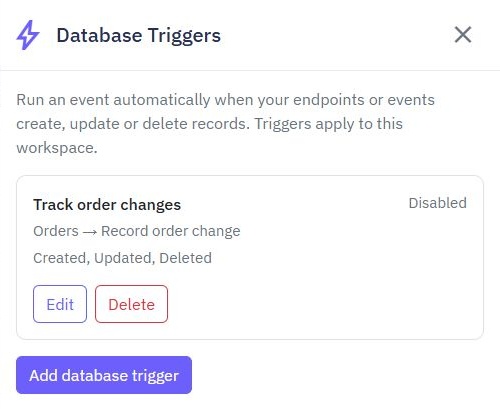
Review and test the copied workflows in their destination before using them. Database trigger settings start disabled. External-query commands need a connection selected in the destination workspace; their credentials are not copied.
The copied trigger below is Disabled. Check its destination table and event before enabling it.
AI assistance
The former AI generation entry point is now part of Twidget Assistant: one task-based conversation for help, planning and reviewed resource proposals, including native page drafts. Open Assistant in the workspace sidebar or use the small Twidget Assistant helper. In Auto, discuss your goal and answe...
Delete your Twidget account
Open My Account from your account menu. Delete account is on the left of the sidebar footer; Update stays on the right. The confirmation dialog lists the account and the organizations and workspaces included in deletion. Read that list before continuing. Cancel closes the dialog without deleting any...
Dashboard
Open Dashboard from the sidebar for an overview of the selected workspace. Its activity charts and shortcuts help you find recent traffic, errors and workflows. The monthly allowance panel covers your whole organization, including its other workspaces.