


Verify a Signed Webhook Before Changing Data
Verify an HMAC SHA-256 webhook signature against the exact raw body and reject tampered requests before changing data.
Watch tutorial (8:17)
Verify an HMAC SHA-256 webhook signature against the exact raw body and reject tampered requests before changing data.
Watch tutorial (8:17)Create checksums, protect text with encryption, sign and verify messages, and compare private text in endpoints, server functions and events. Find these commands under Security when adding a command. They use the familiar variable selector and Return as field.
Keep shared signing keys in Globals & secrets and choose their $secrets.NAME reference rather than writing a private key into a command.
Choose text to produce its checksum, a 64-character hexadecimal result. Exactly the same text produces the same result; changes to spaces, line breaks or letter case produce a different result.
For example, the digest of abc is ba7816bf8f01cfea414140de5dae2223b00361a396177a9cb410ff61f20015ad.
Use this to check whether content changed. A checksum does not prove who sent it. For passwords, keep using Hash Text and Match Hashed Text; a fast checksum is not a password-storage method.
Choose message, the exact text to sign, and secret, the shared signing key. The result is a 64-character hexadecimal signature.
Both sides must use the same message text and secret. Follow the other service's signing instructions: some services sign a timestamp together with the body, rather than the body alone. Do not change spaces or reformat the message after signing it.
Choose the exact message, the shared secret and the received signature. The result is true when they match, or false when they do not. Use a condition to stop the workflow before making changes if verification is false.
The signature must contain exactly 64 hexadecimal characters. Uppercase and lowercase hexadecimal characters are accepted. If the service sends a prefix such as sha256=, remove that prefix before passing the signature to this command. Other signing formats or algorithms need their own matching verification method.
Use this when a service signs the original JSON request text. It returns the original body text, preserving spaces and line breaks. Rebuilding text from the parsed body can change it and cause signature verification to fail.
A typical webhook workflow is:
Read the signature from the request header specified by the sending service.
Use Get Raw Request Body and retain its output as raw_message.
Use Verify HMAC SHA-256, selecting raw_message, your workspace secret and the received signature.
If the result is false, return an error before changing any records.
Check the sender's timestamp and whether this event has already been processed, then continue with the intended action.
The raw body is available for real JSON endpoint requests up to 100 KiB. It is null in tests, events and requests without a captured JSON body. For an editor test, supply a known message as text; then check the real webhook flow with the sending service.
A valid signature alone does not prevent the same message being sent again. Use the sender's documented timestamp rules and an event ID or other duplicate-processing check before payments, stock changes or similar actions.
Choose left and right to compare two exact text values using a comparison designed for private values. The result is true when the text matches and false otherwise, including different lengths.
This does not verify a webhook's signing rules or make a reusable password hash. Use the dedicated HMAC verification and password commands for those tasks.
Generate a fresh encryption key for Encrypt Text. The result is a random key encoded as text. Keep it securely, for example in Globals & secrets, and use the same key when decrypting saved data.
Generate a key when setting up or rotating encryption, rather than generating a different key every time you want to read an existing encrypted value. Losing the key means the protected text cannot be recovered. Keep a secure recovery copy according to your own key-management process. Test results and traces hide generated keys.
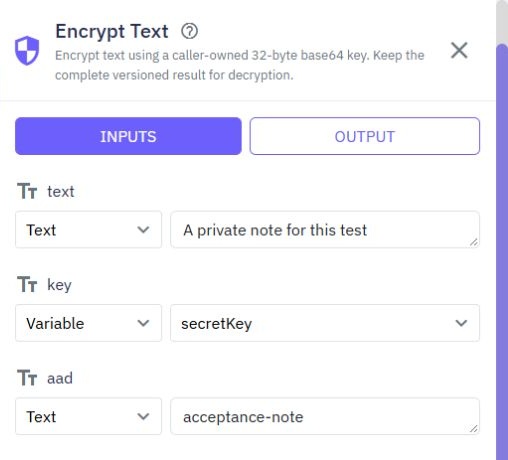
Choose text, the exact text to protect, and key, a 32-byte key encoded in base64. Generate Secret Key creates a key in the correct format. Select a saved key through $secrets.NAME instead of writing it into the command.
The command uses authenticated AES-256-GCM encryption and returns an object containing version, algorithm, iv, tag and ciphertext. Keep the complete object together, for example as a field in your saved record. The command creates a fresh random nonce automatically, so encrypting the same text twice produces different encrypted results.
Optionally choose aad, associated text such as an order ID. This ties the encrypted value to that context. Use exactly the same associated text when decrypting. Associated text is not encrypted or included in the returned object; keep it available separately if you use it.
Encryption does not save the result automatically. Add a database command to store the returned object if it needs to survive the current run.
Choose encrypted, the complete object returned by Encrypt Text, and the same key. If encryption used associated text, supply that same aad.
The result is the original text. A changed ciphertext, missing or changed tag, wrong key or different associated text produces an error; the command does not return partially decrypted text. Use the versioned object unchanged. Other encryption formats or older encrypted data need a matching decryption method.
Encrypt and Decrypt support text up to 1 MiB. Associated text supports up to 16 KiB. Keys must use the exact generated base64 format; ordinary passwords are not valid encryption keys.
Use a private/public RSA key pair supplied for your integration. Select message, the exact text to sign, and private_key, an unencrypted PEM private key held in a workspace secret.
The result is a base64 signature using RSA with SHA-256 and PKCS#1 v1.5 padding, often called RS256. Share the corresponding public key with the receiving service; keep the private key private. Do not use the symmetric key from Generate Secret Key here: encryption keys and RSA key pairs are different.
Select message, public_key and the received base64 signature. The result is true for a valid matching signature and false for a mismatch or malformed signature. Use a condition to stop the workflow when it is false.
The sender must use the same RSA signing method. This command accepts a public PEM key, not a private key or a certificate. It does not check a token's issuer, audience or expiry, and does not replace your existing login or authentication-token commands.
RSA keys must contain 2,048 to 4,096 bits. PEM key text supports up to 16 KiB, and messages up to 1 MiB. Password-protected PEM private keys and other key types are not supported in this version. If cryptography is temporarily busy, the workflow receives an error instead of waiting indefinitely; retry only when doing so will not repeat another important action.
These commands accept UTF-8 text. They do not automatically convert objects, lists or numbers into message text. Each text input supports up to 1 MiB. HMAC secrets must be nonempty and no larger than 16 KiB; signatures must use the hexadecimal format described above.
Command values are hidden in execution-trace previews. Generated encryption keys and private signing-key inputs are also protected in supported diagnostics, including later log commands in the same run. Do not deliberately return a private signing key, copy it into a log message or include it in a customer-visible response. The digest or signature may be returned when that is part of the service's intended protocol.
These commands are available only in server workflows. Existing login, password recovery, password hashing and authentication commands retain their behavior. Text encryption protects the value you pass to it; it does not automatically encrypt an entire file, database or workflow. Protecting stored data also requires suitable access permissions and careful handling of the original text.
With SHA-256 Digest, the exact text abc produces ba7816bf8f01cfea414140de5dae2223b00361a396177a9cb410ff61f20015ad. Choose the command's return variable as the function output and run an isolated test to check your setup. Extra spaces or a newline change the digest.
Text
Twidget offers a variety of commands to manipulate text in various ways. To Uppercase. Converts all characters of the provided text to uppercase. - text: The text to be converted to uppercase. - A text string with all characters in uppercase. To Lowercase. Converts all characters of the provided tex...
Advanced file commands
Prepare CSV downloads, work with small ZIP archives and share a temporary download link from an endpoint, server function or event. Find these commands under File Manager when adding a command. Use the usual variable selector and Return as field. The existing file commands still handle storage, fold...
Process images
Read image details, make smaller copies, crop, rotate or change the format. Add these commands from File Manager in an endpoint, server function or event. They also work when a published function is called in the background and in supported endpoint test suites. Choose your image. Use a file contain...
Read and create spreadsheets
Use Read spreadsheet and Create spreadsheet under File Manager in a server workflow. They work with XLSX files and simple typed cell values. For CSV text files, use [Advanced file commands](/docs/commands/advanced-files). Read spreadsheet. Choose File, containing its actual contents. Use an uploaded...
AI connectors
For every command’s inputs, results, examples and common errors, open the [detailed connector reference](/docs/connectors/overview). The command editor’s help button opens its exact reference section. Use an AI provider from an endpoint, server function or event. Choose your organization's connector...