


Merge PDFs and Extract Pages or Text
Inspect and merge private PDFs, select pages in a new order, extract existing text, then save and verify the downloaded result.
Watch tutorial (5:12)
Inspect and merge private PDFs, select pages in a new order, extract existing text, then save and verify the downloaded result.
Watch tutorial (5:12)Inspect a PDF, combine documents, copy selected pages into a separate file, or read existing text. Find PDF information, Merge PDFs, Select PDF pages and Extract PDF text under File Manager when adding a command to a server workflow.
Use a file containing its contents. Choose an uploaded file, an earlier command's file, or Get File with Include bytes enabled; select it with the usual variable control. A path alone is not enough. See Managing Files.
Choose File. The result includes page_count, input size and a list containing each page's number, width, height and rotation.
Choose Files, an ordered list of 1 to 8 PDFs. Pages are copied in file order: the first document's pages come first, followed by the next document. The combined document may contain up to 50 pages.
Save the result with Return as. You receive a new PDF; no source document is overwritten.
Choose File and Pages. Page numbers start at 1. The list 1, 3, 2 produces a new PDF with page 1 first, then page 3, then page 2. Repeating a number repeats that page: 3, 1, 3 produces three pages in that order. Choose at least one valid page and no more than 50.
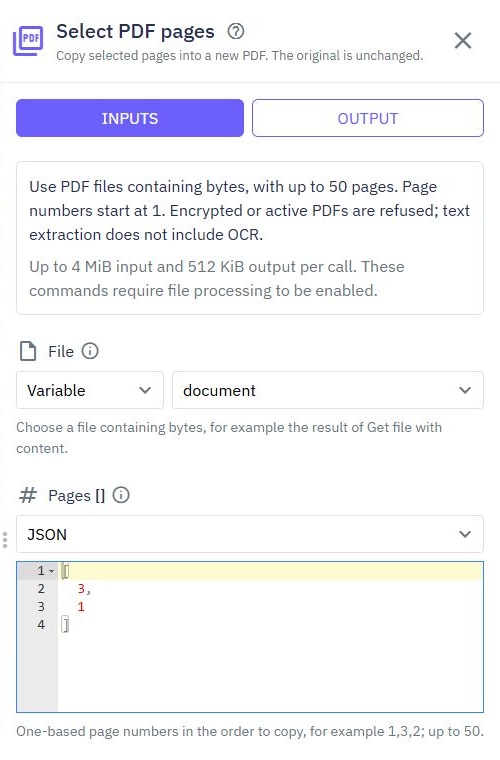
Use this command to split a document by running it once for each group of pages you need. The original stays unchanged. New files are not automatically saved to storage or shared publicly.
Choose File and optionally Pages. Leave Pages empty to read all supported pages. The result includes:
pages: each selected page number and its text.
text: the selected text together, in your chosen order.
page_count and extracted_page_count.
has_text: whether any selected page contained text.
This reads existing selectable text. A scanned image does not become text; there is no OCR. An empty text result can be correct for a scanned or blank page. Text order follows the document's stored content and may differ from its visual reading order.
Inputs together may total 4 MiB, with up to 50 pages. A new PDF file may be up to 512 KiB; extracted text is limited to 1 MiB. Large or complex documents may also reach processing limits.
Encrypted PDFs, scripts, actions, forms, attachments and external references are refused. Some compressed PDFs are not supported in this first version. If a document is rejected, try a simpler PDF export with those features removed; changing its filename does not make it supported.
Test with small samples before using your own documents. Busy capacity, unsupported content and processing limits produce errors. These commands can be used in ordinary server tests, inactive event tests, background functions and supported endpoint suites. See File processing limits and errors, Testing and Test suites.
Conversion
Overview. Twidget's conversion commands allow you to easily convert different data types to the required format. Below is a list of the available conversion commands and examples of how to use them. The `Convert to Text` command converts the provided value to a text (string) format. Examples: - `123...
Loops
In Twidget, loops allow you to execute commands multiple times, either based on a condition or through a set number of iterations. Loops can also be nested, meaning you can run loops within other loops, creating complex logic for your tasks. List Loop. The `List Loop` command enables you to loop thr...
Process images
Read image details, make smaller copies, crop, rotate or change the format. Add these commands from File Manager in an endpoint, server function or event. They also work when a published function is called in the background and in supported endpoint test suites. Choose your image. Use a file contain...
Connector Commands
Connector Commands allow you to integrate Twidget projects with external services such as Google Drive, Slack, OpenAI’s ChatGPT, and many others. These commands provide ready-made actions that communicate with third-party APIs, removing the need to manually create and maintain external HTTP requests...
Managing Files
Twidget offers a set of commands to manipulate files in your file store. Below are the descriptions and usage of each command to help you understand how to utilize them effectively. For CSV, ZIP archives and temporary download links, see [Advanced file commands](/docs/commands/advanced-files). Get F...