Use the Assistant to discuss an idea, get help and prepare changes to your workspace. You can ask questions before deciding what to build. A conversation can cover several resources, rather than belonging to a single page or API.
Choose the headset button at the bottom right, Assistant in the sidebar, or Help → Twidget Assistant, to open a small help panel. The page behind it remains usable, so you can follow instructions while editing your resources. The headset button expands to show Twidget Assistant when hovered or focused with the keyboard. It is hidden while the full Assistant tab is already open, keeping its message box clear.
Check the active workspace name and environment in the navigation sidebar. Type a question immediately; your first Send creates a conversation and sends that message. Choosing a suggested question fills a draft but does not send it automatically. You can edit it before choosing Send. Use the recent conversations selector to continue an earlier task, or + to start a new conversation.

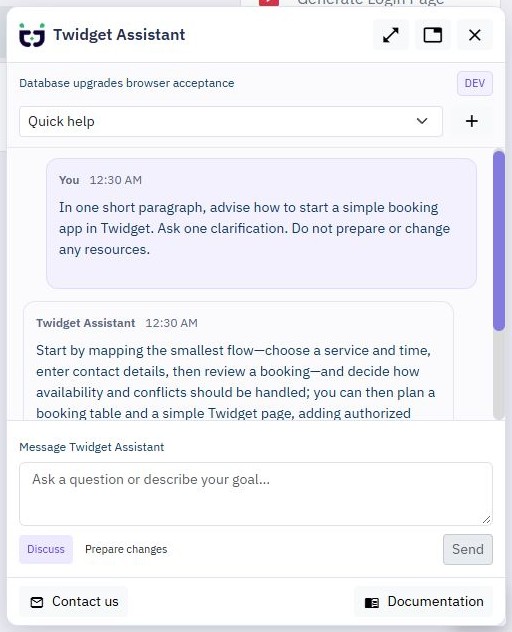
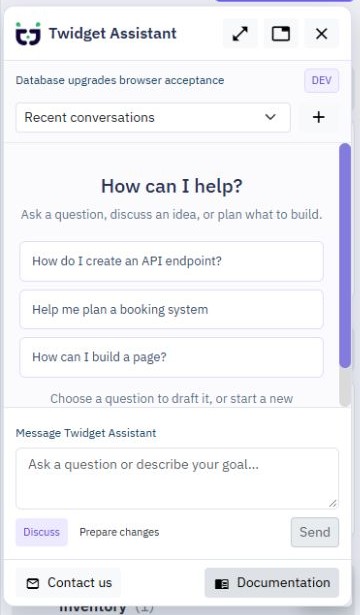
Choose Expand in the small panel for a larger modal. Choose Minimize in the modal to return to quick help, or Open in tab for the full workspace view. In the full tab, Open as modal, next to Chat and Resources & review, switches back. All three views share the same tasks, unsent drafts and running requests; switching views does not send a message or start another AI request. Closing a view does not stop work; use Stop to cancel a running request.
The full assistant includes task management and detailed resource reviews. Choose New task to start a conversation. Unnamed conversations automatically use a short version of your first message as their title. Use Rename whenever you want your own name, such as “Build a customer dashboard”; later messages will not replace it. An unsent first-message draft from quick help is carried into that new task without sending it automatically.
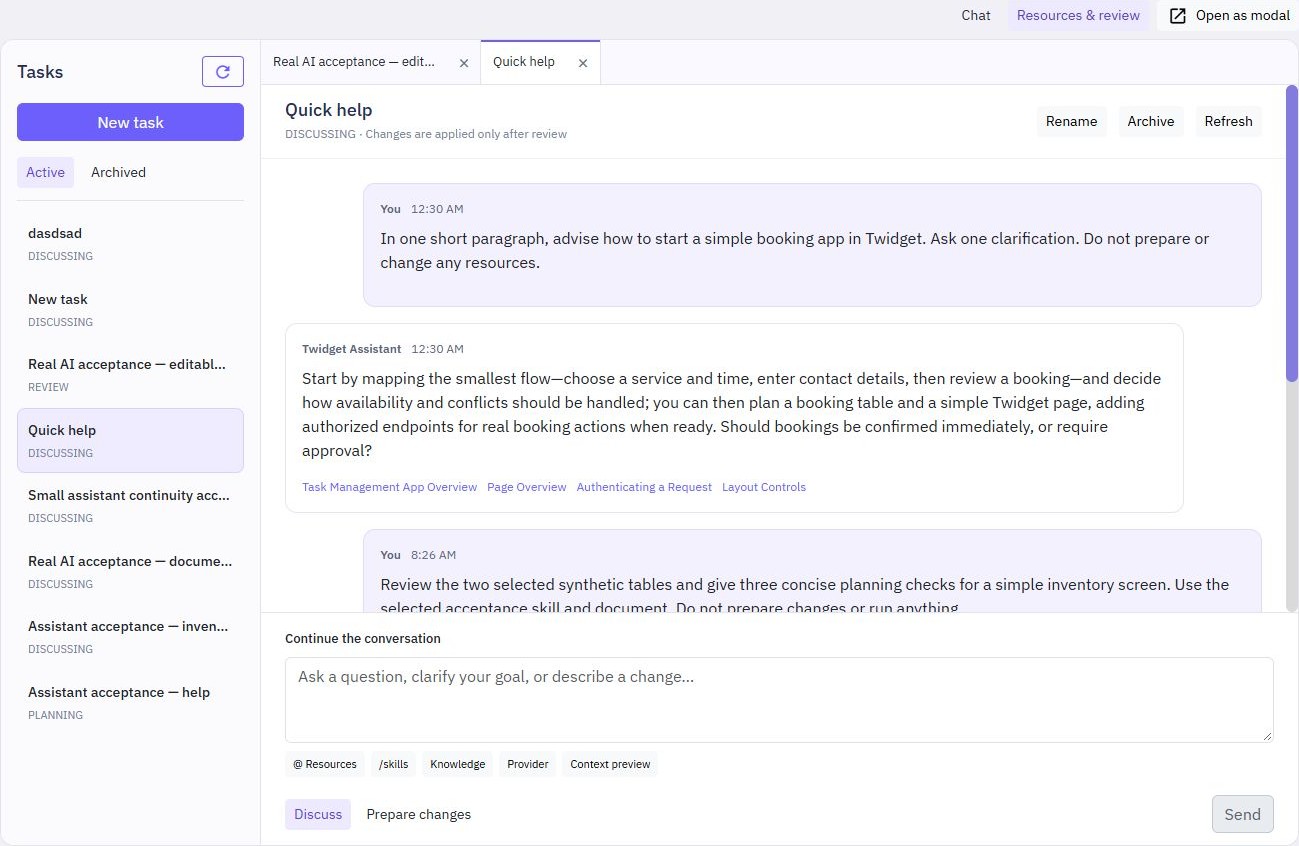
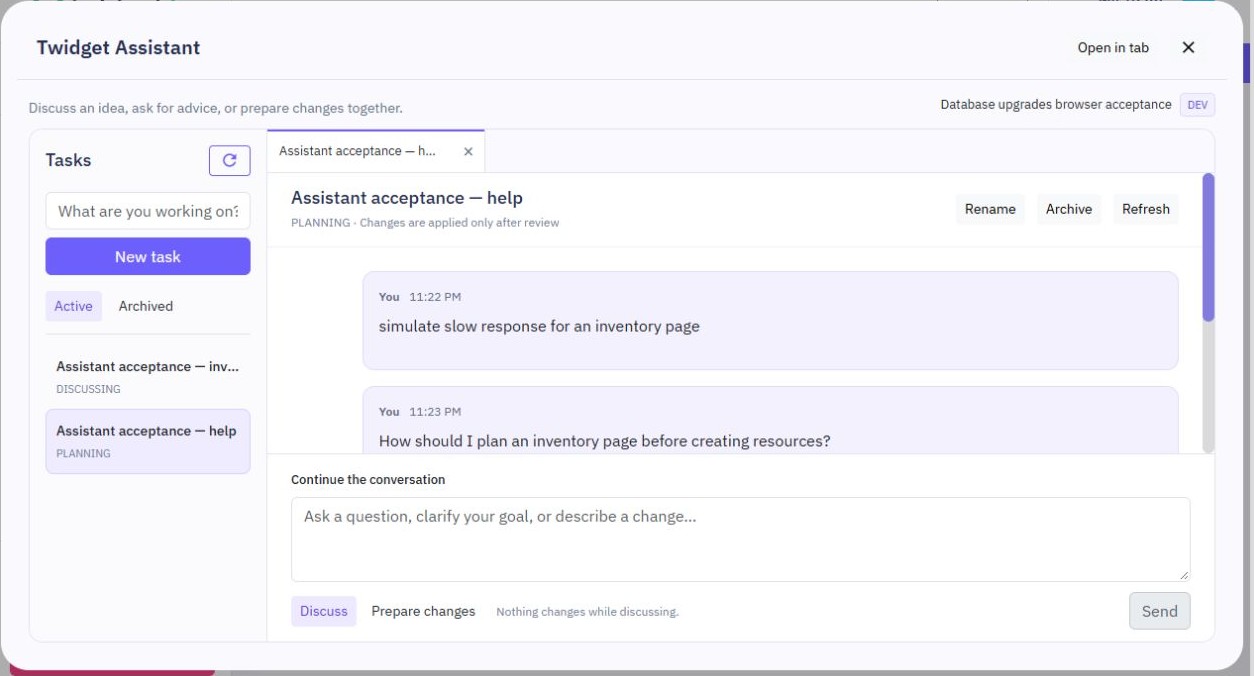
Each task has its own conversation and proposed changes. Open tasks appear in tabs, so you can switch between different jobs. Closing a tab does not stop a request or delete the task. Use Active and Archived to find older tasks, and Rename, Archive or Reopen to organize them.
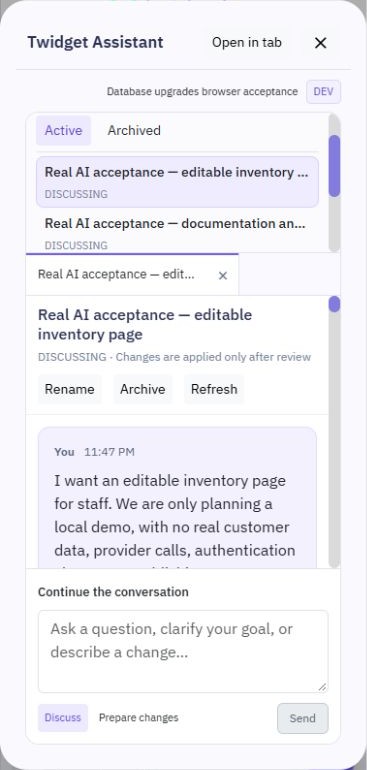
The modal also fits a phone screen. The conversation and review scroll while the message box stays available.
You can ask the Assistant to create or update server functions, endpoints and events using the connector command library. Connect the provider first in Settings → Connectors, then name the saved connection in your request. The Assistant can see compatible connection names and identifiers, not their passwords, keys or tokens. If more than one connection fits, tell it which one to use.
For example:
Prepare a function called Find projects. Use my Team Notion connection to search shared pages for Project, with a limit of 10. Return the results. Do not run it.
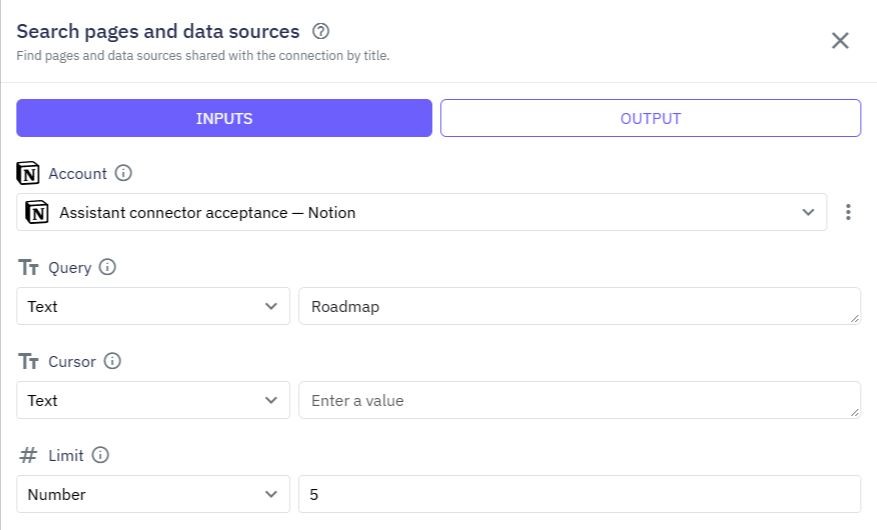
To change it later, mention the existing function by name and describe the edit. You can also choose it through @ Resources:
Keep the same connection and other commands. Change the search to Roadmap and the limit to 5.
Use Prepare changes to request a proposal, inspect Resources & review, and choose Save as draft only after reviewing it. Applying saves an unpublished draft; it does not contact the provider. Open the ordinary resource editor to inspect and test the resulting workflow before publishing. Provider permissions, limits, subscriptions and live account availability still apply.
An editor that was already open keeps its existing view so your unsaved work is not overwritten. Save or discard your own pending edits before closing/reopening that editor tab or refreshing its page to inspect the latest saved draft.
The Assistant asks for missing inputs or a connection choice instead of inventing credentials. Revoked or invalid connections cannot be used. A connection that is unverified may still be selected, but successful live execution is not guaranteed. If a connection is revoked, replaced or changed after review, prepare a fresh proposal.
Connector commands run on the server, not in page/client functions or inside database transactions. Generic authenticated HTTP requests that attach a connection to an arbitrary URL are not available for AI authoring; use a supported connector command. Connection creation, reconnection and authorization remain in their normal settings screens.
When editing an existing resource, unchanged structured payloads can be retained without sending their values back to the AI. Keep their commands and input identities intact. If an omitted input would have to move, be replaced or be reconstructed, provide the intended replacement explicitly or use the normal editor; the Assistant must not guess its previous contents.
Errors appear beside the affected controls: message failures at the message box, validation failures in Validation, proposal-action failures beside review controls, and task errors beside the task list or task controls. Dismiss clears only that alert. Errors stay with their originating task when you switch conversations. A small indicator and accessible description on Chat or Resources & review lets you know when the other view needs attention.
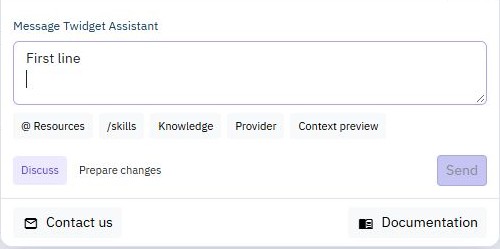
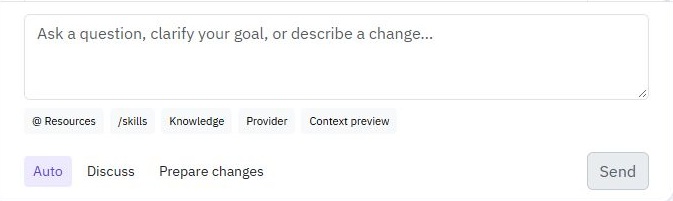
Type in the message box and choose Send, or press Enter. Use Ctrl+Enter to add a new line (Shift+Enter also works). Enter uses the selected Auto, Discuss or Prepare changes action and does not bypass connector requirements or send another request while one is pending. These shortcuts work in the full chat, modal and small assistant.
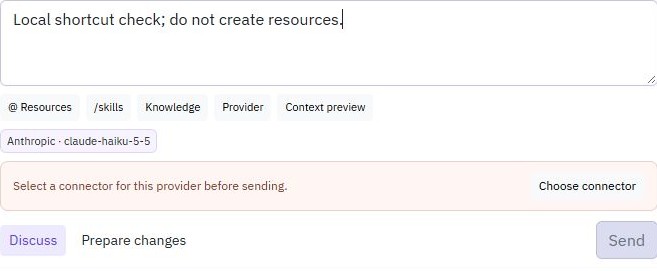
If a provider needs a connector, its warning appears beside the message box. Choose Choose connector to open provider settings; selecting a connector or returning to Twidget managed clears the warning. This works in the tab, modal and small helper.
Replies appear progressively while the Assistant writes them. A progress message shows whether it is reading selected resources, searching documentation, writing an answer or validating proposed changes. These are activity indicators, not completion estimates. The conversation scrolls to the bottom as the reply streams, including in the small helper and modal.
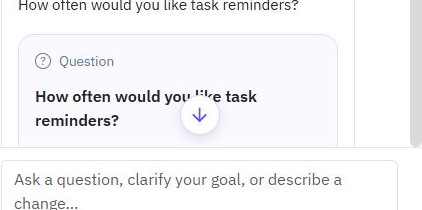
When you scroll up to read earlier messages, a down-arrow appears above the message box. Choose Scroll to bottom to jump to the latest content; the arrow disappears when you reach the bottom. This works in the full chat, modal and small assistant. You can also focus the button with the keyboard and press Enter or Space. Only the conversation scrolls, not the page behind it.
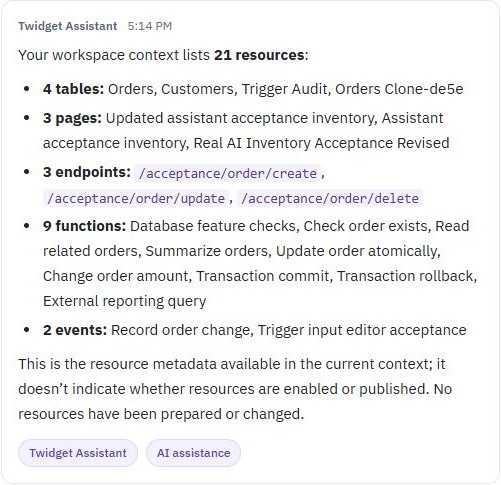
Messages keep compact spacing around the text while preserving paragraph breaks and lists.
Longer replies use short sections and grouped lists so you can scan resource summaries. API paths and field names can appear as inline code; longer code examples and wide tables scroll within the reply on narrow screens. Existing conversations keep their original text.

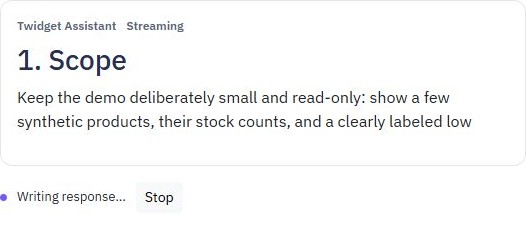
Partial replies are not saved proposals and cannot be applied. If the connection is interrupted, use Refresh task to check the saved outcome before retrying; retrying the same request does not intentionally start a duplicate run. Switching between assistant views shares the same running conversation.
Auto is the default. Describe your goal and continue the same conversation. For example:
I need a customer dashboard showing recent orders. What should I create first?
The Assistant can explain an approach, ask blocking questions and help refine the plan. When you have asked it to build or update something and the important requirements are clear, Auto can prepare a proposal without switching modes. Minor choices can use sensible defaults stated in the response rather than prolonging the planning conversation. Asking for advice or planning only does not authorize a proposal. Preparing a proposal never applies it: applying still requires your explicit approval.
Choose Discuss for discussion-only messages when you do not want proposals. Discussion does not create or change resources. Continue the same conversation to clarify your requirements; you do not need to start over after every answer.
Hover over Auto, Discuss or Prepare changes for a short explanation. Inactive buttons highlight on hover; the selected mode stays highlighted. Switching modes does not send a message. Each open task keeps its selected mode independently. Prepare changes explicitly requests a proposal to review, not an immediate change to your workspace.
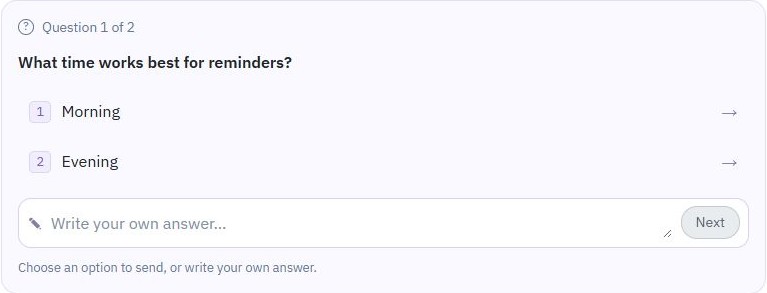
When the Assistant needs a decision, it shows a question card with numbered suggested answers. Clicking an option automatically sends your answer; there is no separate confirmation click. For several questions, each choice moves to the next question and the final answer sends all your answers together.
Use Custom answer to type your own response, then choose Send or press Enter. Ctrl+Enter or Shift+Enter adds a new line. Any existing draft in the main message box is kept and included when your answers are sent. Older questions become inactive once the conversation moves on. The same controls work in the full chat, modal and small assistant.
The Assistant asks about what your app should do, not Twidget's internal IDs or schemas. It obtains available setup details itself. If something cannot yet be connected automatically, it should explain the limitation in ordinary language rather than asking you to supply internal platform details.
The example below shows the controls in a local test conversation. Answering these questions does not itself apply resource changes.
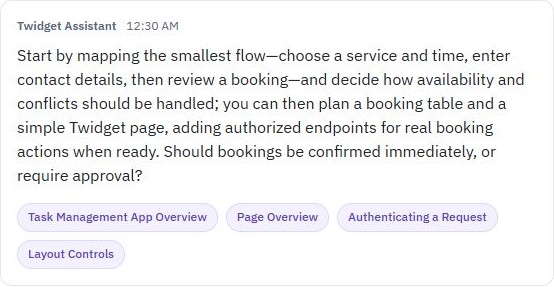
Published documentation can support answers with links. Search considers your task's goal and recent replies, rather than a short answer such as “title only” on its own. The Assistant shows only documentation guides it used to support the response. If none are useful, there are no documentation badges. If documentation search is unavailable, the Assistant says so. Do not treat an unsupported suggestion as proof that a feature exists or that a workflow has been tested.
Documentation links appear as purple pills below an answer. Choose one to open the guide in the Documentation sidebar without leaving your conversation. Documentation links in the answer text work the same way. From a modal or small helper, the assistant overlay closes so the guide is visible; your conversation and unsent draft are retained. On desktop, the sidebar also offers Open in new window. Pills wrap onto multiple lines on smaller screens and can be reached with the keyboard.
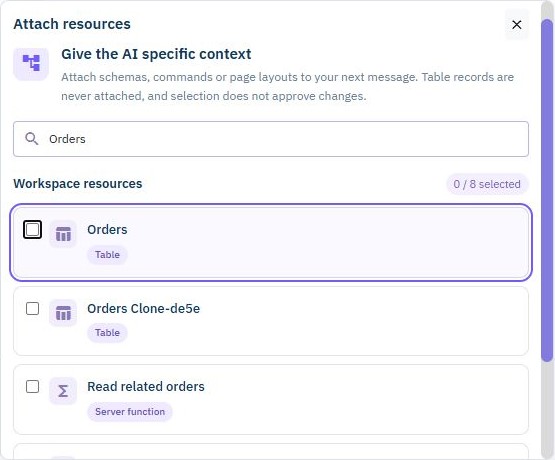
Choose @ Resources above the message box, or type @ followed by part of a resource name. Search your workspace and select up to 8 resources, such as a table, API, function, event or page. Cards show each resource’s name, type and page/API path when available, while the counter shows your current selection. The selected resources appear as chips; use × to remove one before sending. Use Load more resources when more results are available.
For example, attach your Orders table and Create order endpoint, then ask the Assistant to review their validation. Attaching them provides context; it does not grant permission to change them.
Attachments are references to resources in the current workspace, not copies of their records. The Assistant reads supported authoring details when you send your message. Credential-like settings and structured literal bodies are omitted; large definitions can also be omitted. It should ask for a narrower change rather than invent missing details. Never paste customer records or secrets to fill a gap.
Your task keeps its own selections. Check the workspace and selected chips when switching tasks or working in another editor.
In any chat, including existing conversations, mention the existing resource by name or path, for example: “Explain the Todo page” or “Update the /todos/delete endpoint.” The Assistant looks for matching workspace resources and reads their latest supported details without requiring an attachment. You do not need to start a new chat to use this.
For a follow-up, you can refer to a recent resource with phrases such as “that page” or “the same table.” The Assistant uses the recent conversation to find the resource and checks its current details again. If the reference is unclear or more than one resource matches, it should ask which one you mean rather than guess. Naming a different resource changes the target. A request to create a new app does not by itself select an existing app with a similar name.
When a page and table share a name, name the resource type explicitly, such as “Update the Todo page” or “Change the description of the Todo table.” The app's name alone may not identify which resource you want to change. You can always use @ Resources to choose the exact target.
The Assistant can propose an update to an existing table's description without changing its fields or records. Review and save that proposal separately, just like other changes. Table names and schema changes still need the ordinary table editor; this description-only update does not add, remove or rename fields.
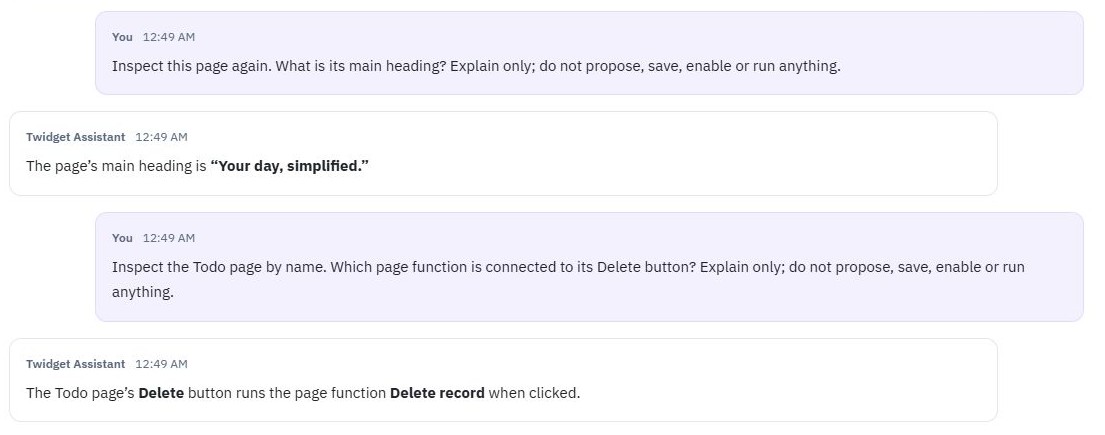
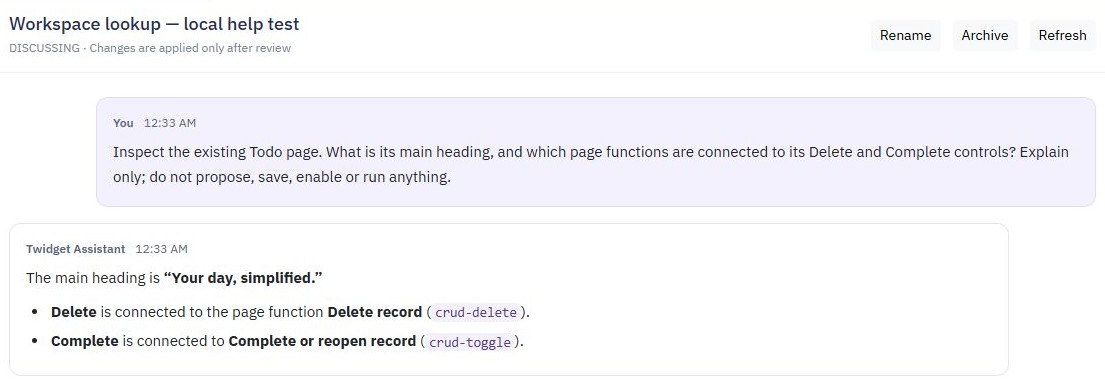
For follow-up work, the Assistant also automatically checks resources saved earlier in the same conversation, including pages. You do not need to attach the Todo page again just to continue working on the app it created. It reads the latest saved details; your explicit selections take priority if you want to work on a different page. Unrelated workspace resources are not automatically selected, and changes still need review before applying. Lookup does not run any workflow or change any records.
The pre-send context preview lists your manual selections. Relevant workspace resources and additional saved resources are checked automatically when you send the message. Lookup is bounded, so very broad requests may need a more specific name or smaller scope. @ Resources remains available when you want to choose the target yourself.
For example, a new chat can inspect the Todo page's heading and button connections without attaching the page. Asking for an explanation does not prepare or apply changes.
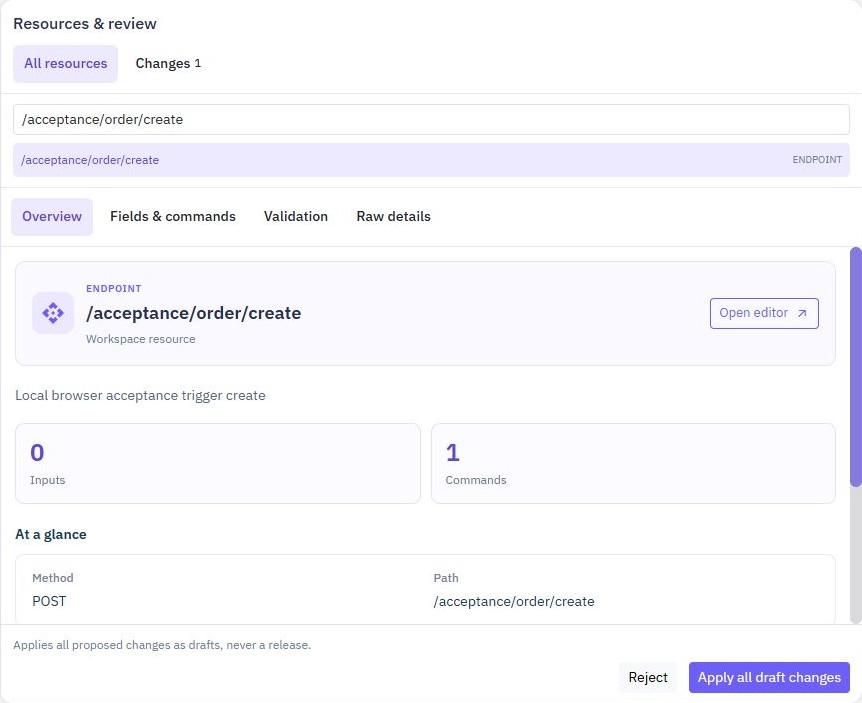
The full assistant keeps Resources & review hidden during ordinary conversations. Choose Resources & review to open it when needed, and Chat to close it and reclaim the space. Opening a task with saved resource changes also opens its review, including past applied or rejected proposals. This only displays the review; it never applies changes. Background refreshes respect a review you have closed. A fresh, non-empty proposal that is ready for review opens the pane automatically; empty proposals do not.
Your open/closed choice is kept separately for each task within the current app session and shared between tab and modal views. A fresh proposal opens review again so you do not miss its changes. On a wide screen, the open pane sits alongside the conversation; on a narrow screen, switch between Chat and Resources & review.
The wider Tasks list leaves more room for conversation titles. In All resources, hover a row to highlight it, then select it to inspect the resource.
All resources browses the current workspace, not just resources proposed in this conversation. Search, choose a resource and use Load more resources when needed.
Changes shows the resources in the current proposal.
Overview highlights useful settings, input/field/command counts and short previews of fields, inputs and the top-level command flow. Internal metadata and empty values do not fill the summary. Pages can show a native layout preview.
Field & command changes shows readable before/after details for an update. When browsing existing resources, this is labelled Fields & commands.
Raw details provides a read-only view for closer inspection. Null object fields are hidden, while array positions, zero and false values are preserved. It is not a code editor, and omitted values must not be treated as empty values to replace.
The Proposed changes card lists each resource with its type and whether it will be created or updated. Choose Review changes to inspect the complete proposal. Save as draft is available only when the current proposal has finished and passed validation. New endpoints and pages are saved disabled; saving updates preserves a resource's current enabled state.
The resource card appears in the conversation directly after the Assistant response that prepared it. Saving updates that card in place; later messages appear below it rather than above it. The same order is used in tab and modal views.
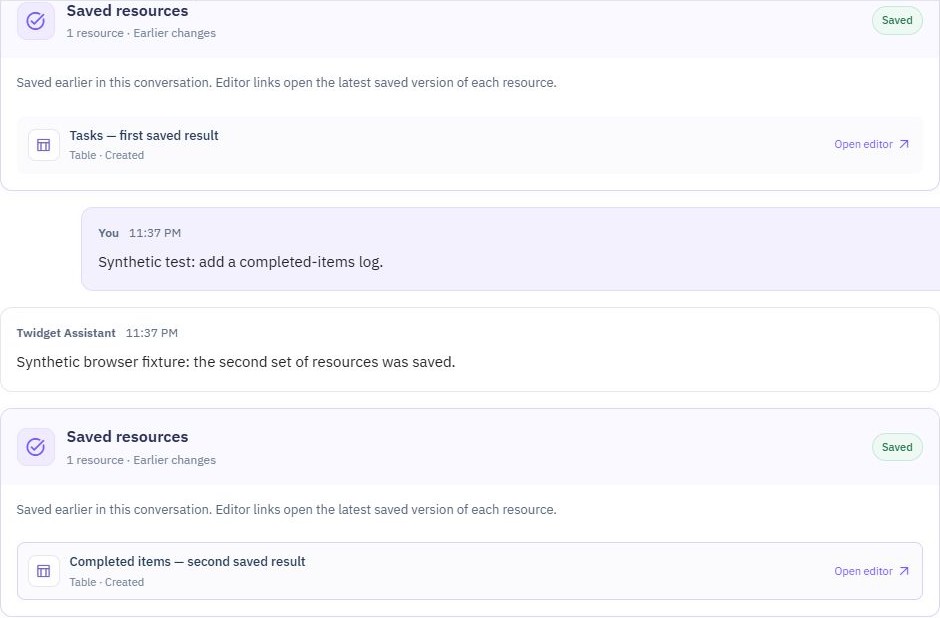
When you ask for more changes, earlier Saved resources cards stay in the conversation. They retain their editor links, which open the latest saved version of each resource. Only the newest proposal offers save and reject actions; earlier results cannot accidentally apply old changes again.
Example history with sample task-list resources:
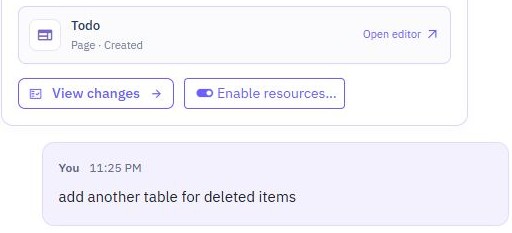
Choose Save & enable… if you want to make the new endpoints or pages available after saving. The Assistant first saves the reviewed resources, then opens Enable resources. For resources already saved, choose Enable resources… on the card. Both the proposal card and Resources & review offer the same actions: outlined Save as draft, or the purple Save & enable… button for supported resources. Both save the complete reviewed proposal, not only the selected resource.
For a newly created app, saving also prepares the backend to run. Save as draft still keeps its new endpoints and pages disabled. After you confirm enabling them, there is no additional Publish step merely to run those newly created resources. Review access and perform runtime testing before sharing the app.
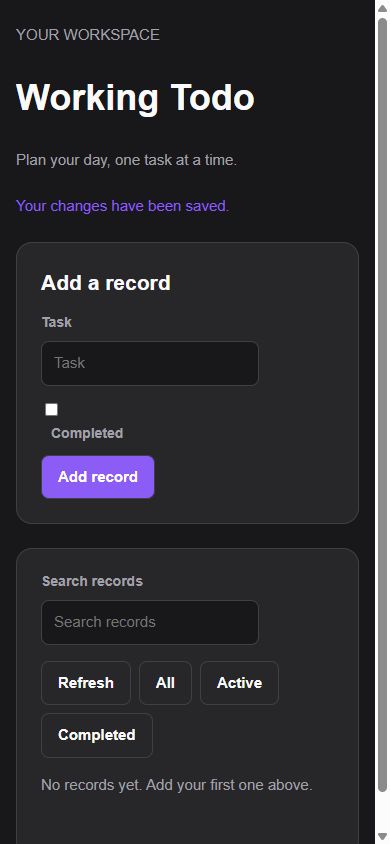
For example, open the generated task app and add a test task. Edit it, mark it complete, reopen it, reload the page to check that it was saved, and delete your test task. Check the page on a phone-sized screen too. A successful definition check is not a substitute for testing those actions.
Existing workflow updates are different: they remain drafts in the ordinary resource editor. Enabling a resource does not publish pending editor changes. Review and publish the intended workflow update separately; unrelated editor work is not promoted automatically.

Read the current access settings and warnings, then choose Enable reviewed resources to confirm. There is no additional checkbox. Opening the dialog or refreshing status does not enable anything. This explicitly enables the listed endpoints and pages; already-enabled resources remain enabled. If another person changes a resource after review, refresh and review it again. Tables and functions do not need enabling, and event schedules remain separate.
The proposal notice explains which save action to choose. Check access permissions and test resources before enabling them. After saving, use Enable resources… to check their current status rather than assuming everything is still disabled.
Enabling makes the existing saved resource accessible using its current access settings. It does not publish pending editor changes or change authentication. Each resource is enabled separately; if one fails, earlier resources may already be enabled. If a result is uncertain, refresh its status or choose Retry same enable request rather than starting another action. Plan limits still apply.
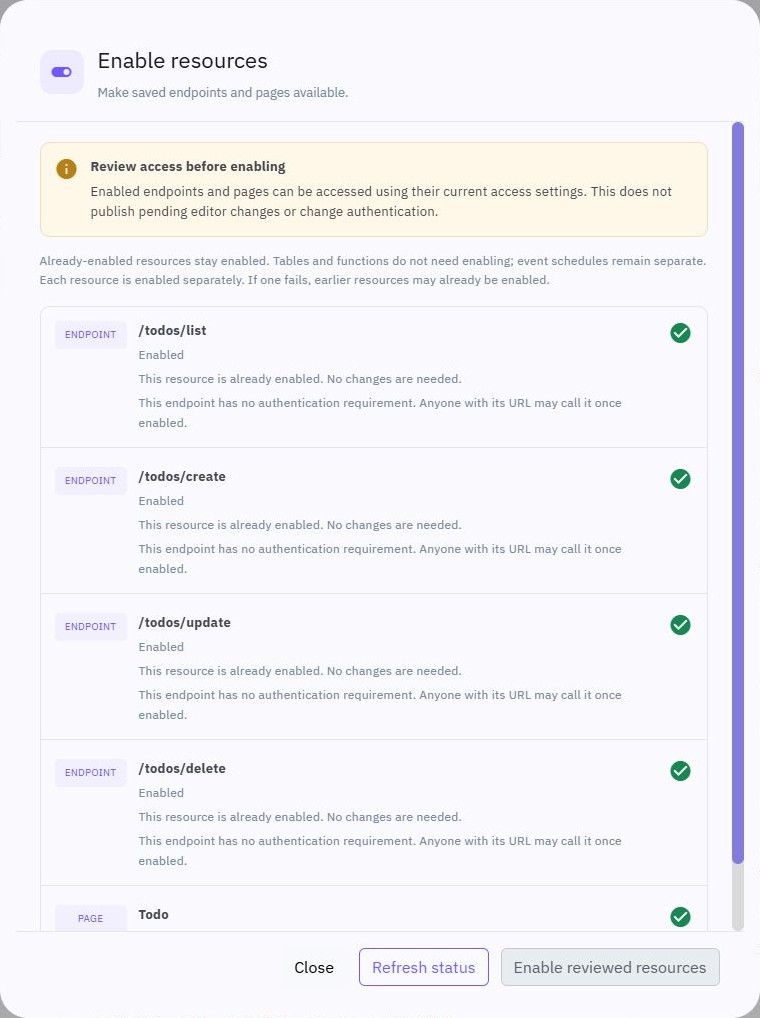
After saving, the card becomes Saved resources with a Resources saved status. Choose a resource row or Open editor to inspect it in its normal editor. When opening an editor in the current tab, the assistant modal closes so it does not cover the editor; your conversation and unsent message stay available. Ctrl/Cmd-clicking a resource into another tab keeps the assistant open. View changes reopens the saved review. Save any unsaved work in an already-open editor before reopening a resource; the Assistant does not discard your local edits automatically.
Mention the saved page by name, or choose it with @ Resources, then describe a focused change, for example: “On the Todo page, change the heading to My tasks, increase card spacing and add a short introduction.” You do not need to provide internal page details.
The Assistant can propose targeted text, styling, theme and supported command-value changes, and add or remove supported page elements, without rewriting the entire page. It can also add supported new page workflows, append commands to an available page function and connect page actions to existing or newly proposed page functions. Unchanged sections remain intact. Review and apply the resulting draft in the same way as any other proposal. If another chat or editor changes the page first, prepare a fresh proposal rather than overwriting that work.
Theme values affect elements using theme-linked styles. Elements with fixed colours or spacing need their own style changes; changing a theme value does not replace those explicit settings.
While reviewing an update to an existing page, another focused page request can build on its verified unapplied changes. Keep any companion resource changes unchanged. If a review also creates new resources or cannot safely retain all its earlier changes, apply or reject that reviewed draft before preparing the next focused update.
Very large pages can still need smaller batches. Existing targets must be available in the page's safe editing view; hidden values are never guessed. Supported additions preserve the rest of the page and still go through normal structure and reference checks. Replacing whole hidden workflows, changing page routes or editing a large page inside a not-yet-applied creation proposal may require the normal editor or a later focused update after applying its draft.
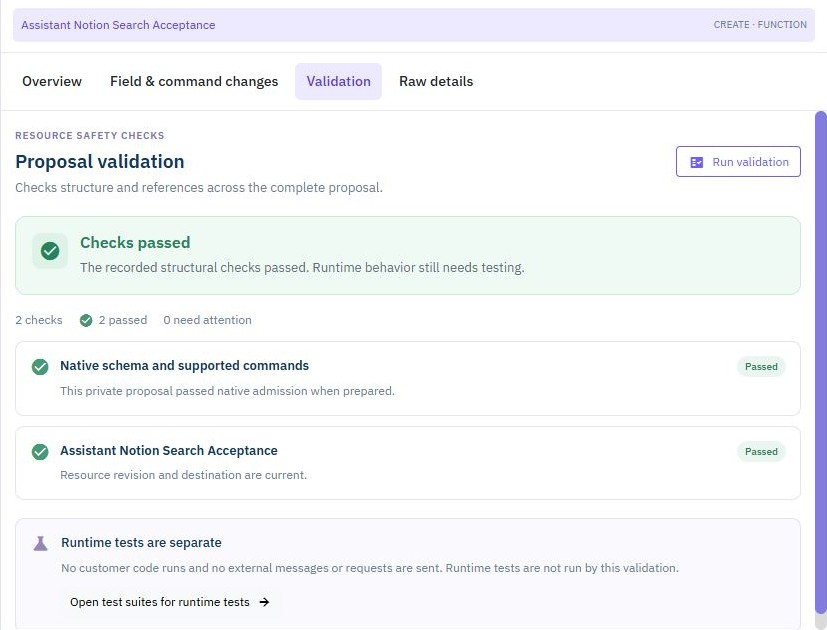
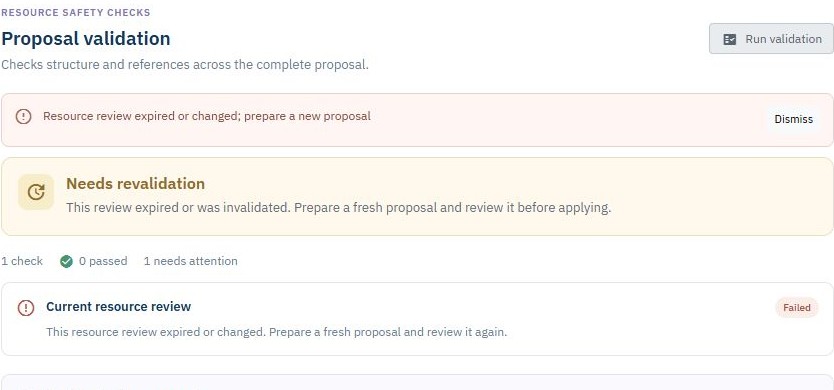
Open Validation and choose Run validation to check a current unapplied proposal. Proposal validation checks the complete proposal, not just the resource currently selected. Its status summary and result cards show which structural and reference checks passed or need attention. Needs revalidation means the displayed result belongs to an older or invalidated proposal; do not treat it as current approval. A changed or removed resource can make validation fail; prepare and review a fresh proposal instead of forcing the old one through.
If the private review has expired, revalidation marks the proposal outdated and disables Apply. Ask the Assistant to prepare a fresh proposal; retrying Apply against the expired review will not fix it.
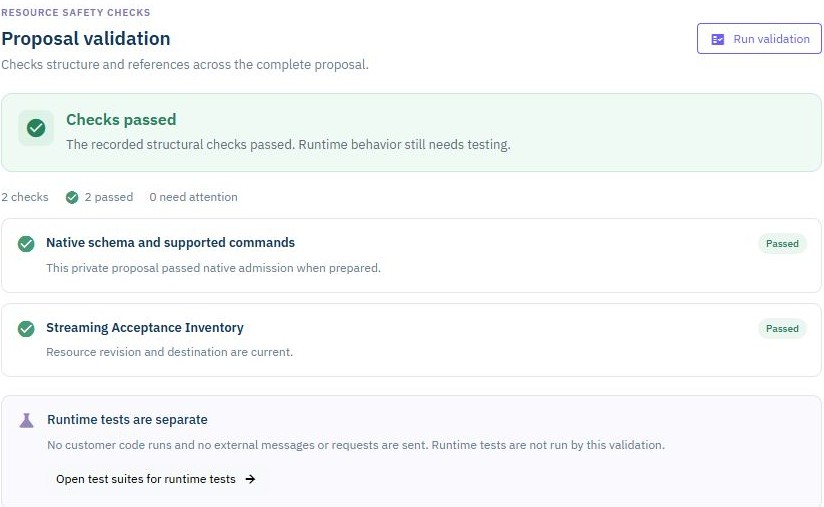
New proposals are checked after generation finishes. Apply stays disabled until the complete current proposal has a PASS validation result. Older proposals without a result need Run validation first. These structure and freshness checks do not run your workflows; review and test the resulting drafts separately.
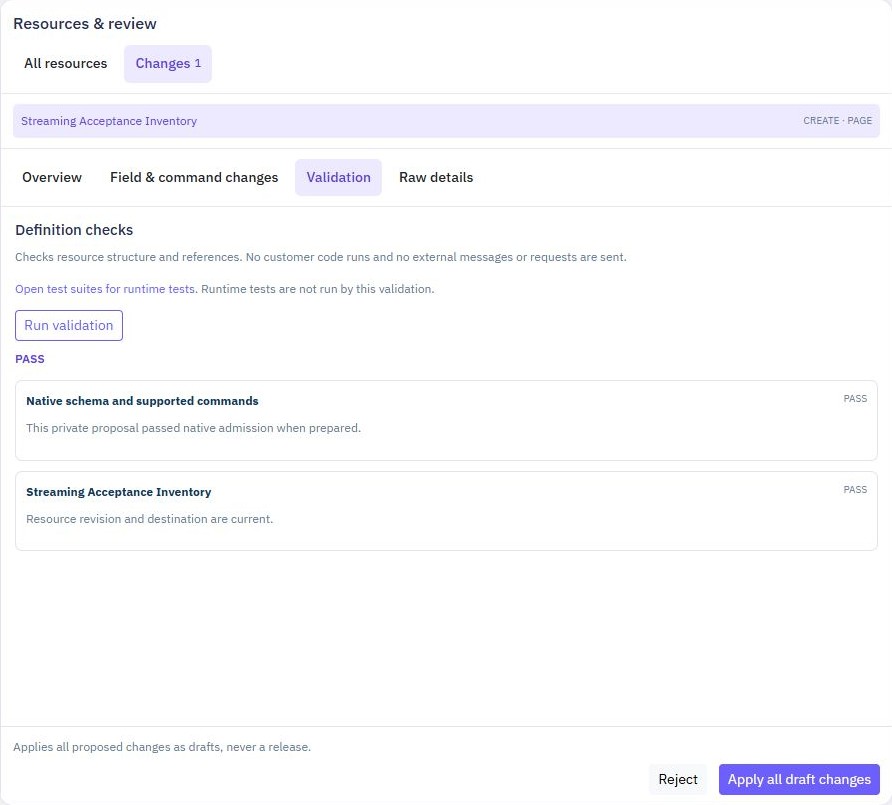
This is not a runtime test. No customer workflow, external request, email or database-record operation is executed. A report marked NOT_RUN means runtime tests have not been run. Apply performs its own final revision and permission checks even after validation passes.
For runtime checks, open the appropriate resource's existing testing tools or Test suites. Review and configure your resources manually first. Suites use published endpoint versions, so publishing and running a suite are separate deliberate actions, not part of Assistant validation. See Testing for individual workflow tests.
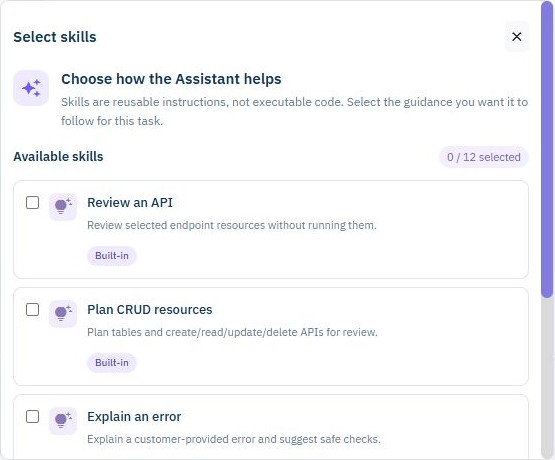
The /skills picker shows built-in and workspace skills as cards with descriptions and a selection counter. Choose up to 12. Manage workspace skills opens the existing knowledge editor; choosing a skill only adds instructions to the task and never runs a workflow.
Open Knowledge beside the message box to see whether workspace instructions are configured and browse reference-document cards. Each card shows its inclusion policy. Check a document to explicitly include it with your next message; automatic inclusion still follows the saved policy. Use Edit workspace knowledge & skills below the cards to manage saved content.
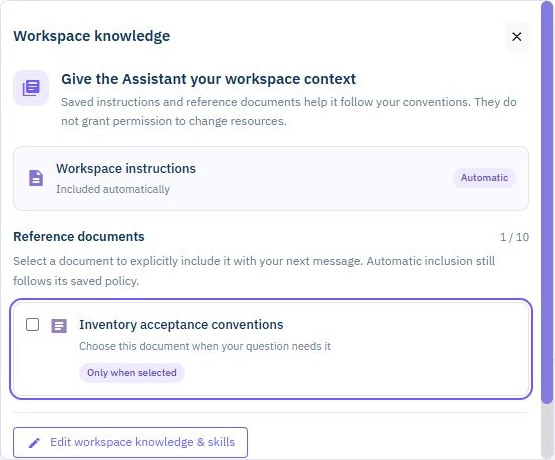
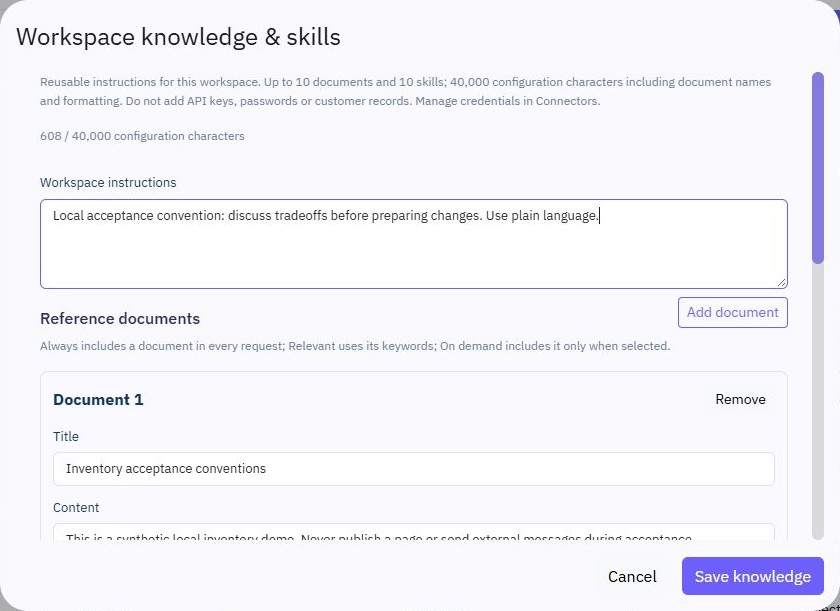
Choose Knowledge → Edit workspace knowledge & skills. These notes are shared workspace context, not public help articles. Use Workspace instructions for naming conventions, business rules and preferred patterns. Instructions can contain up to 4,000 characters and are included automatically in requests from this workspace.
Use Add document to enter reference text. You can keep up to 10 documents, each with up to 6,000 characters of content. Choose how each document is included:
| Include option | When its content is sent |
| --- | --- |
| Always (ALWAYS) | Included automatically in requests from this workspace. |
| When relevant (RELEVANT) | Included when your message matches one of the document's keywords. This is keyword matching, not automatic semantic search of private documents. |
| Only when selected (ON_DEMAND) | Included when you explicitly select it under Knowledge for the message. |
You can explicitly select a document even when it has another inclusion policy. Use short, specific keywords such as invoice or orders for relevant documents.
Use Add skill for reusable instructions you want to select for a particular job. You can save up to 10 custom skills, each with up to 4,000 characters of instructions. The complete saved knowledge configuration is limited to 40,000 characters, including its names and settings; do not fill every individual field to its maximum.
Choose Save knowledge when finished. If another tab or teammate saves first, Twidget refuses to overwrite that newer version and keeps your draft visible. Copy any draft text you want to retain before choosing Reload latest, then reconcile and save against the latest version.
Knowledge and skills are guidance only. They cannot override permissions, enable unsupported capabilities, bypass review or authorize execution. Do not add API keys, passwords or customer records.
Choose /skills, or type /skills to open the picker. Select the instructions to include before sending; choosing a skill alone does not start an AI request. Up to 12 skills can be selected for one message.
Built-in choices include:
| Skill | Use it for |
| --- | --- |
| Review an API (review-api) | Discuss validation, error handling and clarity in selected API resources without running them. |
| Plan CRUD resources (build-crud) | Clarify the data model and plan supported table/API drafts for later review. |
| Explain an error (explain-error) | Discuss a sanitized error, distinguish evidence from possibilities and suggest safe checks. |
Select these through the picker; the IDs above identify the skills, not separate executable commands.
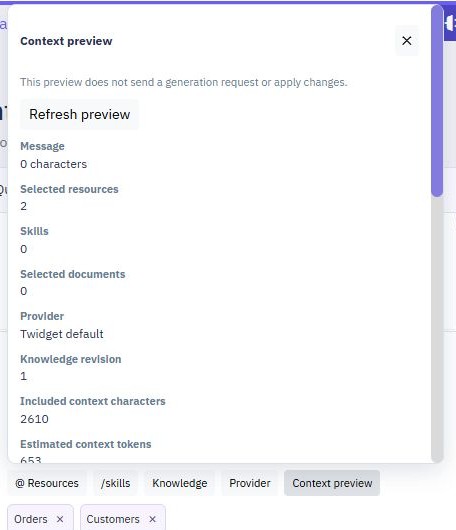
The Context preview beside the message box lets you inspect supporting information for your next message without generating a reply or changing resources. Summary cards show message length and selected resources, skills and documents. Expand sections to inspect workspace instructions, see which reference documents are included or omitted and why, and check selected resource details. Refresh preview reloads this read-only view after selections change. Private documents follow the inclusion rules above.
Size & technical details contains approximate selected-context counts. These exclude conversation history, automatic workspace summaries and retrieved help, so they are not the full request size or a cost estimate.
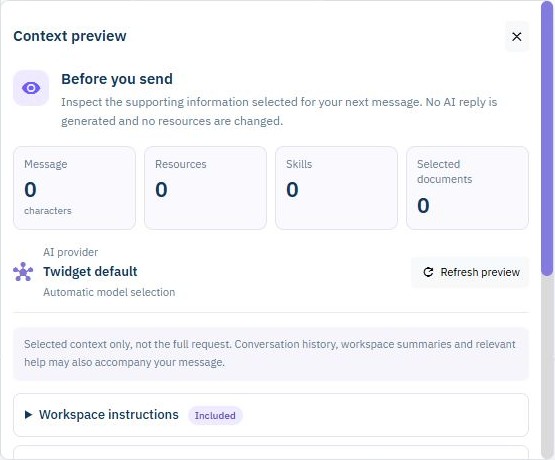
The estimate covers workspace knowledge and explicitly selected resource context only. Conversation history, platform instructions and other request overhead are separate. Token estimates are approximate, not a provider price quote or an exact copy of the final prompt. Large resource definitions may be omitted; check the displayed omissions and narrow your selection when necessary.
The Provider panel groups your provider, saved connector and model settings together. Twidget managed selects a model automatically. For another provider, select a connector before sending; the panel shows what is missing and links to connector management. Changing these settings alone never sends a model request.
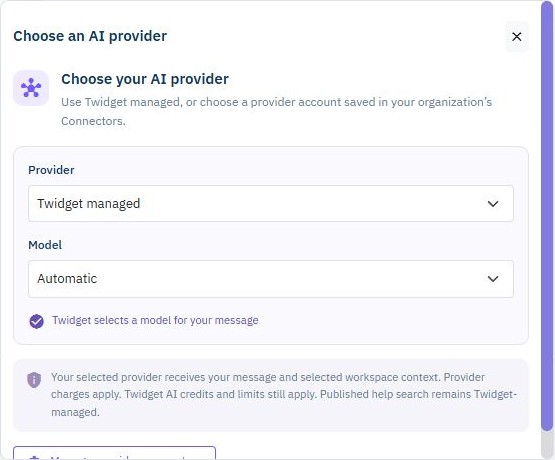
Leave Provider → Twidget managed with Model → Automatic to use Twidget's normal assistant. Or select OpenAI, Anthropic or Google Gemini, choose an existing Connector, then choose an approved model.
Provider connectors belong to your organization and can be used from its authorized workspaces. Create or update them in Connectors, where keys are stored encrypted; never paste a key into chat or workspace knowledge. A missing connector must be configured before using that provider. Astra models are not offered.
The choice is explicit for each message and is recorded with that message. There is no silent fallback to another provider or the Twidget-managed generation key if your selection fails. Changing or revoking a connector can require selecting it again for a new request. Your own saved connection does not spend the Twidget AI balance.
Your selected provider receives the message and included workspace context. Published help search still uses Twidget-managed OpenAI embeddings to search Twidget's documentation, even when another generation provider is selected. Selecting Anthropic or Google is therefore not a promise that all assistant-related processing stays exclusively with that provider.
In Auto, a clear request to build or revise resources can progress to a reviewable proposal once blocking requirements are answered. You can also select Prepare changes, describe what you want and choose Prepare proposal explicitly. Neither path applies the changes immediately. If important details are missing, answer the Assistant’s clarification questions first.
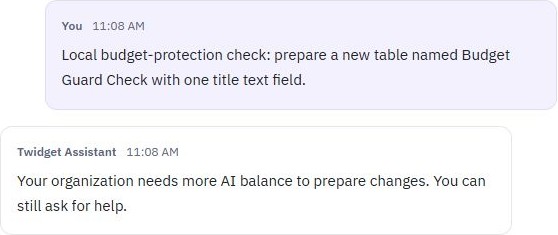
Auto checks your available AI balance and generation allowance before starting resource generation. You need enough available balance for the temporary generation reservation. If the balance is insufficient, Twidget explains this in the conversation without preparing or applying changes. Limited, lightweight help and Q&A remain available with zero balance, subject to the advice-message allowance. Auto cannot bypass the balance check. Auto adds a short request-assessment step before choosing help or generation; progress messages show that activity, not a completion estimate.
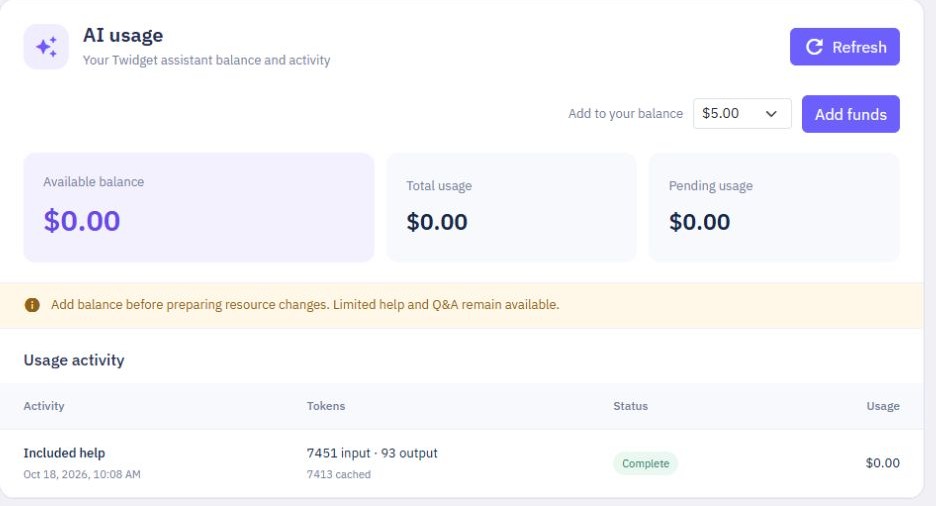
Open Billing → AI usage to see your available balance, total usage and pending usage. Activity shows token counts, the Twidget charge and whether it is complete, pending or failed. Choose Load more activity for older entries, or Refresh to check the current balance. This view shows usage only, not model names, rate tables or provider-cost estimates.
As the organization owner, choose a dollar amount and Add funds to use your saved payment method or enter a card. Funds are added only after the payment is confirmed. If your bank asks you to verify the payment, complete its verification window. If an unfinished payment still offers Continue verification, use it to resume. Cancelling or failing the bank check can end that attempt instead; no balance is added, and Twidget explains when to start a new payment. Twidget checks the payment with the payment service before updating your balance; a bank window closing is not itself confirmation.
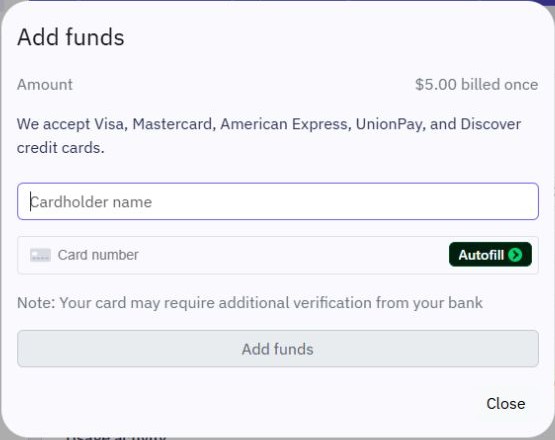
If a payment is interrupted or still processing, choose Check payment before starting another purchase. Pending payments in Billing keeps unfinished payments available after you reload the page or return later. Choose Continue verification or Check payment beside the existing payment, rather than paying again. Retrying the same payment request does not add the funds twice. If Twidget confirms that the payment never started, Retry payment safely retries that same request. A payment marked as needing review requires support; do not start a second purchase until its outcome is clear.
Preparing changes starts with a temporary $0.50 reservation. Twidget checks available funds before each paid AI call, including another attempt or a later preparation step. If a call needs a larger reservation, Twidget reserves the additional amount only when it is available. If the next call cannot be covered, it stops before sending that call and asks you to add funds; it does not automatically top up your balance or apply partial resources. The requested response size is not silently shortened to fit a smaller balance.
The reservation is not a flat fee. When usage is known, Twidget records the actual charge and releases the unused reservation. Twidget automatically checks interrupted requests and settles their known usage. While a request is pending, its reserved balance is temporary, not an extra charge, and those funds are not reused by another call. Choose Refresh to check its latest status.
If part of the usage still cannot be confirmed after 24 hours, that part of the reservation is released without an estimated charge. Known usage is still charged, including paid work completed before a task failed. This does not retry the task, prepare another proposal or apply resources. Limited help remains available with zero balance.
When usage billing is activated, your entire remaining credit balance is preserved and converted at 10 credits = $1. For example, 50 credits becomes $5 in AI balance. This includes purchased, signup and subscription credits, even if older records cannot separate their sources. Old records are preserved, and a conversion does not restore credits already spent. Conversion is not performed automatically in the local preview.
The signup allowance adds $0.50 to your organization's AI balance once. Your subscription adds a dollar allowance when the paid subscription starts and at each paid billing-period renewal: Basic $1, Standard $3 or Business $5. These keep the previous value at 10 credits = $1; they are not a new bonus on top of the old credit grants. A yearly subscription receives that amount for its yearly billing period, not twelve monthly grants.
Unused AI balance rolls over and does not expire. Each allowance adds to the balance you already have; a renewal does not reset or replace it. The same renewal is credited only once, even if a payment notification or renewal check is repeated. Changing plans within an already-funded billing period does not add another allowance. Existing subscriptions switch to dollar allowances at their next paid renewal; the switch does not award earlier periods again. Check Billing → AI usage for your updated balance. Subscription invoice credits are separate from your AI balance.
Quick help shows a proposal summary only. Choose Open full review to inspect the suggested resources in the larger assistant before making a decision. The small panel cannot apply new changes directly.
The full Proposed changes panel and Resources & review → Changes show the suggested resources and their details. You can keep discussing improvements, prepare a revised proposal, or choose Reject. Only choose Save as draft, when all displayed changes match what you want. The workbench applies the complete proposal, not just the selected resource.
Applying changes is not publishing a release. Review the resulting resources in their normal editors, configure any required connections and test them before publishing. The Assistant must not receive passwords, API keys or customer records in chat.
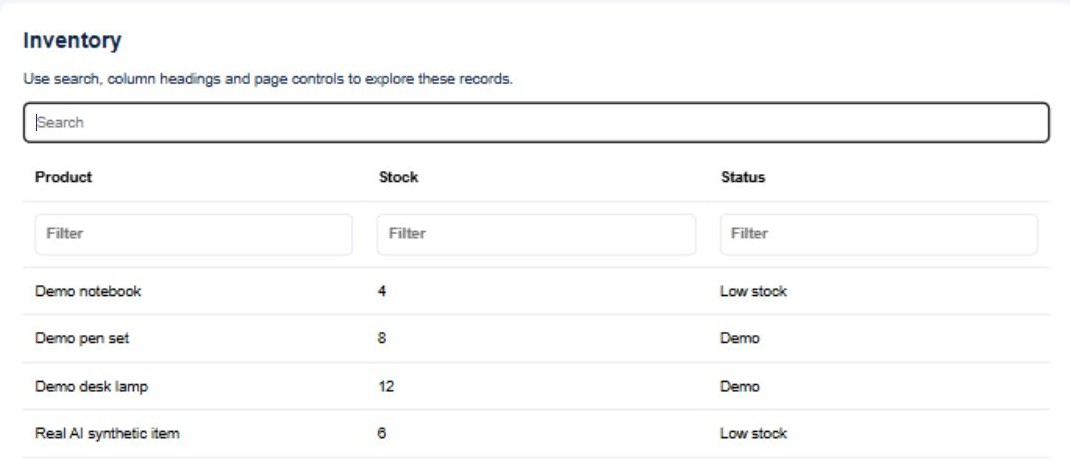
For example, an inventory demo can use sample records without connecting a database. Open the saved page in its normal editor and choose Preview to try its search and demonstration form. Preview-only edits are not database writes.
Tasks can discuss and prepare different ideas at the same time. If another task or a manual editor changes a resource after your proposal was prepared, Twidget rejects the stale change instead of overwriting that newer work. Refresh and ask for a new proposal based on the current resource, then review it again.
Use Stop to cancel an active task request. If the outcome is uncertain after a connection problem, use Refresh task first. Retry same request retries the same request rather than intentionally creating another copy. Do not submit a different request to repeat a change whose outcome you have not checked.
While a request is running, the progress label distinguishes waiting for an answer from preparing draft resources. It shows elapsed time and changes its waiting message when the AI takes longer. These messages are not a percentage or a promise of completion. You can still choose Stop. A timed-out or incomplete answer cannot be applied as a resource proposal; review a complete, validated proposal before applying any changes.
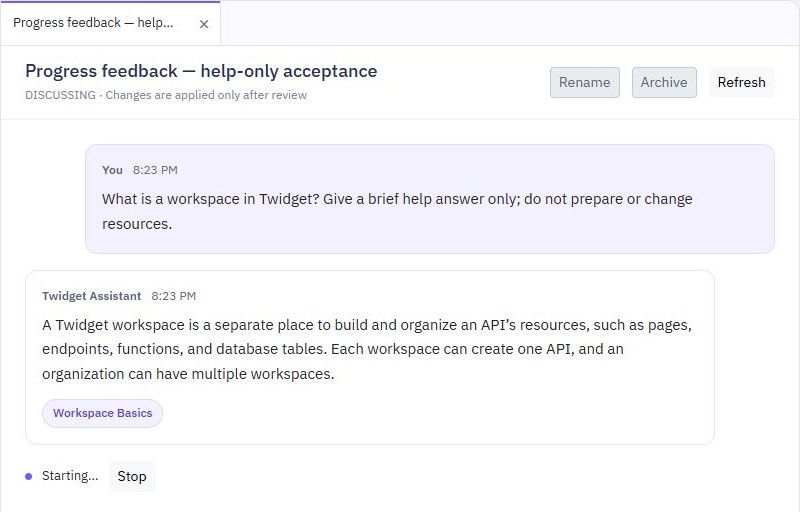
The local help-only example below shows the active-request status and Stop control. Longer-wait messages depend on the actual request stage.
The Assistant only prepares supported resource changes. It cannot publish automatically, change authentication settings, activate scheduled events, delete resources or run customer workflows. Some requests need manual configuration or a narrower proposal. You can always use Twidget’s existing editors alongside the conversation.
Building an app takes longer than answering a help question because the Assistant must prepare its editable pages, workflows and data resources. Drafts still go through the same checks before you can apply them. A short streamed description is not the finished proposal: wait for the resource review and validation result.
For a new, standard record-management app, the Assistant can use built-in editable building blocks for the connected page and create, list, edit and delete endpoints. You still choose the fields and design, review the expanded resources and apply them separately. Custom workflows and changes to existing resources keep their normal authoring and review process. Built-in blocks do not create sample records, configure authentication or publish anything.
These blocks support up to 12 text, number, checkbox or date-only fields and list up to 100 records. Requests needing pagination, relationships, time-of-day inputs or custom authorization use native resource generation instead. Large existing pages support focused changes without requiring a full-page rewrite; unsupported or unlisted changes still need a smaller request or the page editor. The Assistant must never replace a page with incomplete content.
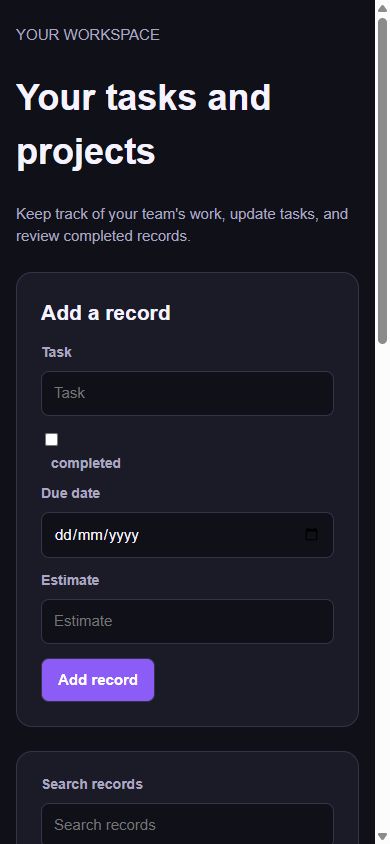
New record-management pages made with these building blocks fit phone screens while keeping a centered layout on desktop. Open the saved page and choose Preview, then check it at phone width before enabling it. Text, number and date fields stay inside their cards; long field values can scroll inside the input while you edit.
Existing saved pages are not changed automatically. To adjust an older design, ask the Assistant for a focused layout update or use the page editor, then review and test the changes before enabling them.
What is Twidget?
Twidget is a no-code platform for building web interfaces and their backend. Use Pages to create a frontend, connect it to API endpoints and database tables, and automate server workflows with functions and events. Build with the visual editors or discuss a goal with Twidget Assistant and review its...
Getting started checklist
The pink checklist button in the top bar helps you create your first API. It is available on desktop, tablet and phone until you complete the checklist. Complete the three steps. 1. Create your first table opens Database. Create a table in the selected workspace. 2. Build your first endpoint opens A...
Finding your way around
The sidebar groups related tools so you can spend less time scrolling. Choose a section to show its pages. You can keep several sections open at once; choose an open section again to close just that section. Where to find each tool. Home returns to your workspace's starting view. Dashboard stays dir...
Guided walkthroughs
Choose Help → Start Tutorial to replay the welcome introduction and restart the guided walkthroughs. After the introduction, callouts highlight the controls to use next. The pink getting-started checklist is a separate three-step progress panel. Follow a walkthrough. The guides cover creating and ed...
Task Management App Overview
The Task Management app created using Twidget serves as a practical demonstration of building a functional web application by leveraging no-code tools. This application enables users to add tasks with specific attributes and to view a list of all tasks in a structured interface. Key Concepts. The ap...