The Inbox brings website contact messages and messages sent through the platform's help forms into one place. It is available to Twidget administrators. The existing Emails page still manages templates and bulk email.
Open Inbox in the admin navigation. Filter by source or Open/Resolved status, or search for an email address, subject or name. Select Search and use the page controls to move through results. Open a conversation to read the original message and its reply history.
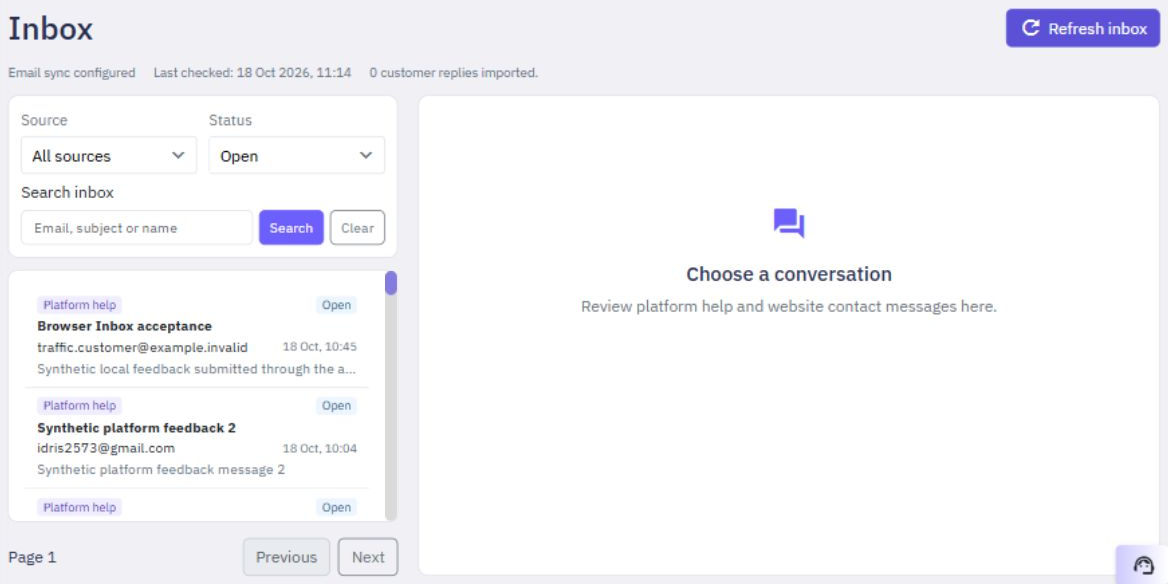
Customer messages and older plain-text replies are shown as text, including any markup the sender entered. New formatted support replies retain their formatting and links in the conversation history. A notice appears if a very long older message has been shortened for display; the saved original is unchanged. Platform messages can include the account, organization and workspace context that accompanied the original submission. New Help screenshots and supported incoming email attachments stay with their message. Old screenshots or attachments that were never retained cannot be recovered from the Inbox.
Attachments appear beneath the original message or the reply that included them. Select View for an image preview or a readable text-file preview. Select Download to save a file. PDFs and other file formats are available as downloads for opening with your usual app. Remote images from an email's HTML are not loaded.
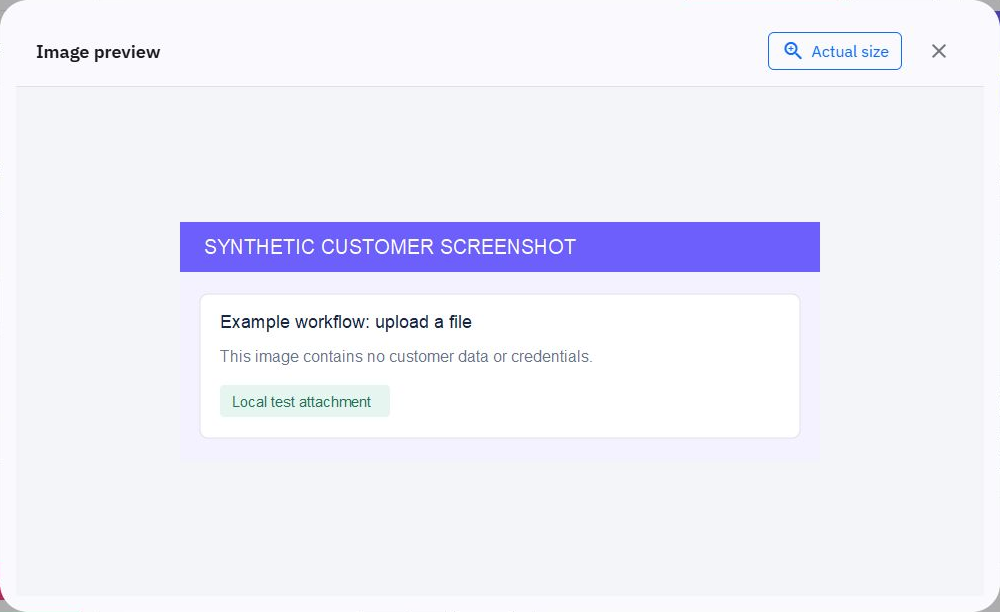
Files are limited to 3 attachments per message, 2 MiB each and 5 MiB total. PNG/JPEG previews require valid images no larger than 4096 pixels per side and 16 million pixels overall. If a file cannot be retained or opened, check the message's attachment notice or error. A missing older file does not mean the sender never attached one.
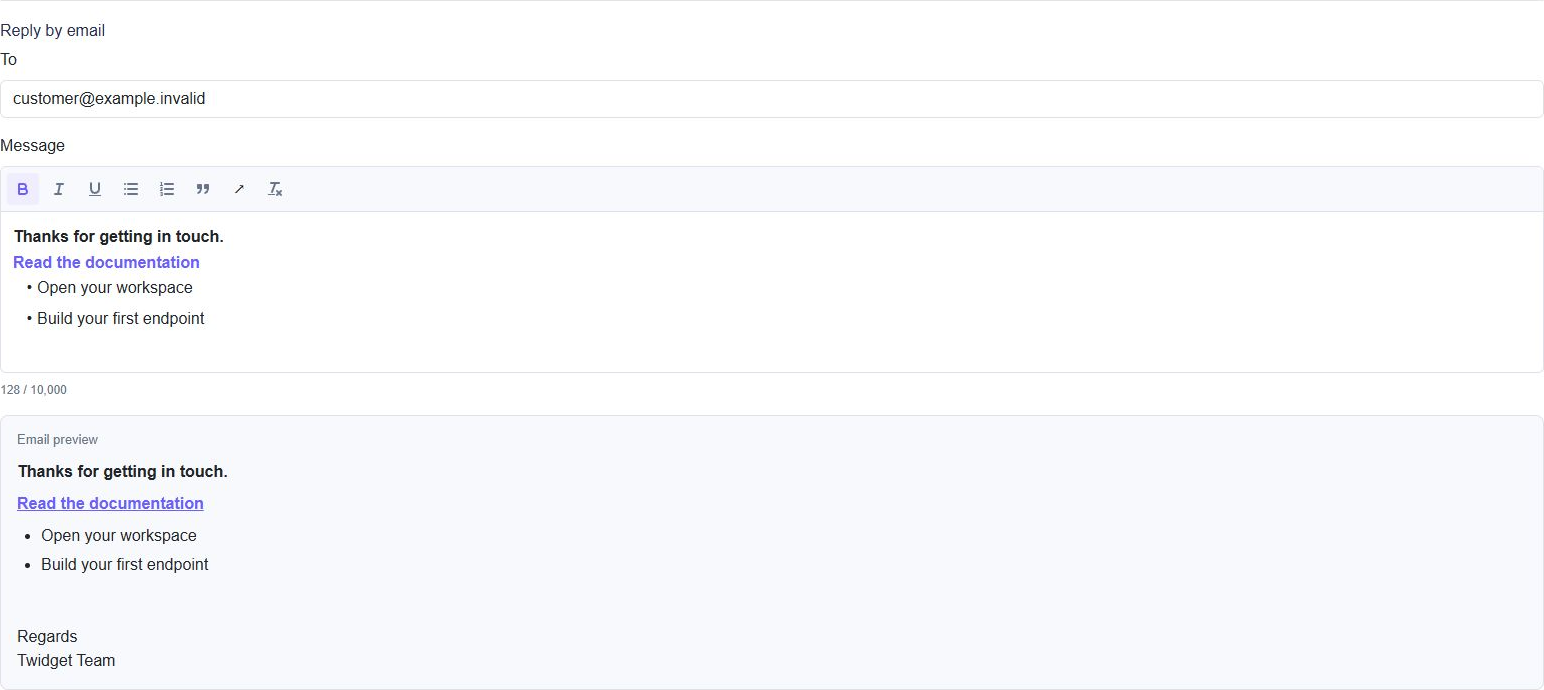
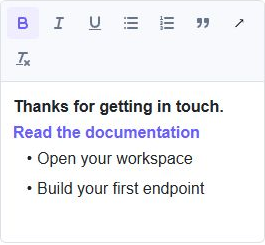
The recipient comes from the saved message and cannot be edited. Write your reply, review the Email preview, then select Send reply. Use the formatting toolbar for emphasis, lists, quotations and links. The preview includes the automatic Regards / Twidget Team sign-off on the next line after your message, without an extra blank line. Emails include a plain-text version for mail clients that need it.
To link to a guide, select some text, use the link control and enter the full address, such as https://docs.twidget.io/. Web links and email links are supported. Formatting and links stay with your temporary draft when you switch between conversations. Pasted content keeps supported formatting; remote images and embedded content are not included.
You can also send images with or without text. An empty reply with no images, or an invalid saved recipient, cannot be sent. If sending is disabled, the conversation explains that mail delivery has not been enabled.
Outgoing Inbox emails automatically end with:
Regards

Twidget Team
You do not need to type this sign-off. If your reply already ends with these two lines, they are not added again. Image-only replies include it too. Older reply history keeps the text you entered. New formatted replies show the complete outgoing message, including the sign-off, in their preview and history. This does not change templates or other platform emails.
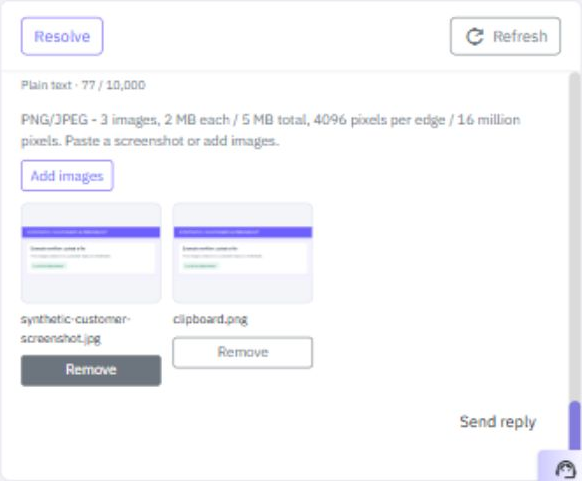
Use Add images to choose PNG/JPEG files, or paste a copied screenshot into the message box. Review the image previews and remove anything you do not want to send. You can include up to 3 images, 2 MiB each and 5 MiB total, no larger than 4096 pixels per side and 16 million pixels overall. The images are attached to the email and recorded with the reply. They are not shared drafts or uploaded to a separate public image host.
Each outgoing reply has a sending status. Sent means the mail server accepted the email; delivery is not yet confirmed. Use Refresh inbox to check the receiving mailbox for delivery reports as well as customer replies. The conversation's Refresh button reloads saved history; it does not check the mailbox.
When a matching delivery report arrives, the reply shows Delivered, Bounced or Delayed, together with the time Twidget recorded the report and its mail status code. Hover or focus the status badge for an explanation. Delivered means the report says delivery completed; it is not a read receipt or a guarantee that the email avoided spam. Delayed means the mail system reported a temporary problem. Bounced means it reported failed delivery. No report does not mean failure: some mail systems do not return success reports, so the reply stays Sent. These are reports received by email, not independently verified proof.
Delivery reports apply to the matching outgoing reply only. They do not add customer messages, reopen resolved conversations, resend replies, or mark mailbox emails as read. A later delay report cannot replace a final result, and a bounce remains visible if a conflicting success report arrives later. Existing replies can gain a report if it includes their original message identifier and matching recipient; older emails are not automatically rescanned.
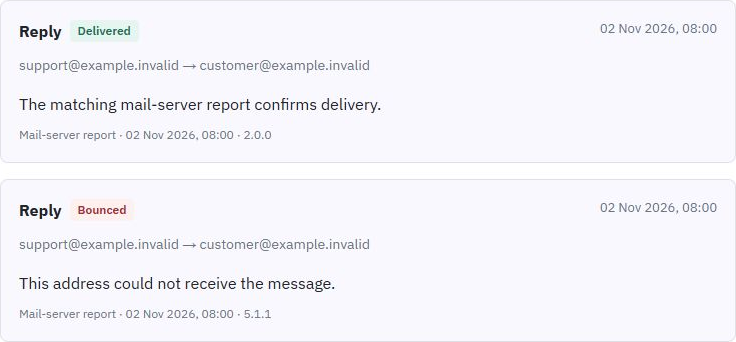
Sending not confirmed means Twidget could not confirm the send result. A delivery report does not clear this warning or allow another reply automatically. Do not repeatedly send another copy: check the mail account before deciding what to do next. Reloading or repeating the same send attempt does not automatically send another email. After checking the mailbox, select Review unconfirmed reply, then Allow another reply; this records your review and does not resend the uncertain message.
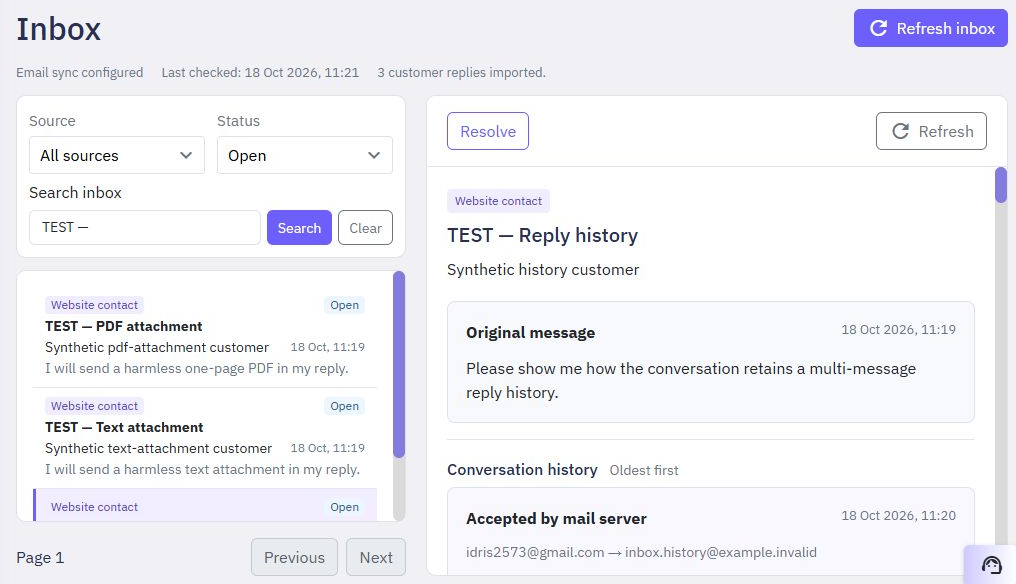
Only select Send reply when the message is ready to leave Twidget. Drafts are temporary and are not a shared saved conversation message.
Select Resolve when a conversation is handled. Twidget also tries to mark its linked incoming email replies as read in the receiving mailbox, so Outlook can show them as read after it updates. A mailbox failure does not undo the conversation's Resolved status; check the displayed result before assuming Outlook has changed.
Resolve/Reopen stays at the top left of the conversation toolbar, with Refresh on the right. The messages scroll beneath the toolbar in their own area, keeping these actions clear of the text.
Only imported email replies with an exact mailbox link can be marked as read. Older form-notification emails have no such link and remain unchanged. Twidget explains when there are no linked emails, the connection is disabled, or marking read could not be confirmed. Use Retry marking email read when offered; the conversation stays resolved while Twidget tries again. Select Reopen when the conversation needs further attention; reopening does not mark emails unread. Neither action deletes contact messages or emails.
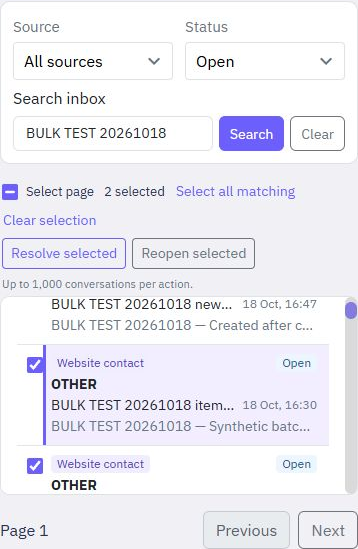
Use the checkbox beside a conversation to select it without opening the message. Select page selects the conversations on the visible page. You can move to another page and select more. Choose Resolve selected or Reopen selected, review the confirmation count and filters, then confirm.
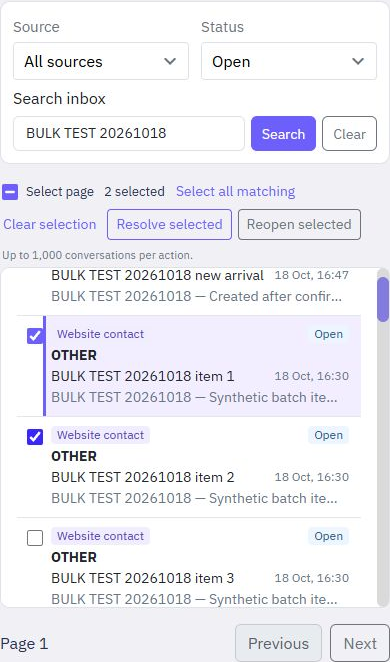
To handle every result across pages, select at least one conversation, then choose Select all matching. This uses the source, status and search filters you last applied. It does not include a search you typed but have not applied. The confirmation includes only conversations that need the chosen status change. Up to 1,000 eligible conversations can be confirmed at once; narrow the filters if more match.
Progress shows completed, changed, failed and unconfirmed conversations. Stop after current conversation prevents the next conversation from starting; it does not undo completed changes. Refresh progress checks the saved results, and Continue remaining processes eligible remaining items. Review changed or unconfirmed conversations before making a new selection. A confirmation expires after one hour, so review the current results again if it expires.
Resolving several conversations also requests that their linked incoming emails be marked read. A mailbox warning is separate from the conversation status: a conversation can be resolved even when marking its email read needs attention. Reopening does not mark email unread. Conversations that change after confirmation are skipped, and new arrivals are not added to an existing confirmation.
Select Refresh inbox to check for customers' email replies and reload saved conversations. When the receiving mailbox is disabled or unavailable, saved conversations still reload and the mailbox status explains what could not be checked. Matching replies appear in the conversation history and reopen resolved conversations. Repeating a refresh does not add another copy of the same message. If more mail remains to check, refresh again to continue.
Only responses linked to an email sent from this Inbox and matching its saved recipient are added. The displayed sender is not proof of identity. Unrelated mailbox messages are left alone. Refreshing does not move, delete or mark mailbox messages as read; marking read is requested separately by Resolve. Plain text and retained attachments appear in the conversation, including image-only replies. HTML is not rendered and remote images are not fetched. Messages or files exceeding the supported size checks may be skipped or show an attachment notice. A disabled or failed connection is shown separately from an empty conversation list.
Existing contact-notification emails continue as before. Sending and receiving need their mailbox configuration enabled; an empty or disabled Inbox is not evidence that the provider mailbox has no messages.
Open a conversation from the list. Use the Conversations and Message tabs to switch between the filtered list and the selected conversation. Your temporary draft remains available while you switch. Scroll within the message area to reach the reply box; Resolve/Reopen and Refresh stay available above it.
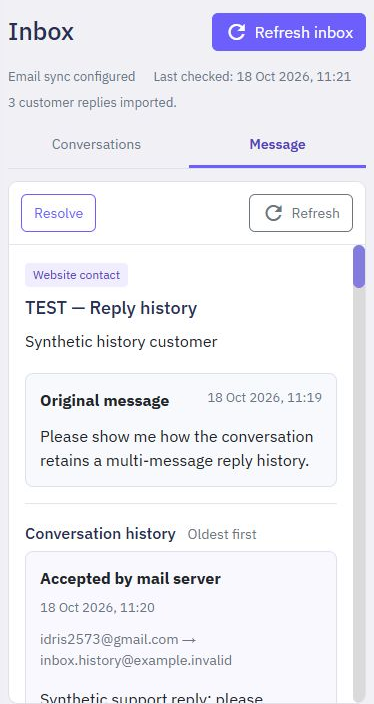
Checkbox selection and bulk actions are available in the Conversations tab on a phone. Open a message separately when you want to read it or work on a reply.
The reply formatting controls wrap to fit the phone screen. The link controls open above the message box, so you can enter or remove a link without leaving the conversation.
Admin AI usage
Administrators can open AI Usage in the admin navigation to inspect platform-funded assistant activity across organizations. This page is separate from the customer's AI balance view and does not change billing or any plan benefits. Find activity. 1. Open AI Usage. OpenAI is selected initially. 2. C...
Organization Basics
Organizations provide a space where multiple workspaces and APIs can be created. Users have the flexibility to belong to multiple organizations, allowing them to segregate development efforts for various teams or companies. Each organization operates independently, and resources are not shared betwe...
Find accounts as an administrator
Open Users from the administrator navigation. Search by name, email, user ID, organization ID or workspace ID, then choose Search. Choose Clear to return to all accounts. An organization or workspace ID finds accounts linked to that organization, including its owner, members and administrators who a...
Delete your Twidget account
Open My Account from your account menu. Delete account is on the left of the sidebar footer; Update stays on the right. The confirmation dialog lists the account and the organizations and workspaces included in deletion. Read that list before continuing. Cancel closes the dialog without deleting any...
Workspace Basics
In Twidget, a workspace serves as a dedicated environment for creating resources that contribute to an API's development. An organization can have multiple workspaces, each capable of creating a single API. Within a workspace, you can create the following resources: - [Endpoints](/docs/api/endpoint-...

