Use Summarize Records when you need a summary rather than a list of every record.
Add Summarize Records to your workflow.
Choose the table and add filters if you only want some records.
Open Output and add a calculation.
Choose Count, Sum, Average, Lowest or Highest.
For a number calculation, choose the number field.
Give the calculation a result name, such as total_sales.
Set Return as, save and test.
For example, filter paid orders and calculate the sum of amount to find total paid sales. Add a count calculation to see how many orders contributed.
This example groups orders by category and returns the sum of amount as total.
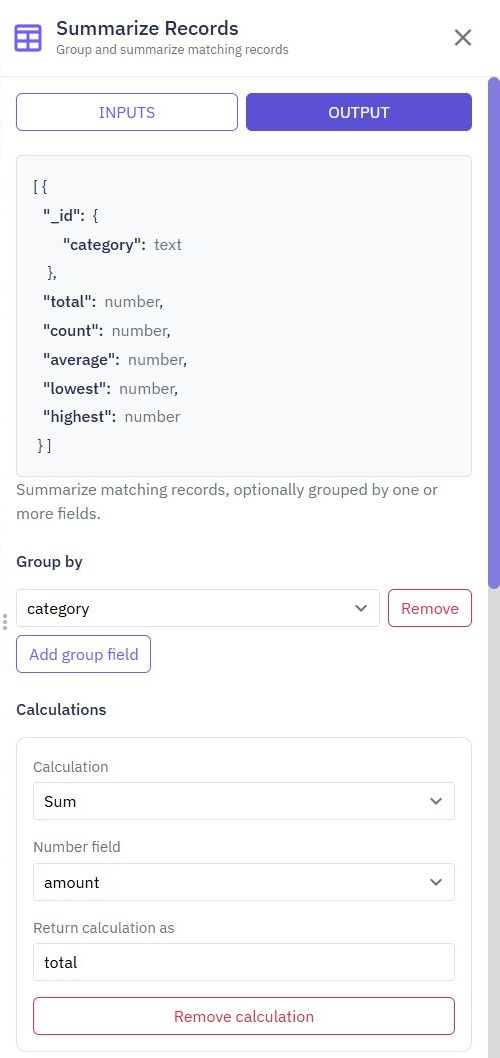
Select Group by to create a separate summary for each value. Group orders by category and calculate total amount to see sales for each category.
Using a keyboard, focus the dropdown arrow and press Enter or Space to open its options. Use Tab to reach an option and Enter to choose it. Escape closes the options and returns focus to the dropdown button.
You can add several calculations, each with a different result name. Use names that are easy to recognise when selecting the results in later commands.
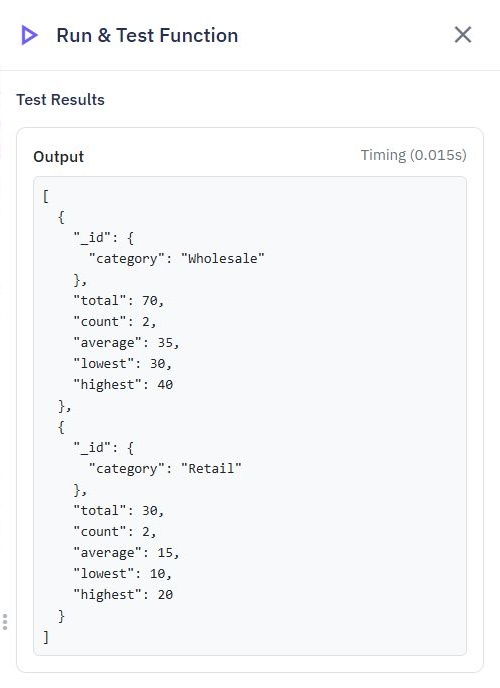
The sample result below includes a total, count, average, lowest and highest amount for each category. Retail has two orders with amounts of 10 and 20, giving a total of 30 and an average of 15.
Sum, Average, Lowest and Highest use number fields. Do not use text such as a formatted currency label. Keep the amount as a number and format it later for display.
Test empty and incomplete data as well as ordinary records. Your app should handle an empty summary when no records match.
Generate CRUD Endpoints
With Twidget, you can efficiently generate CRUD (Create, Read, Update, Delete) endpoints for your database tables upon their creation. This functionality is designed to streamline the development process and ensure that essential API operations are readily available. Enabling CRUD Endpoints. 1. Crea...
Database Tables
Database tables are essential components of your Twidget workspace, serving as the primary storage locations for your data. In Twidget, each table consists of rows and fields, meticulously designed for efficient data management and retrieval. Structure of Database Tables. - Rows: Each row in a datab...
Database Change Triggers
Run an event automatically when a record is created, updated or deleted in a Twidget table. For example, send a welcome message after adding a customer, or refresh a summary when an order changes. Prepare the event. Create an event containing the steps you want to run. Add an Object input named `tri...
Related Records
Include related information in the same result instead of adding a separate lookup for each record in a list. Example: orders with customers. Suppose your Orders table stores a `customerId`, and your Customers table contains the corresponding customer record. 1. Add Get Multiple Data and select Orde...
CSV Import
Twidget enables seamless import of data from a CSV file into your database. Follow the steps below to successfully import a CSV file. Step-by-Step Guide. 1. Initiate the Import: - Click on the Import button within the table toolbar. - Select Import from CSV from the dropdown. 2. Open Import Dialog: ...

