Administrators can open AI Usage in the admin navigation to inspect platform-funded assistant activity across organizations. This page is separate from the customer's AI balance view and does not change billing or any plan benefits.
Open AI Usage. OpenAI is selected initially.
Choose the activity window. Dates use UTC, and the end date is exclusive. Custom ranges can cover up to 366 days.
Select OpenAI, Anthropic or all providers. Optionally enter an exact organization ID or workspace ID.
Select Apply filters. Use Refresh to reload the selected window, or Load more calls to inspect the next page of recorded calls.
The page shows costs and customer charges over time, token categories, model and organization breakdowns, and individual recorded calls. View daily data provides the numbers behind the chart. Wide tables can be scrolled on small screens.
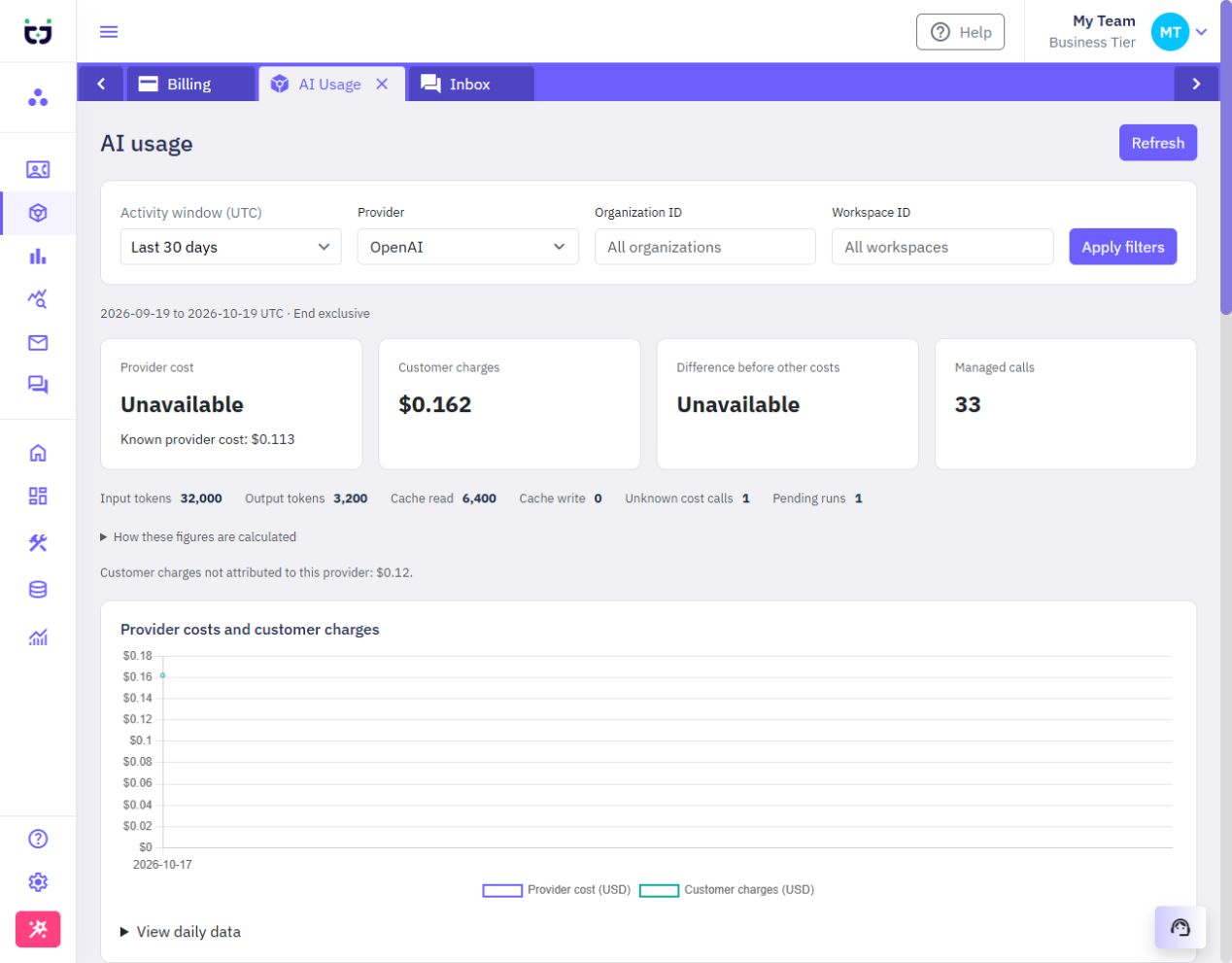
Provider cost is the acquisition cost recorded from captured usage and the rates available when the call completed. It is not a reconciled OpenAI or Anthropic invoice. Historical calls made before metering was enabled and customer-owned provider keys are outside this ledger.
Customer charges are actual assistant usage debits from customer balances. Adding funds is not a usage charge. Included help can have a provider cost and no customer debit.
Difference before other costs compares attributable customer debits with provider costs. It excludes infrastructure, payment fees, tax and other operating costs; it is not net profit.
Unavailable means the ledger cannot establish a complete amount. The known provider-cost subtotal remains available, while an incomplete total or difference is not presented as zero.
One assistant run can make several provider calls. A settled run debit is counted once, rather than repeated for each call. Call-level customer charge is unavailable when the ledger cannot allocate a run's debit to that call.
For a run using more than one provider, the provider-specific view shows the relevant call costs and separately identifies customer charges that cannot be attributed to that provider. Select All providers to see the full settled debit once. An unallocated or unknown amount is not assigned an invented share.
Pending and failed calls remain visible. Recorded partial charges can exist for failed runs. Pending reconciliation can change the figures, so refresh before comparing a recent period. Model and organization breakdowns show at most 100 groups; the summary covers the selected window.
The page and its API require platform administrator access. Customer billing pages continue to hide acquisition costs, provider details and private pricing information. The admin report contains usage identifiers and accounting metadata, not customer prompts, provider keys or raw provider responses.
Dashboard
Open Dashboard from the sidebar for an overview of the selected workspace. Its activity charts and shortcuts help you find recent traffic, errors and workflows. The monthly allowance panel covers your whole organization, including its other workspaces. 
