The pink checklist button in the top bar helps you create your first API. It is available on desktop, tablet and phone until you complete the checklist.
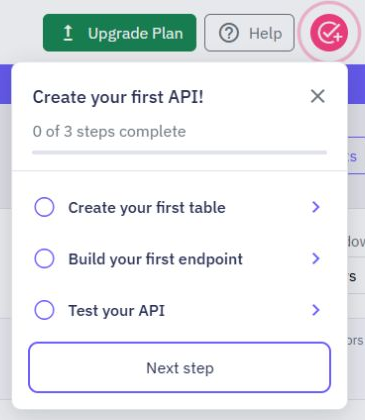
Create your first table opens Database. Create a table in the selected workspace.
Build your first endpoint opens API. Create an endpoint; a draft counts for this step.
Test your API opens API Client. Send a request to your workspace API and receive a successful response. A successfully completed event-stream preview also counts. Requests to other services, failed requests and stopped streams do not count.
Choose Next step to open the first unfinished task. Ticks and the step count update as you work. Your normal workspace and plan allowances apply; the checklist does not create anything automatically.
The same pink button appears beside the account menu. The checklist fits within the screen and scrolls on short screens. Choose the close button or tap outside to dismiss it temporarily.
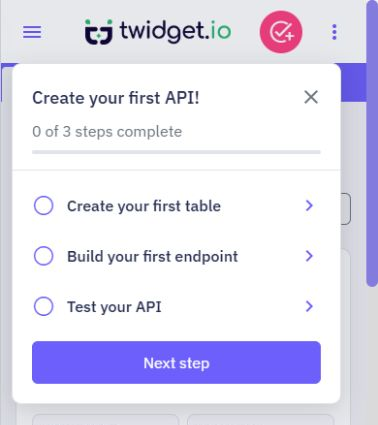
You can use Tab to move between its controls and Enter or Space to select them. Escape closes the checklist and returns focus to the button.
When all three steps are checked, choose Complete. The button shows Saving… while your progress saves. If saving fails, the checklist stays open with a message so you can try again. Closing it with the close button does not mark it complete.
The table and endpoint ticks reflect resources in your selected workspace. If you remove the last table or endpoint, that tick can disappear after reloading. The successful API-test tick and final checklist completion are shared across your workspaces.
If saving the API-test tick fails, your API result stays visible; sending another successful test retries saving progress. Once completion saves, the checklist button disappears. The guided tutorial remains available through Help.
Guided walkthroughs
Choose Help → Start Tutorial to replay the welcome introduction and restart the guided walkthroughs. After the introduction, callouts highlight the controls to use next. The pink getting-started checklist is a separate three-step progress panel. Follow a walkthrough. The guides cover creating and ed...
Finding your way around
The sidebar groups related tools so you can spend less time scrolling. Choose a section to show its pages. You can keep several sections open at once; choose an open section again to close just that section. Where to find each tool. Home returns to your workspace's starting view. Dashboard stays dir...
What is Twidget?
Twidget is a no-code platform for building web interfaces and their backend. Use Pages to create a frontend, connect it to API endpoints and database tables, and automate server workflows with functions and events. Build with the visual editors or discuss a goal with Twidget Assistant and review its...
Twidget Assistant
Use the Assistant to discuss an idea, get help and prepare changes to your workspace. You can ask questions before deciding what to build. A conversation can cover several resources, rather than belonging to a single page or API. Open quick help. Choose the headset button at the bottom right, Assist...
Frequently Asked Questions
Why does sign-in say workspace access is being updated?. Twidget briefly pauses some actions while workspace access or a saved connection changes. Wait a moment, then try signing in again. Interrupted preparation and confirmed cleanup recover automatically when it is safe to retry. Ordinary sign-in ...

