For every command’s inputs, results, examples and common errors, open the detailed connector reference. The command editor’s help button opens its exact reference section.
Use an AI provider from an endpoint, server function or event. Choose your organization's connector, enter a model ID supported by that provider, and pass text from your workflow. New commands return the same result fields across providers, so changing a provider does not require rewriting every following command.
This update adds 37 commands across 11 providers. Each provider has Generate Text and Chat. Model and embedding support is shown below.
| Provider | Generate Text | Chat | List Models | Create Embeddings |
|---|---|---|---|---|
| OpenAI | Yes | Yes | Yes | Yes |
| Anthropic (Claude) | Yes | Yes | Yes | — |
| Google Gemini | Yes | Yes | Yes | Yes |
| Mistral | Yes | Yes | Yes | Yes |
| Groq | Yes | Yes | Yes | — |
| DeepSeek | Yes | Yes | Yes | — |
| xAI | Yes | Yes | Yes | — |
| OpenRouter | Yes | Yes | Yes | Yes |
| Together AI | Yes | Yes | Yes | — |
| Cohere | Yes | Yes | Yes | Yes |
| Perplexity | Yes | Yes | — | — |
Model availability, access and pricing depend on your provider account. Enter a model ID as text; Twidget does not maintain a fixed model list. A listed model may still require extra access or may not support every option.
The six existing OpenAI commands remain available: Generate Text (Legacy), Upload File, Create Vector Embeddings, Speech to Text, Text to Speech, and Generate Image. Existing workflows retain their command IDs and outputs. Use the new Generate Text for the shared result format below. The legacy text command retains responseId and outputText and also exposes the documented response_id and output_text aliases.
Add an AI command to your workflow.
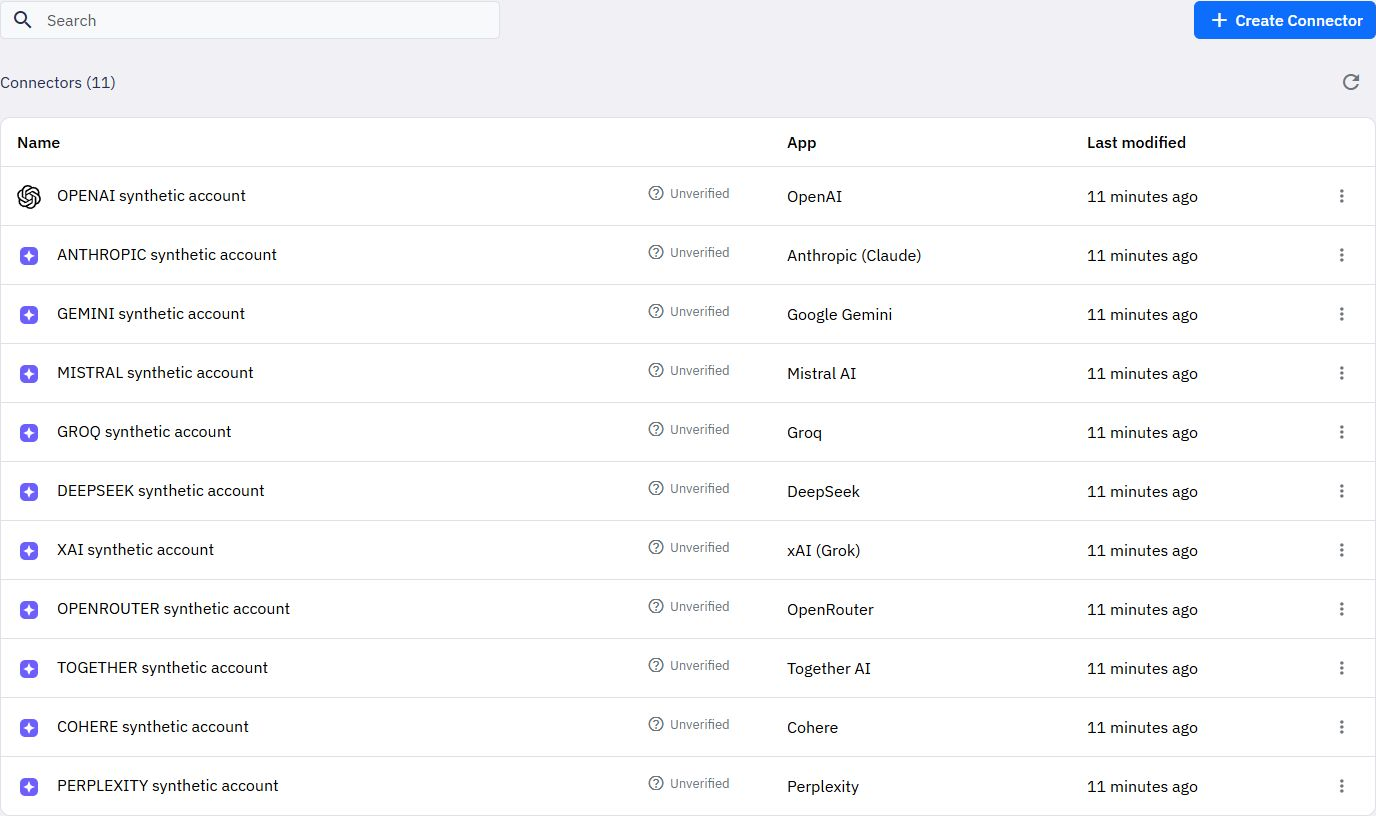
In Account, choose an existing connector. To add another, open the account's three-dot menu and choose Connect a new account. You can also use Create Connector on the Connectors page.
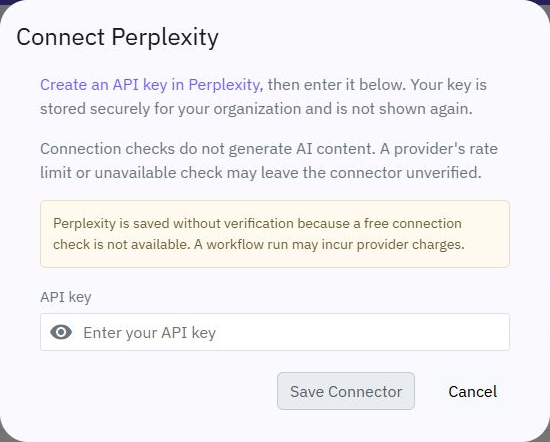
Create an API key in that provider's account and enter it in the connector dialog.
Select Save Connector, then select the saved account in your command.
Keys are stored encrypted for your organization and are not shown again. A connector for one provider cannot be used with another provider's command. Revoked connectors cannot make requests.
Connection status describes the most recent connection check:
| Status | Meaning |
|---|---|
| Verified | The provider accepted a connection check. This does not guarantee access to every model or sufficient generation credit. |
| Unverified | A conclusive check was unavailable, rate limited or temporarily failed. The saved key may still work. Perplexity is saved unverified because a free connection check is not available. |
| Invalid | The provider rejected the credential. Replace the key before using this connector. |
Connection checks do not generate content. Running a workflow can incur provider charges, including when using Use live data in a test.
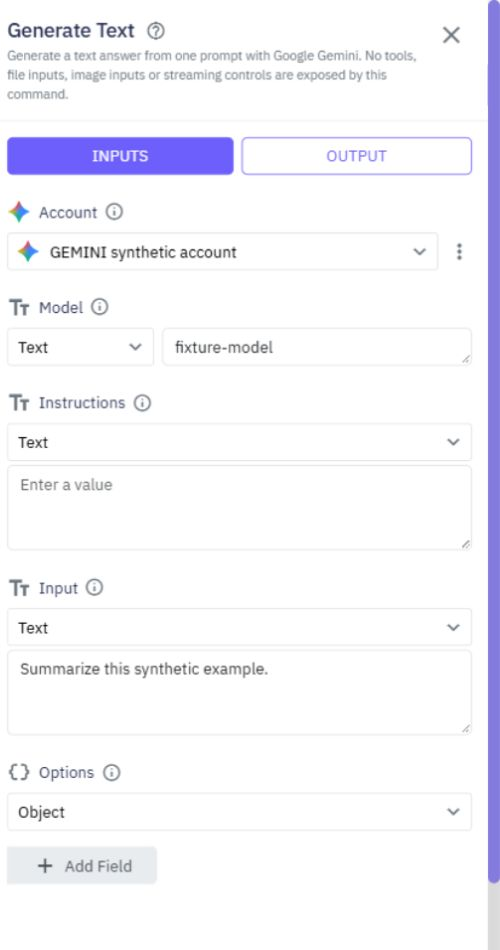
Choose Generate Text and set:
Account: a connector for this provider.
Model: a model ID, such as one returned by List Models.
Instructions: optional guidance for the response.
Input: the text to process.
Options: optional settings from the table below.
For example, set Instructions to Summarize the input in one sentence, map Input to a request field, and save the result as answer. The generated text is available as answer.outputText.
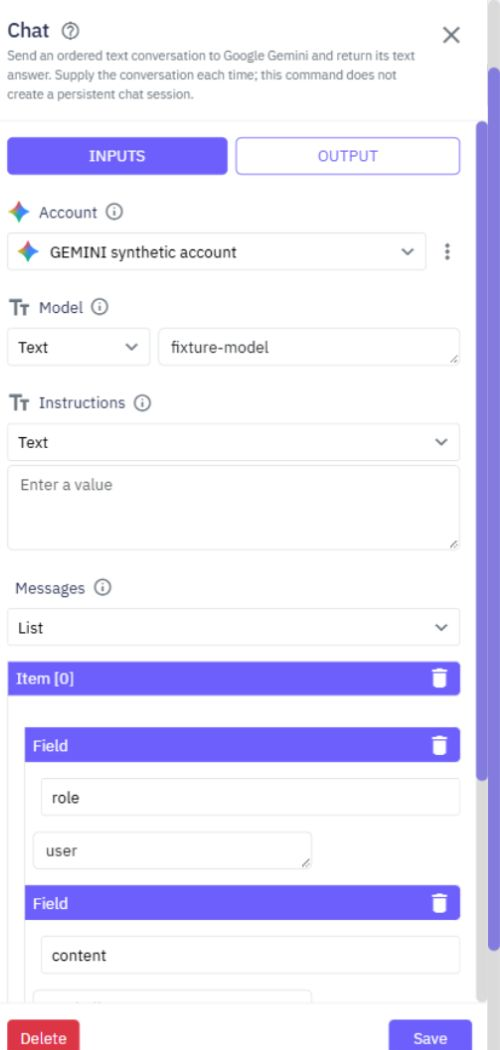
Chat accepts a Messages list instead of a single Input. Each message contains a role of user or assistant and a text content:
[

  { "role": "user", "content": "Suggest a name for a gardening app." },

  { "role": "assistant", "content": "Garden Notes" },

  { "role": "user", "content": "Give me a shorter alternative." }

]
Put system guidance in Instructions. Tool messages, images, file attachments and executable tool calls are not supported by these new text commands.
| Option | Allowed value |
|---|---|
maxOutputTokens | Whole number from 1 to 8192. Defaults to 1024. This is an output budget, not an exact response length. |
temperature | Number from 0 to 2; Anthropic is limited to 0 to 1. Omit it when your model does not support sampling settings. |
topP | Number greater than 0 and at most 1. Cohere accepts 0.01 to 0.99. Omit it when unsupported by the selected model. |
Only these options are accepted. Arbitrary headers, URLs, model overrides, streaming settings and tool definitions are rejected. Provider-specific model restrictions can still reject an otherwise valid option.
{

  "responseId": "provider-response-id",

  "outputText": "The generated answer.",

  "model": "selected-model",

  "finishReason": "provider-finish-reason",

  "usage": { "inputTokens": 25, "outputTokens": 12, "totalTokens": 37 }

}
finishReason retains the provider's terminology. Missing identifiers or finish reasons are null. Missing token counts are also null, meaning unknown; Twidget does not invent zero usage. A total is calculated only when both input and output counts are known, unless the provider supplies a total itself. Usage counts are not a billing statement.
List Models returns a bounded page of model identifiers and names:
{

  "models": [{ "id": "model-id", "name": "Model name" }],

  "nextCursor": null,

  "hasMore": false,

  "truncated": false

}
Anthropic, Gemini and Cohere support native pagination. Pass nextCursor into Cursor to request the next page. The other providers do not accept Cursor in these commands.
Twidget returns at most 500 models from one response. truncated: true means the provider returned more than that limit. hasMore: true means another page or additional results exist; a cursor is only available when the provider supplies one. A truncated response without a cursor cannot be paged through using this command.
Use Create Embeddings with a supported embedding model and an Input list of 1 to 32 text strings. The result contains model, data and usage:
{

  "model": "embedding-model",

  "data": [{ "index": 0, "embedding": [0.12, -0.04, 0.31] }],

  "usage": { "inputTokens": 4, "outputTokens": null, "totalTokens": null }

}
Each vector's index identifies its original input position. Results are ordered by index. Incomplete or malformed vectors fail instead of silently associating a vector with the wrong input.
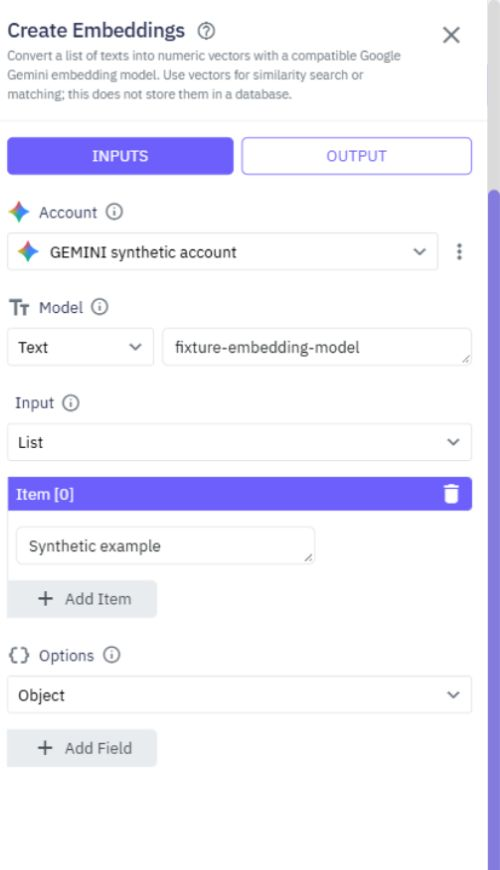
Embedding Options support:
OpenAI, OpenRouter and Gemini: dimensions, a whole number from 1 to 3072, when the selected model supports it.
Cohere: inputType, one of search_document, search_query, classification or clustering. The default is search_document.
Mistral: no additional embedding options in this version.
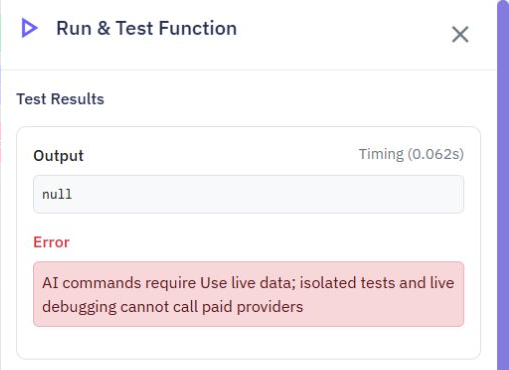
Isolated tests block AI calls before looking up credentials or contacting a provider. To deliberately make a provider request in a test, enable Use live data. That request uses the selected account and can be billable. AI commands are unavailable in live debugging and cannot be run inside a database transaction.
The new commands use these bounds:
30 seconds per provider request, with no automatic retries.
64 KiB for the encoded request and 2 MiB for the decoded response.
Up to 100 chat messages; each message or text Input is at most 32,768 characters.
Instructions at most 16,384 characters.
Embedding input at most 8,192 characters per string.
Requests use fixed provider addresses and do not follow redirects. Provider failures produce a safe error without returning raw provider diagnostics or credential-bearing request objects. Check the model, options, provider access and account credit before deliberately retrying a failed request.
OpenAI and xAI use their Responses APIs. Anthropic uses Messages; Gemini uses native generate-content and embedding APIs; Cohere uses its native chat and embed APIs. Perplexity uses the Agent API with tools disabled and storage disabled. Other providers use their documented chat APIs. These commands do not execute provider-suggested tools.
This release is being tested with synthetic credentials and mocked provider responses. These checks verify Twidget's request handling and isolation; they do not claim that every provider has been tested using a paid live key.
XML commands
Use XML commands when a service sends or expects XML documents. They work with the same variable controls as other commands. Parse XML. Add Parse XML, supply the XML text and choose a mode. SIMPLE is convenient when you need fields from a straightforward document. ORDERED preserves the order of elem...
Advanced file commands
Prepare CSV downloads, work with small ZIP archives and share a temporary download link from an endpoint, server function or event. Find these commands under File Manager when adding a command. Use the usual variable selector and Return as field. The existing file commands still handle storage, fold...
Lists
Twidget offers a variety of commands to help you manipulate lists easily without coding. Below is a detailed explanation of each command available. Transform a list. In an endpoint, server function or event, add a command and choose List. Use the commands below to select, reshape, order or combine i...
Managing Files
Twidget offers a set of commands to manipulate files in your file store. Below are the descriptions and usage of each command to help you understand how to utilize them effectively. For CSV, ZIP archives and temporary download links, see [Advanced file commands](/docs/commands/advanced-files). Get F...
Miscellaneous
Twidget provides several miscellaneous commands to facilitate various tasks. Is Null. Description: Checks whether the provided value is null or not. Inputs: - value: The value to be checked. Output: - boolean: Returns `true` if the value is null; otherwise, returns `false`. Not Null. Description: Ch...

