Watch the walkthrough
Review and promote published workflows from Dev to Prod, including an automatically included function dependency. Check release history and test the promoted result before enabling the new route.
Watch tutorial (5:43)Browse all video tutorials
Move a reviewed set of published workflows from a Dev workspace to a Prod workspace. Releases let you review the changes together, keep a release history and review a rollback if you need to restore the previous workflows.
Prepare your workspaces
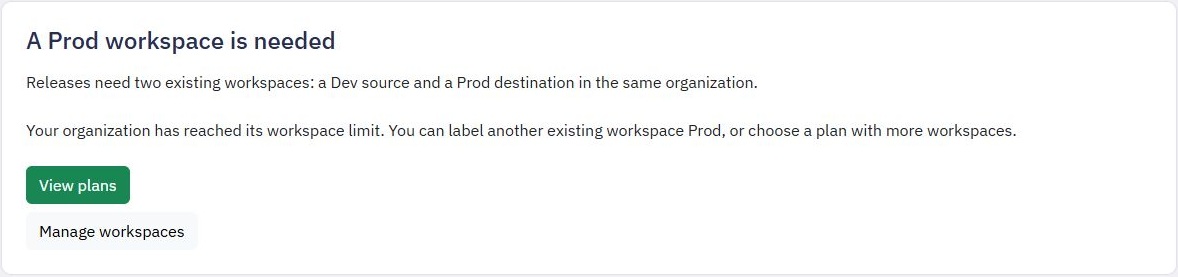
Use two existing workspaces in the same organization: a source labelled Dev and a destination labelled Prod. You must have access to both. Workspace limits still apply; Releases does not create extra workspaces or increase your allowance. If no eligible Prod workspace is available, open Manage workspaces to review your existing workspaces. If your current allowance cannot accommodate both workspaces, use View plans to review your options.
This example explains that the workspace limit has been reached. Releases still needs an existing Prod destination.
View larger screenshot
Publish and test the source workflows first. A release uses their published version, so unfinished edits stay in Dev. Resolve any unfinished destination edits before reviewing a release.
Review changes
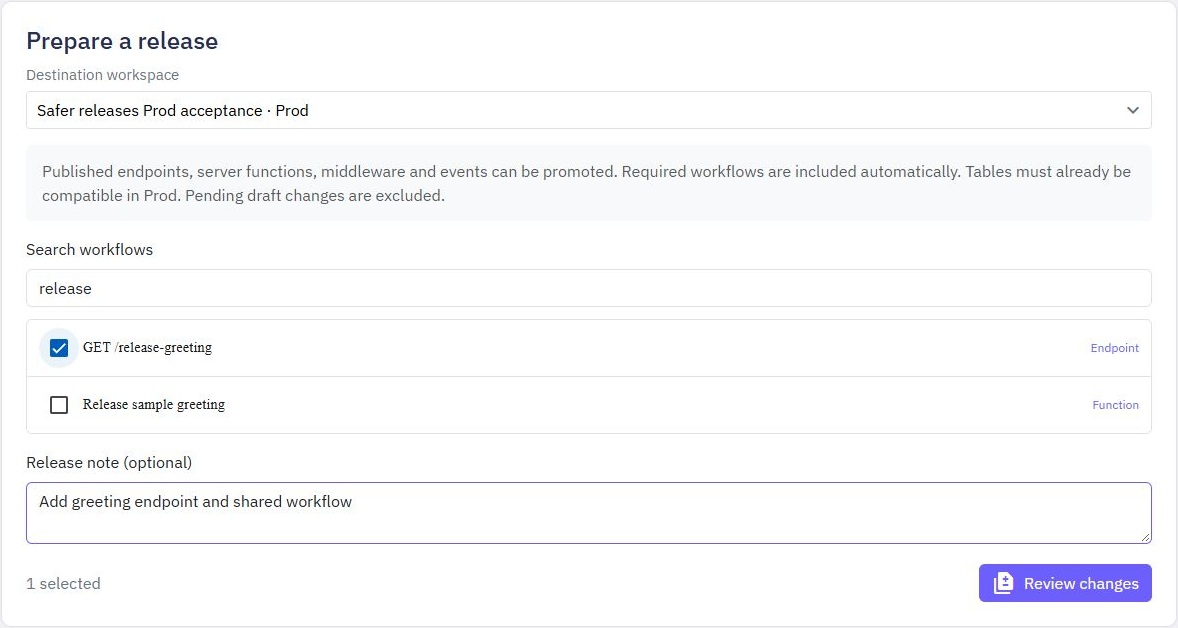
Open the Dev workspace and choose Releases in the sidebar. Choose a Destination workspace, select the workflows and optionally enter a Release note. Select Review changes.
View larger screenshot
You can include endpoints, server functions, middleware and event workflows. Required workflows are included automatically. When a workflow uses a table, a compatible table must already exist in Prod. Resolve any missing or ambiguous dependencies before continuing. If a workflow uses global variables, Prod needs the same names and types; its own saved values remain in place.
If a workflow uses secrets, configure the required names in Prod's Globals & secrets manager before reviewing the release. Review reports missing or unconfigured secrets without showing or copying values. A rollback also keeps Prod's current secret values. See Globals & secrets.
This first version cannot promote workflows that contain saved connected-account, external-database or API-request credential references. The review explains these blockers. Creating a matching connection in Prod does not map those references automatically.
The review lists added, updated and unchanged workflows. Expand an entry to compare its current Prod definition with the release. Summaries identify changes without revealing saved private values or credentials. Review the list of items that stay in Prod as well.
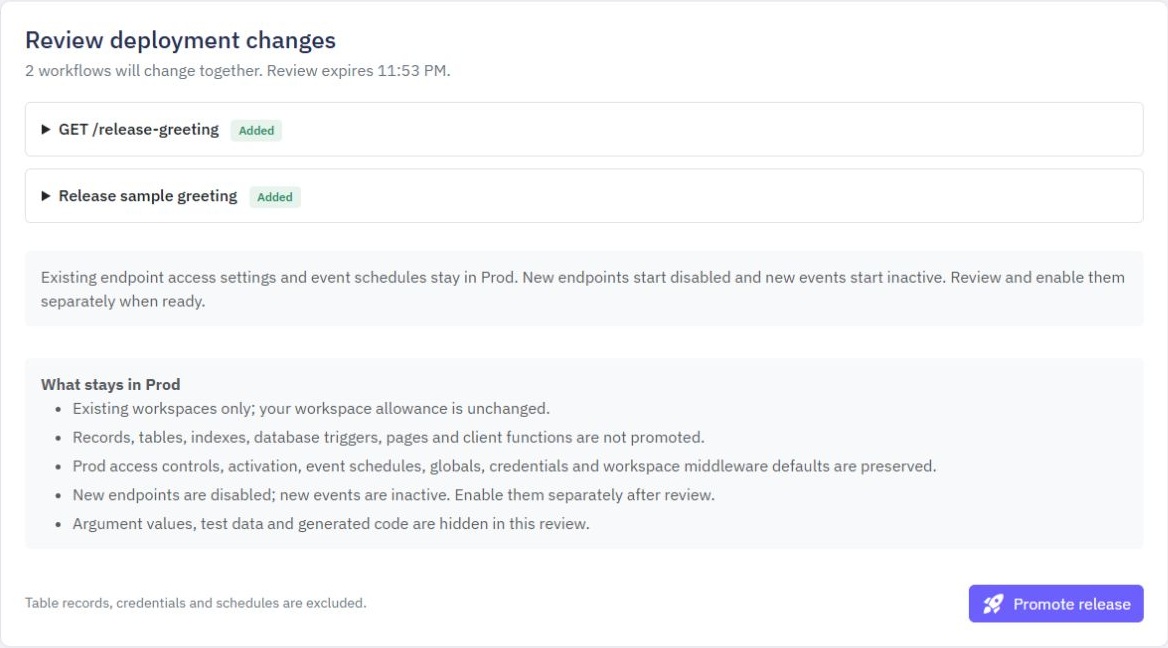
View larger screenshot
Review and roll back
Open the Prod workspace and choose Releases. Release history shows its latest 50 releases. Automatic rollback is available for releases that only updated existing workflows. A release that introduced new workflows explains why automatic removal is unavailable. New endpoints and events stay disabled or inactive until you review and enable them.
In this example, the release added new workflows, so Review rollback is unavailable. The message explains why.
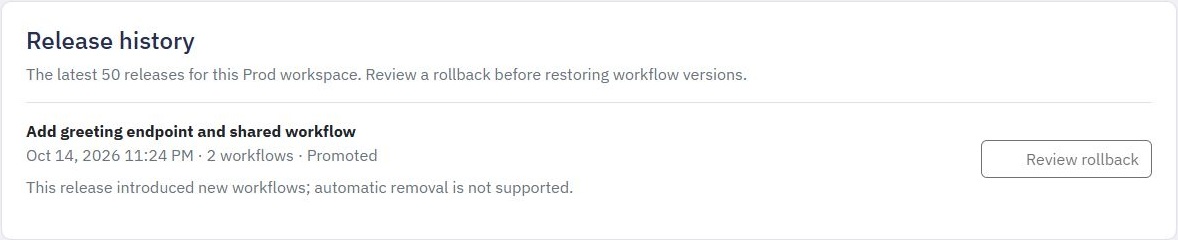
View larger screenshot
Select Review rollback for an eligible update release, check what will be restored, then select Roll back release and confirm.
The comparison shows the current Prod definition beside the version to restore. Private values remain hidden.
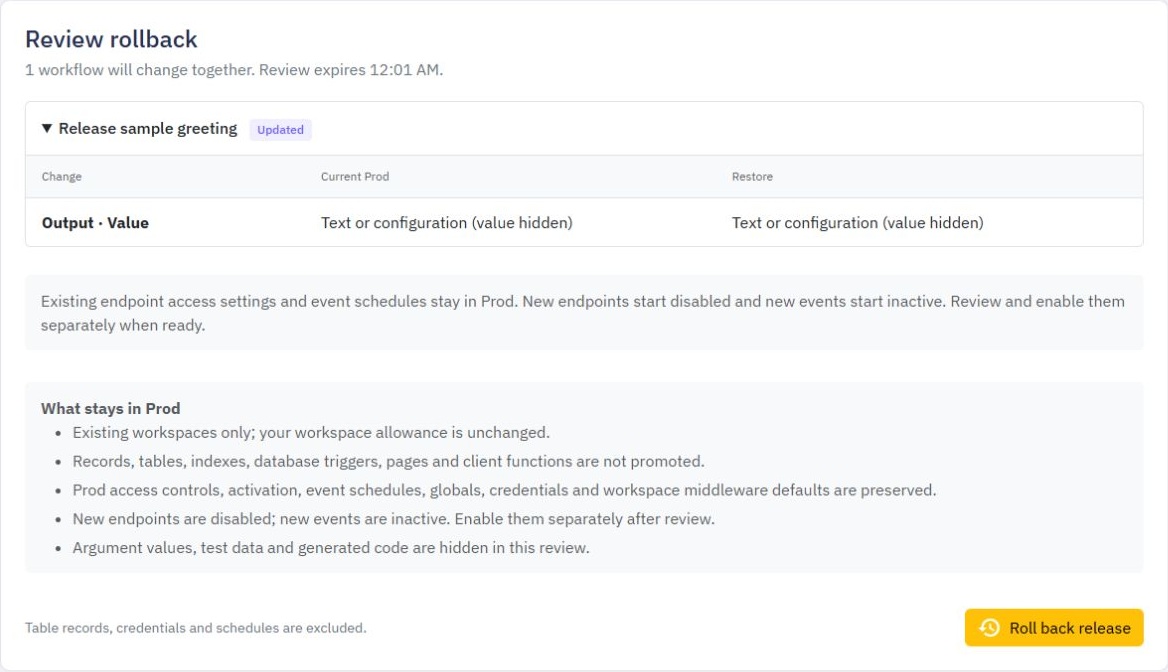
View larger screenshot
After a successful rollback, the confirmation and Rolled back history entry show what happened. Check this history if a request was interrupted.
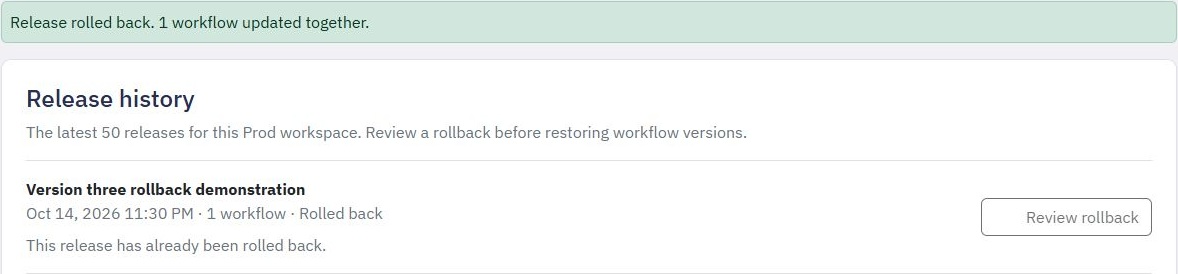
View larger screenshot
Rollback restores the workflow definitions saved before that release. It is blocked if affected destination workflows have changed since promotion. Discarding or reversing a later Prod edit does not make that older rollback available again. Prepare a new reviewed release instead. This version does not automatically remove workflows introduced by a release. Review those changes first instead of overwriting later work.
What stays in Prod
Releases do not move or restore database records, table layouts, indexes, database triggers, credentials, global values, workspace settings or event schedules. Rollback does not undo emails sent, records saved or other actions already performed by a workflow. Prepare any required tables and global variable names and types separately before reviewing a release. Workflows with saved service credential references are outside this first version.
An ordinary Publish updates one workflow in its current workspace. Copy resources creates separate copies. Releases is the reviewed Dev-to-Prod flow for updating a coordinated set of published workflows.
Useful guides: Publishing changes, Testing, Middleware, Workspaces.