


Read and Create Spreadsheet Files
Read a named worksheet, create typed XLSX columns, preserve leading zeros and literal text, then verify a private file storage round trip.
Watch tutorial (5:55)
Read a named worksheet, create typed XLSX columns, preserve leading zeros and literal text, then verify a private file storage round trip.
Watch tutorial (5:55)Use Read spreadsheet and Create spreadsheet under File Manager in a server workflow. They work with XLSX files and simple typed cell values. For CSV text files, use Advanced file commands.
Choose File, containing its actual contents. Use an uploaded file, a previous command's file or Get File with Include bytes enabled. Choose Variable to select it. A file path alone is not enough.
Leave Worksheet empty to read the first sheet, or enter its exact name. Use first row as headers is true by default. Headers must be unique, nonempty text. With headers disabled, rows use column keys A, B, C and so on.
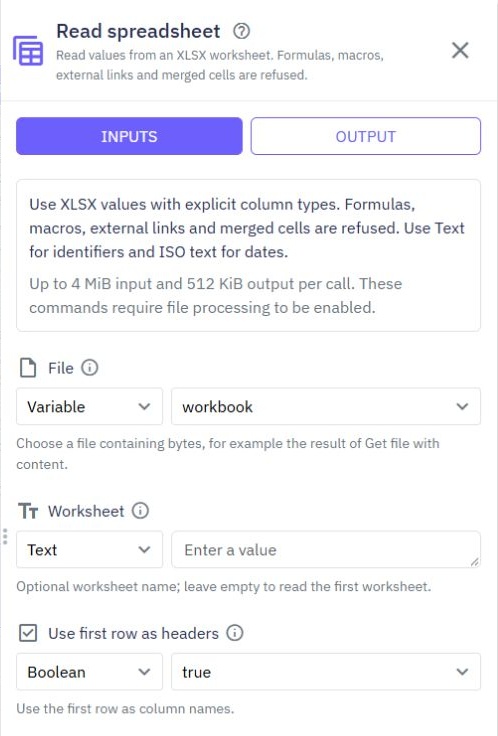
The output includes the chosen worksheet, worksheet summaries, headers, rows, row count, column count and date system. Rows are objects whose keys are the headers or generated column letters. Blank cells become empty values. Text identifiers such as 000123 keep their leading zeros; numbers and booleans keep their types. Dates become a standard date/time string, for example 2026-10-16T12:00:00.000Z.
Choose a Worksheet name and provide Columns and Rows with the usual variable controls. Each column has a unique name and one of these explicit types:
| Type | Use for |
|---|---|
| TEXT | Names, notes and identifiers that may contain leading zeros. |
| NUMBER | Numeric amounts and quantities. |
| BOOLEAN | True/false values. |
| DATE | A valid date/time string such as 2026-10-16T12:00:00.000Z. |
For example, Columns can contain {"name":"identifier","type":"TEXT"} and {"name":"amount","type":"NUMBER"}. A matching row can be {"identifier":"000123","amount":12.5}. Select a list variable or use the JSON entry option for these lists. Row field names must match the column names. Values are not silently converted between types.
Include header row is true by default. Save the new file with Return as. The result is a new XLSX file; upload it to storage or use it in another command when needed. It is not automatically saved or given a public URL. Formula-like TEXT, such as =literal text, stays ordinary text and is not evaluated.
Read simple value-based workbooks. Existing formulas, macros, external links, merged cells, comments, active content and unsupported workbook features are refused. This command does not calculate formulas or convert other office file formats. Export a values-only XLSX file when needed.
Limits include 4 MiB of input, 512 KiB for a new output file, 10 worksheets, 10,000 row positions, 100 columns and 50,000 cells across the workbook. Large gaps between cells count toward the limits. Cell text may be up to 32 KiB. More detailed size limits may reject a highly compressed or unusually complex workbook before those counts are reached.
Dates use the workbook's date system. A nonexistent calendar date is rejected rather than changed silently. Test with small samples and review important identifiers and dates before using an imported workbook.
These commands work in ordinary server tests, inactive event tests, background functions and supported endpoint suites. Busy capacity, unsupported files and exhausted limits show an error. See File processing limits and errors, Testing, Background jobs and Managing Files.
Send Message
Send SMS Command. With Twidget, you can send SMS messages to phones using the `Send SMS` command. This functionality varies depending on the provider. Currently, we support Twilio as the SMS provider. To use Twilio for SMS integrations, you will need: - A Twilio account ID - Twilio Auth Token - A Tw...
Security
Twidget provides several built-in functions to enhance the security of your applications. Below is an overview of each security command, including its description, inputs, and outputs. For checksums, shared-secret signatures, webhook verification and safe text comparison, see [Cryptography commands]...
Send External HTTP Request
Using Twidget, you can send external HTTP requests effortlessly. This functionality allows you to communicate with external servers or APIs. Below, you will find the necessary parameters and structure to set up an HTTP request. Parameters. - URL: The endpoint to which the request will be sent. - Met...
Math
Twidget offers a variety of commands to manipulate numbers. Below are the math commands available, along with their descriptions, inputs, and outputs. Sum. Description: Adds together a list of numbers and returns the sum. - Inputs: - `numbers`: A list of numbers to be added together. - Output: A sin...
Managing Files
Twidget offers a set of commands to manipulate files in your file store. Below are the descriptions and usage of each command to help you understand how to utilize them effectively. For CSV, ZIP archives and temporary download links, see [Advanced file commands](/docs/commands/advanced-files). Get F...