


Resize, Crop, Rotate and Convert Images
Resize, crop, rotate and convert a private image to WebP, inspect its dimensions, then save and download the processed file.
Watch tutorial (7:58)
Resize, crop, rotate and convert a private image to WebP, inspect its dimensions, then save and download the processed file.
Watch tutorial (7:58)Read image details, make smaller copies, crop, rotate or change the format. Add these commands from File Manager in an endpoint, server function or event. They also work when a published function is called in the background and in supported endpoint test suites.
Use a file containing its contents: an uploaded file, a file returned by another command, or Get File with Include bytes enabled. In the File field, choose Variable and select that file. A saved path or ordinary file listing alone is not enough. See Managing Files.
JPEG, PNG and WebP are supported. Animated images and other formats are refused. Each image may have up to 4096 pixels per edge and 8 million pixels in total, with up to 4 MiB of input. Each new output file is limited to 512 KiB. A smaller dimension or lower quality can help when an output is too large.
Image information returns width, height, format, transparency, page count and input size. Dimensions account for the image's automatic orientation. It does not create another file.
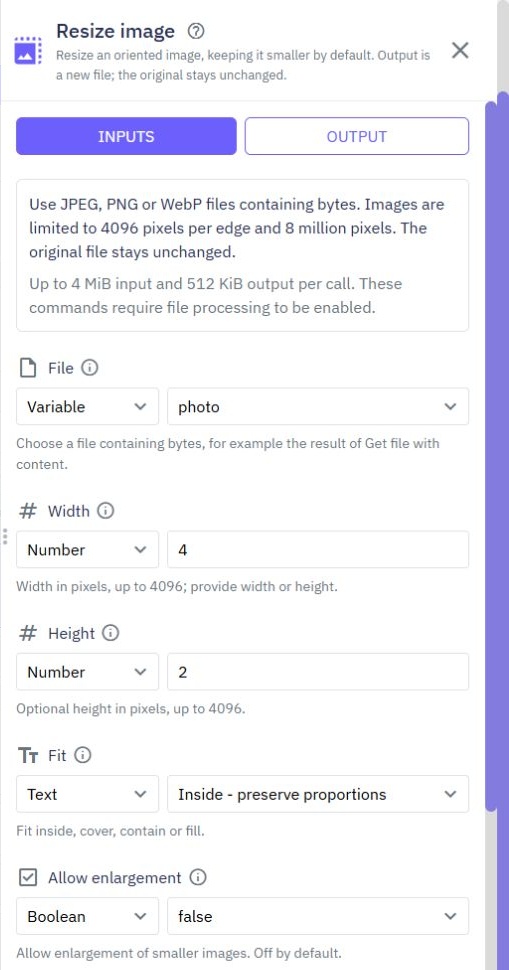
Choose Width, Height, or both. For a 1200-pixel-wide thumbnail, enter 1200 for Width and leave Height empty to keep its proportions.
Inside keeps proportions and fits within the chosen dimensions.
Cover fills the dimensions, cropping where needed.
Contain keeps the whole image and adds a background where needed.
Fill stretches to the dimensions and may change its proportions.
Allow enlargement is false by default, so small images are not enlarged unnecessarily. Choose an optional Format and Quality. Quality ranges from 1 to 100 for JPEG/WebP; PNG stays lossless.
Choose Left, Top, Width and Height. Left and Top start at 0 and refer to the automatically oriented image. For example, Left 0, Top 0, Width 200 and Height 200 copies its top-left square. The rectangle must fit inside the image.
Choose Degrees: 0, 90, 180 or 270 clockwise. The image is automatically oriented first. Choose the output format and quality as needed.
Choose JPEG, PNG or WebP. The new image removes the source's private image metadata. This does not remove information visible in the picture itself. JPEG uses a white background for transparent areas.
Resize, crop, rotate and convert return a new file in Return as. The original stays unchanged. Use the result in another command, upload it to storage, or return it from your workflow as appropriate. A new file is not automatically saved to File Manager or given a public download link. Use Image information again if you need its final dimensions.
Test with a small sample first. Processing uses shared capacity and does not wait in a file-processing queue: if it is busy, wait before trying again. Invalid files, unsupported content, exhausted limits and unavailable processing show an error instead of silently returning the original. See File processing limits and errors, Testing and Background jobs.
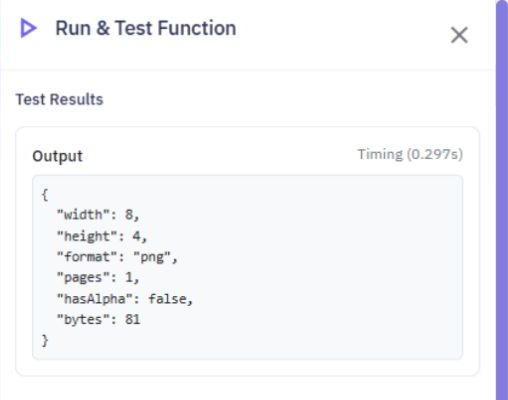
Image information returns the image's width, height, format and byte count without changing the file. For example, this small PNG reports a width of 8 and height of 4. Choose its return variable as the function output to inspect the result in Test.
Security
Twidget provides several built-in functions to enhance the security of your applications. Below is an overview of each security command, including its description, inputs, and outputs. For checksums, shared-secret signatures, webhook verification and safe text comparison, see [Cryptography commands]...
Cryptography commands
Create checksums, protect text with encryption, sign and verify messages, and compare private text in endpoints, server functions and events. Find these commands under Security when adding a command. They use the familiar variable selector and Return as field. Keep shared signing keys in [Globals & ...
Connector Commands
Connector Commands allow you to integrate Twidget projects with external services such as Google Drive, Slack, OpenAI’s ChatGPT, and many others. These commands provide ready-made actions that communicate with third-party APIs, removing the need to manually create and maintain external HTTP requests...
AI connectors
For every command’s inputs, results, examples and common errors, open the [detailed connector reference](/docs/connectors/overview). The command editor’s help button opens its exact reference section. Use an AI provider from an endpoint, server function or event. Choose your organization's connector...
Miscellaneous
Twidget provides several miscellaneous commands to facilitate various tasks. Is Null. Description: Checks whether the provided value is null or not. Inputs: - value: The value to be checked. Output: - boolean: Returns `true` if the value is null; otherwise, returns `false`. Not Null. Description: Ch...