For every command’s inputs, results, examples and common errors, open the detailed connector reference. The command editor’s help button opens its exact reference section.
Connect common business apps to your endpoints, server functions and events. Choose an app, connect an account for your organization and use a ready-made command. This library has 56 connectors in total: the 38 business apps below, six Google apps, Slack and eleven AI providers.
Open Connectors from an account input's three-dot menu by choosing View connectors, then choose Create Connector. You can also choose Connect a new account directly from that menu.
Use Search apps or Category to narrow the app picker, then choose an App and Add connector.
Enter the provider's required fields or choose Authorize connection to sign in on its own website.
Return to your command and select the connected Account.
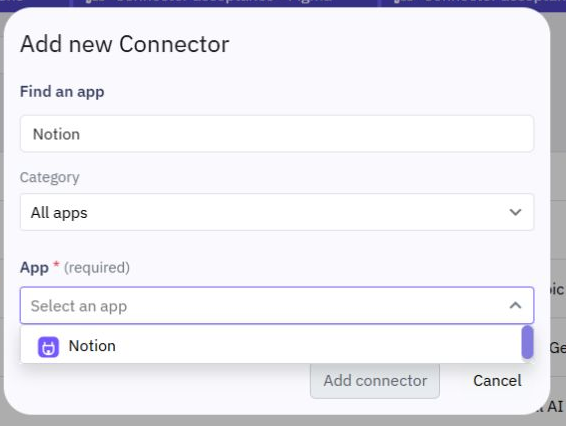
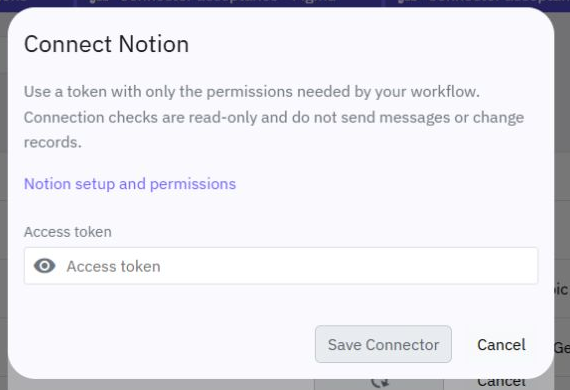
Only accounts for the selected provider appear. Names help you distinguish accounts, but saved keys and tokens are never shown again. Reconnecting keeps the account identity so existing workflows can use the replacement authorization.
| App | Commands | Connection |
|---|---|---|
| Notion | Search pages and data sources, Get page, Create page, Query data source, Append block children | Provider key or internal app |
| Airtable | List records, Get record, Create record, Update record | Provider key or internal app |
| HubSpot | List contacts, Get contact, Create contact, Update contact | Provider key or internal app |
| Salesforce | Query records, Get contact, Create contact | Provider key or internal app |
| Pipedrive | List persons, Get person, Create person | Provider key or internal app |
| monday.com | List boards, Get item, Create item | Provider key or internal app |
| Asana | List project tasks, Get task, Create task | Provider key or internal app |
| Trello | List boards, Get card, Create card | Provider key or internal app |
| ClickUp | List tasks, Get task, Create task | Provider key or internal app |
| Jira Cloud | Search issues, Get issue, Create issue | Provider key or internal app |
| Linear | List issues, Get issue, Create issue | Provider key or internal app |
| GitHub | List repositories, List repository issues, Create issue | Provider key or internal app |
| GitLab.com | List projects, Get issue, Create issue | Provider key or internal app |
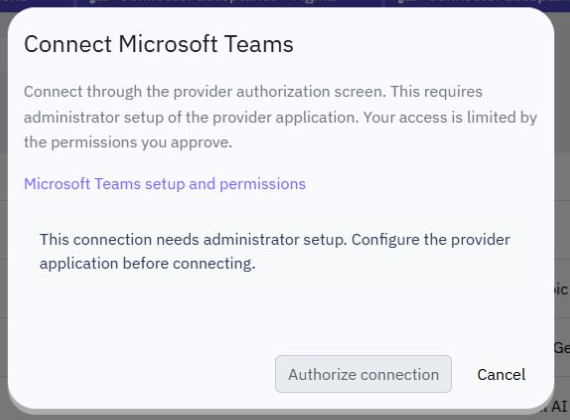
| Microsoft Teams | List joined teams, List channels, Send channel message | Authorize account |
| Microsoft Outlook | List inbox messages, Get message, Send email | Authorize account |
| Microsoft OneDrive | List root files, Get file metadata, Create folder | Authorize account |
| Microsoft Excel | List worksheets, Get range, Update range | Authorize account |
| Dropbox | List folder, Continue folder listing, Get file metadata, Create folder | Provider key or internal app |
| Discord | List servers, List server channels, Send channel message | Provider key or internal app |
| Stripe | List customers, Get customer, List invoices | Provider key or internal app |
| Shopify | List products, List orders, Get product | Provider key or internal app |
| BigCommerce | List products, Get product, List orders | Provider key or internal app |
| Zendesk | List tickets, Get ticket, Create ticket | Authorize account |
| Intercom | List contacts, Get contact, Create contact | Authorize account |
| Mailchimp | List audiences, List audience members, Add audience member | Provider key or internal app |
| SendGrid | List contact lists, Add or update contacts, Send email | Provider key or internal app |
| Brevo | List contacts, Create contact, Send transactional email | Provider key or internal app |
| Resend | List sent emails, Get email, Send email | Provider key or internal app |
| Twilio | List messages, Get message, Send SMS message | Provider key or internal app |
| Telegram | Get bot details, Get chat, Send message | Provider key or internal app |
| Calendly | Get current user, List event types, List scheduled events | Provider key or internal app |
| Typeform | List forms, Get form, List responses | Provider key or internal app |
| Figma | List team folders, List folder files, Get file | Provider key or internal app |
| Todoist | List projects, List tasks, Create task | Provider key or internal app |
| Coda | List documents, List tables, List rows | Provider key or internal app |
| Freshdesk | List tickets, Get ticket, Create ticket | Provider key or internal app |
| Webflow | List sites, List collections, List collection items | Provider key or internal app |
| Cloudflare | List zones, Get zone, List DNS records | Provider key or internal app |
These are popular workflow integrations selected across productivity, CRM, development, support, commerce, communication and marketing. This is broad coverage rather than a worldwide popularity ranking. Commands are server-only and cannot be used in a Page's client workflow.
Give each account only the permissions needed by its commands. A connection check is read-only; it does not send an email, create a record, make a payment or prove that every action is allowed.
Verified: the provider accepted the latest check or authorization. Individual actions may still need more permissions or a different subscription.
Unverified: checking was unavailable, temporarily failed or requires token renewal. This does not automatically mean the key is invalid. A refreshable expired account can renew when its workflow runs.
Revoked: reconnect before using the account.
Some apps require an administrator to configure the platform's provider application before anyone can authorize it. Microsoft 365, Intercom and Zendesk show this setup requirement explicitly. They use authorization screens rather than asking you to copy private access tokens into Twidget. A provider may require administrator consent or app approval.
Use the provider's setup link beside the form to find its account requirements. For example:
Notion: share the required pages or data sources with the integration. A database and its data source have different IDs. Search pages and data sources can help find shared resources.
Airtable: use a personal access token with the required scopes and base access.
GitHub: grant the token access to the repositories used by your commands.
Pipedrive: use your personal API token and company subdomain.
Trello: both an API key and token are required.
Jira: enter the site subdomain, account email and API token. Only Atlassian Cloud sites are supported.
Salesforce: enter a supported Salesforce instance hostname and a valid access token. Reconnect when an externally obtained token expires.
Mailchimp: use your API key and matching data center, such as us6.
Twilio: use your account SID and auth token. SMS delivery can incur provider charges.
Shopify: use an app owned by the same organization as your store, with its shop subdomain, client ID and client secret. These commands use the current GraphQL Admin API and own-store client credentials. They do not support installing one private app into unrelated merchants' stores.
Microsoft Excel: use a business-hosted workbook supported by Microsoft Graph. Consumer OneDrive workbooks are not supported by these Excel commands.
In an endpoint, server function or event, select Add Command → Connector, choose the app and choose an action. Enter Account first. Resource IDs, query fields and values use the same variable controls as other Twidget commands, so you can map incoming data into the action.
For results whose fields depend on the provider, the Output tab shows a general result rather than an invented fixed schema. Save the result with Return as and use the provider's documented result fields in following commands.
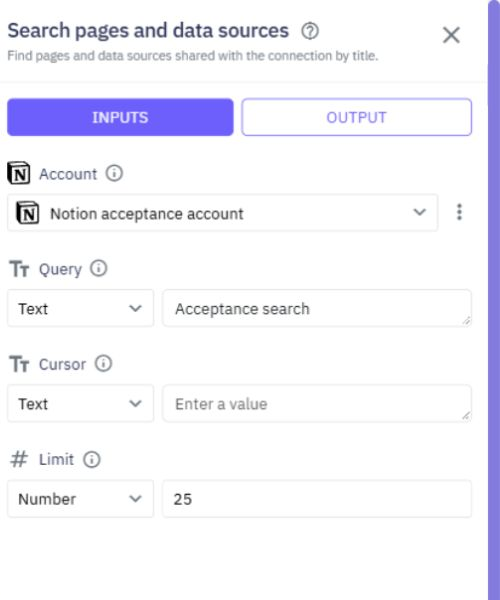
Add Notion → Search pages and data sources.
Select the account, enter a search Query and use Limit to bound one page.
Use a returned page ID with Get page, or a data-source ID with Query data source.
To add a page to a data source, use Create page with a Parent object containing data_source_id and a Properties object matching that data source's fields.
For a data source with a title property called Name, Properties can contain a Name field with a title list containing a text object. Notion property names must match the shared data source. Use Append block children to add supported blocks to an existing page.
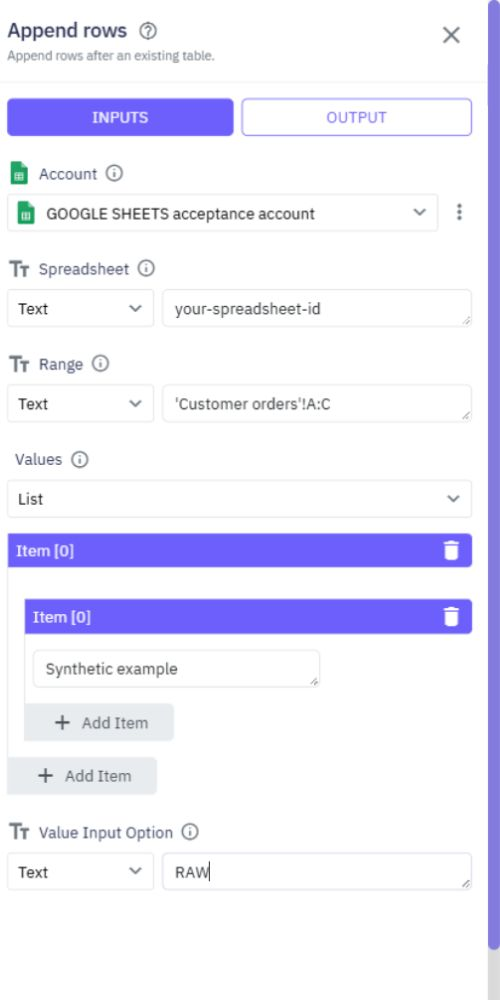
Choose Google Sheets → Append rows. Set Spreadsheet to the spreadsheet ID, Range to the destination A1 range, and Values to a list of rows. Each row is itself a list:
[["Ada", "New customer"], ["Sam", "Follow up"]]
Use Value_Input_Option RAW to store values as supplied. USER_ENTERED lets Google interpret dates, numbers and formulas, just as it would when typing into a sheet. Use Update values when you want to replace a specific range instead of appending.
GOOGLE SHEETS → Append rows.
GOOGLE SHEETS → Update values.
GOOGLE DRIVE → List files.
GOOGLE DOCS → Get all document content.
GMAIL → List emails.
GOOGLE CALENDAR → List calendar events.
GOOGLE FORMS → List form responses.
SLACK → List channels.
SLACK → List users.
SLACK → Get channel history.
Existing command IDs remain available. Sheets handles worksheet names containing spaces or quotes, and worksheet ID zero. Get all document content includes Google Docs tabs and tables; the earlier content command retains its original behavior. The older Forms response collector has an explicit resource limit; use the paginated list command for larger forms.
Email commands reject line breaks in address and subject headers. This protects headers while keeping multiline message bodies available. Slack history pages are limited to 15 messages to respect provider limits for apps outside its marketplace.
List and search commands return bounded results. Where supported, use Limit, Cursor, Page or the provider's continuation fields. A default Limit is usually 25, with a maximum of 100; Slack history is at most 15. Collection-only commands without continuation controls are identified as such in their descriptions.
Microsoft inbox and root-file listings return an additional nextCursor when more results exist. Pass it into Cursor; do not put a complete next-page URL in an input. Other apps return their native continuation fields, such as next_cursor, offset, next_page_token or a page number. Dropbox has a separate Continue folder listing command. Provider APIs can impose smaller limits or rate limits.
Figma uses personal access tokens with the required read scopes, and its current folder commands. Todoist uses its current unified API. Cloudflare requires an active user API token with the appropriate zone permissions. Freshdesk ticket lists use the provider's recent-ticket default; this version has no older-history date filter. Intercom currently supports workspaces using its US API host; regional workspaces need additional support.
Isolated tests and live debugging block external connector calls. To deliberately contact the selected account from a test, enable Use live data. This can create real records or send real messages and may incur provider charges. Begin with a read-only list or get action.
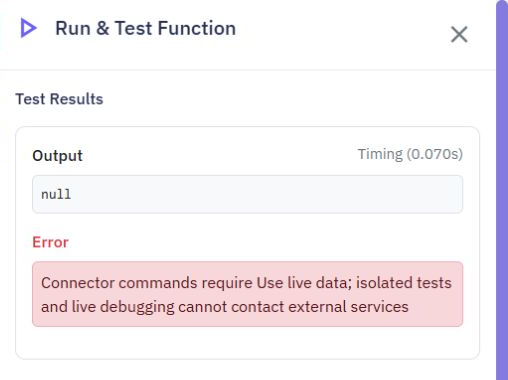
Requests and responses are bounded, and mutations are not automatically retried. Check the previous action's outcome before retrying a failed create or send, especially after a timeout. Provider errors are summarized without showing credentials or raw diagnostic bodies.
This release's automated API checks use controlled synthetic responses. Browser acceptance checks the real editors, connection forms and isolated test behavior; it does not prove live authorization for every provider. New platform OAuth application registrations and real account permissions must be configured before live use.
Provider logos appear beside the app's name in the command picker, saved connector list and account selector. The same logo follows the provider through each view; the account name distinguishes your saved connections.
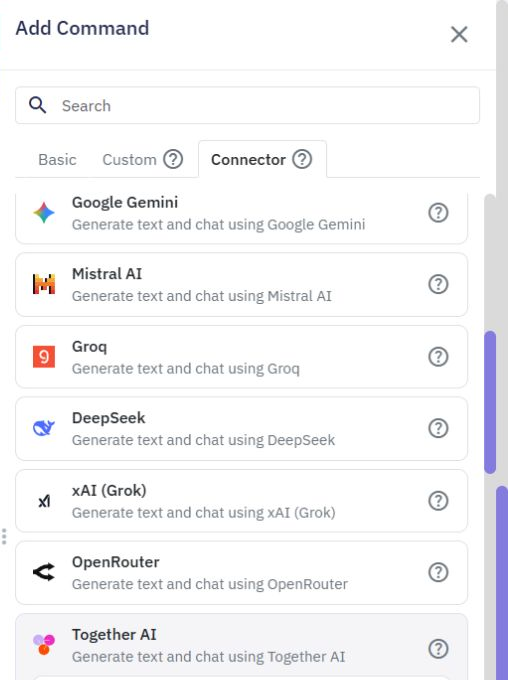
Microsoft Teams, Outlook, OneDrive, Excel, Intercom and Zendesk are temporarily hidden from the new-connector picker and Add Command browsing/search while shared application registration is completed. Existing saved connections and workflows remain supported.
Lists
Twidget offers a variety of commands to help you manipulate lists easily without coding. Below is a detailed explanation of each command available. Transform a list. In an endpoint, server function or event, add a command and choose List. Use the commands below to select, reshape, order or combine i...
Send Message
Send SMS Command. With Twidget, you can send SMS messages to phones using the `Send SMS` command. This functionality varies depending on the provider. Currently, we support Twilio as the SMS provider. To use Twilio for SMS integrations, you will need: - A Twilio account ID - Twilio Auth Token - A Tw...
Managing Files
Twidget offers a set of commands to manipulate files in your file store. Below are the descriptions and usage of each command to help you understand how to utilize them effectively. For CSV, ZIP archives and temporary download links, see [Advanced file commands](/docs/commands/advanced-files). Get F...
Variables
Variables are essential building blocks in Twidget that allow you to store and manipulate data dynamically within your no-code applications. They enable you to create flexible and interactive applications by holding values that can be changed and referenced throughout your workflow. Creating Variabl...
AI connectors
For every command’s inputs, results, examples and common errors, open the [detailed connector reference](/docs/connectors/overview). The command editor’s help button opens its exact reference section. Use an AI provider from an endpoint, server function or event. Choose your organization's connector...

