A Database Transaction groups database work so its changes complete together. If a command in the block fails, the block's changes are rolled back.
Add Database Transaction to the workflow.
Inside Save changes together, add the supported commands that create the order and change stock.
Add validation for conditions that must hold, such as sufficient stock.
Add any later commands outside the block.
Save and test both a successful order and an order that deliberately fails validation.
After the failed test, verify that neither the new order nor its stock change remains.
The example below places Save Data and Increment or Decrement Field inside the transaction's Save changes together block. Both changes must succeed for the block to finish.
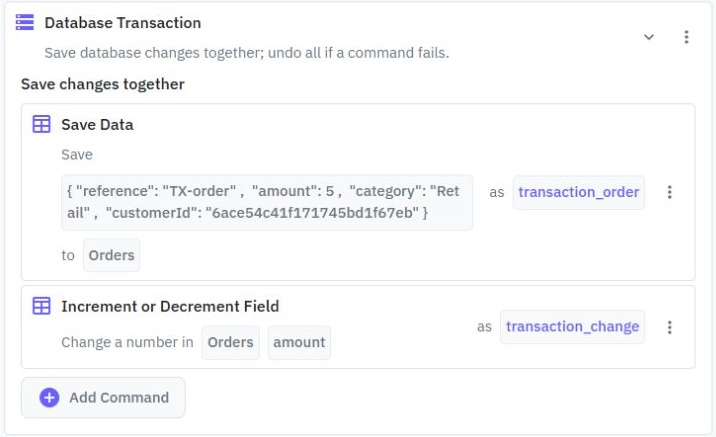
Use supported database commands inside the block. Keep external database queries, email, SMS, HTTP calls and other external actions outside it. A rollback cannot undo a message already sent or an action performed by another service.
Keep transaction blocks short. Long-running work makes it harder for other requests to use the same records. Nested transaction blocks are not supported.
Transactions require transaction support in the environment running your workspace. If support is unavailable, the workflow reports an error instead of quietly saving only part of the changes. Ask your administrator if a local or self-hosted environment needs configuration.
Export Data from Tables
Twidget allows you to export data from your database tables to a CSV file. This feature supports the export of both complete and filtered datasets. Here’s how you can utilize this functionality: Features. - Format: Export data in CSV format. - Data Handling: Object and list data types within your ta...
Filter Data
In Twidget, you can easily filter and sort data within the database tables view. This allows you to refine and manipulate the data as needed. Below are the steps and options available for filtering and sorting data. Filtering Data. To filter data: 1. Click on the Filter Button: In the table toolbar,...
Table Field Types
Each table column in Twidget has a data type. The available data types are: - Text - Number - Boolean - Date - Object Field Type Adherence. Data added to the table should adhere to the column's field type. When you manually enter data via the web application, the value editor will use the input type...
Database Change Triggers
Run an event automatically when a record is created, updated or deleted in a Twidget table. For example, send a welcome message after adding a customer, or refresh a summary when an order changes. Prepare the event. Create an event containing the steps you want to run. Add an Object input named `tri...
Adding Database Table Rows
In Twidget, you can easily add new entries (rows) to your database tables. This feature allows you to expand your data dynamically without the need for complex coding. This document provides a step-by-step guide on how to add rows to your database tables. Adding a New Entry to a Table. To add a new ...

