The sidebar groups related tools so you can spend less time scrolling. Choose a section to show its pages. You can keep several sections open at once; choose an open section again to close just that section.
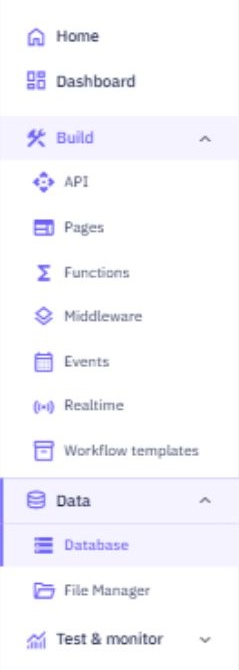
Home returns to your workspace's starting view. Dashboard stays directly available above the groups.
Build: API, Pages, Functions, Middleware, Events, Realtime and Workflow templates.
Data: Database and File Manager.
Test & monitor: API Client, Releases, Test suites, Background jobs and Logs & Insights.
The section containing your current page opens automatically when you switch tabs, keeping your other sections open. A purple background and vertical line mark your current item, including when you are editing an endpoint, function, page or table. Home, Dashboard and Settings use the same active indicator.
Help and Settings stay at the bottom. Your workspace name at the top opens the workspace chooser.
The pink checklist button in the top bar tracks your first table, endpoint and API test on desktop and mobile. See Getting started checklist.
Choose Help → Start Tutorial for callouts that highlight the next control to use. See Guided walkthroughs for replay, skip and smaller-screen controls.
Frequently Asked Questions
Why does sign-in say workspace access is being updated?. Twidget briefly pauses some actions while workspace access or a saved connection changes. Wait a moment, then try signing in again. Interrupted preparation and confirmed cleanup recover automatically when it is safe to retry. Ordinary sign-in ...
Guided walkthroughs
Choose Help → Start Tutorial to replay the welcome introduction and restart the guided walkthroughs. After the introduction, callouts highlight the controls to use next. The pink getting-started checklist is a separate three-step progress panel. Follow a walkthrough. The guides cover creating and ed...
What is Twidget?
Twidget is a no-code platform for building web interfaces and their backend. Use Pages to create a frontend, connect it to API endpoints and database tables, and automate server workflows with functions and events. Build with the visual editors or discuss a goal with Twidget Assistant and review its...
Twidget Assistant
Use the Assistant to discuss an idea, get help and prepare changes to your workspace. You can ask questions before deciding what to build. A conversation can cover several resources, rather than belonging to a single page or API. Open quick help. Choose the headset button at the bottom right, Assist...
Privacy choices
You can use Twidget with optional analytics and advertising cookies turned off. Choose what to allow. When Your privacy choices appears in the app, choose Reject optional, Accept optional, or Customize. In Customize, you can choose each option separately: - Analytics helps Twidget understand where p...

