


Reusable Middleware for Endpoints
Build reusable middleware for endpoints, inspect execution order and test response merging and error-handling behaviour.
Watch tutorial (7:30)
Build reusable middleware for endpoints, inspect execution order and test response merging and error-handling behaviour.
Watch tutorial (7:30)Middleware is a reusable workflow that runs before or after an endpoint, function or event. Build it once, then apply it wherever you need the same input checks, response formatting or logging.
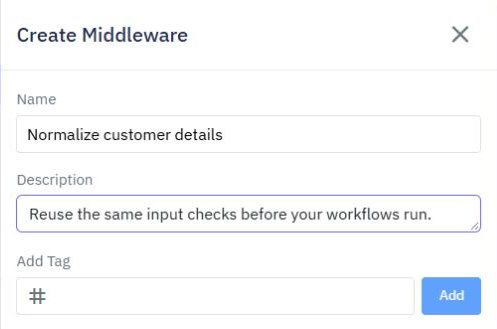
Open Middleware from the sidebar and choose Create Middleware. Give it a clear name, such as Normalize customer details or Add response summary.
The library has a search field and a Create Middleware button.

Enter the name and optional description in the creation panel.
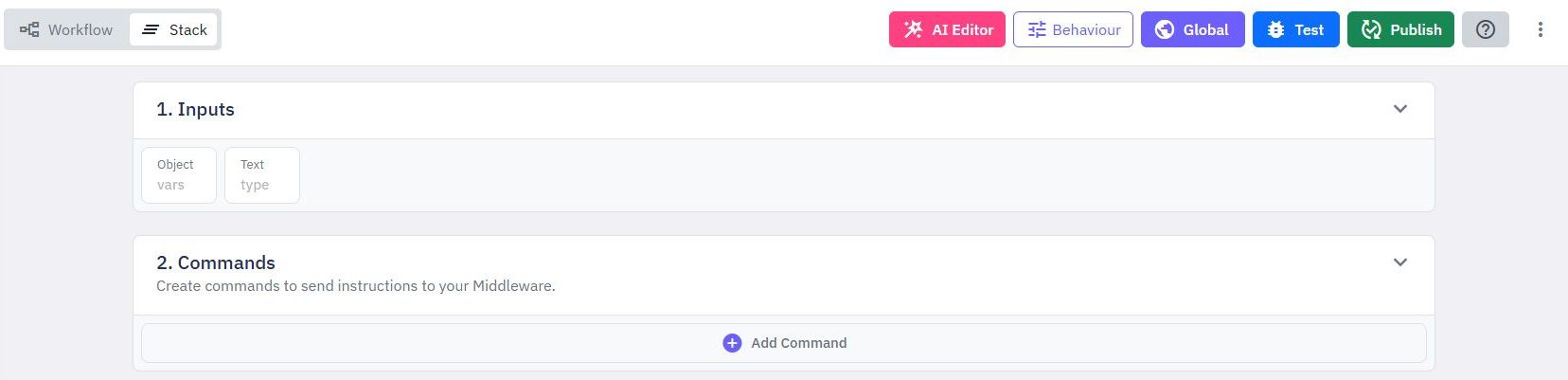
Build its commands with the same editor you use for functions. Middleware has two inputs:
vars contains the workflow inputs before a run, or its output after a run.
type tells you whether it is running before (pre) or after (post).
These fixed inputs appear in the editor automatically. Use Add Command to build the middleware's steps; the toolbar includes Behaviour, Test and Publish.
For endpoints, before middleware receives the endpoint's named input values. For functions and events, it receives their inputs. Use the variable selector to read the values you need. Choose an output only when you want to change those values or the final result.
For example, if the workflow has a "name" input, choose Input in a value selector and enter vars.name in its searchable field. To read a nested value, enter a path such as vars.customer.name. You do not need to change the middleware's fixed inputs.
Use Test with sample inputs before publishing the middleware. Execution tracing can help you review the commands that ran. Publish it before selecting it for another workflow.
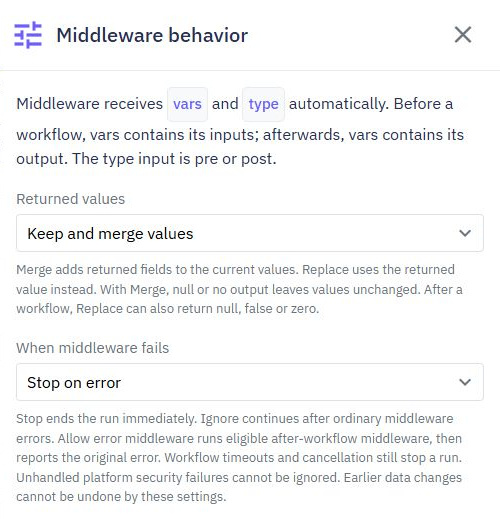
Open Behaviour and choose Keep and merge values to add fields to the current input or output object. Fields with the same name are replaced. For example, return { "source": "website" } to add a source field while keeping the other fields.
Choose Replace values to use the middleware output as the complete new input or result. Check carefully that any required workflow inputs remain available. After middleware can replace a result with an object, a list or a simple value.
With Keep and merge values, an unset or null output leaves the current values unchanged. This is useful for middleware that only checks or logs something. With Replace values, a result such as null, false or 0 replaces the output with that value. Before middleware must return an input object when replacing inputs.
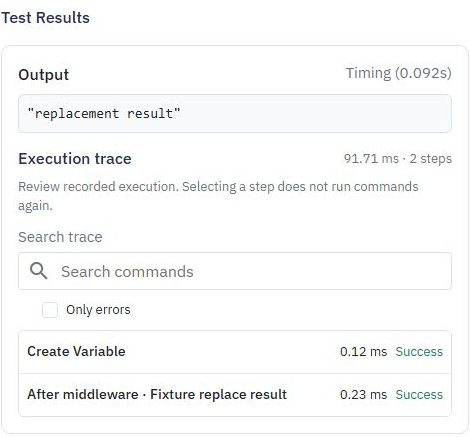
For example, after middleware using Replace values can change the whole result to a short message. The test output shows the replacement, and the trace confirms which middleware ran.
This example selects Keep and merge values and Stop on error. Review both choices, then save the behavior settings.
Open an endpoint, function or event and choose Middleware from its options. Configure Before workflow and After workflow separately.
Keep Use workspace defaults selected when you want the workspace list for that section. Customize it when the workflow needs a different ordered list. An explicitly empty custom list runs no middleware for that section.
In this example, Before workflow inherits the workspace defaults. After workflow has defaults turned off and no entries, so no after middleware runs.
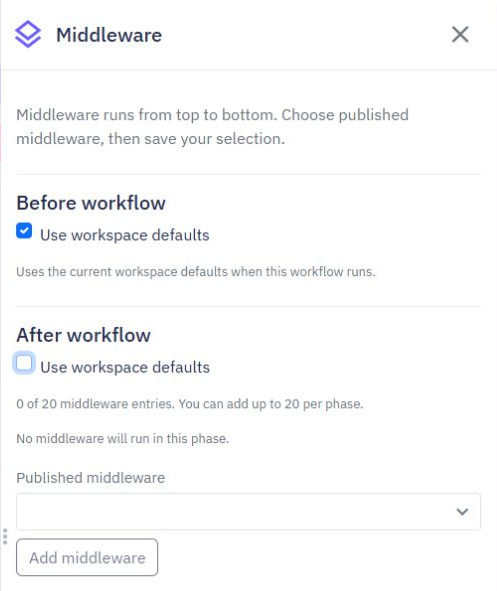
Choose an entry from Published middleware, select Add middleware, turn individual entries on or off, and move entries up or down to choose their order. Each phase can contain up to 20 entries. Before middleware runs before the workflow's input checks and commands. After middleware runs after its result is ready, including when a Return command ends the workflow early.
Save the configuration and publish the workflow to apply its own changes. Ordinary test output, assertions and logs remain available.
For a database-trigger event, middleware surrounds the event workflow after the record change. Put checks in the workflow that saves a record when the original change needs validation.
Open Middleware Defaults in Settings. Choose the Workflow type (Endpoints, Functions or Events), then set its before and after lists. Each workflow type has its own defaults.
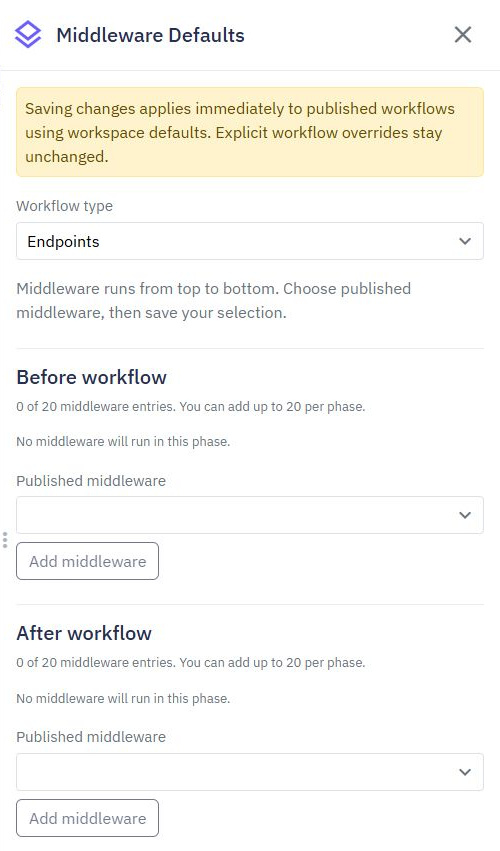
Saving defaults affects workflows that inherit that section, including published workflows. Review the list and test with sample data before applying a workspace-wide change. A workflow's custom list replaces the defaults for that section; it does not add to them.
Middleware does not replace an endpoint's existing authentication or API limits. Those protections still run before the workflow's middleware.
Stop on error stops the workflow when the middleware fails. Use it for checks that must succeed before work continues.
Ignore middleware errors ignores an ordinary middleware error and continues with the previous input or result values. It cannot undo records already saved, messages already sent or other completed actions.
Allow error middleware, then fail keeps the workflow failure. After middleware with this policy can inspect an available error in vars.error, for example to record a failure. Its output does not turn the failed workflow into a successful response. This after middleware also runs when the workflow succeeds, so check whether vars.error is available before reading its details.
Workflow timeouts and cancellation still stop a run. These middleware error choices cannot ignore an unhandled platform security failure. Middleware shares the workflow's normal limits, so adding middleware does not give a run extra time.
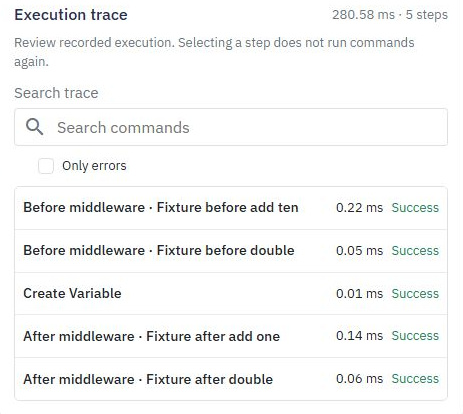
Test middleware with sample data, including missing values and expected errors. Use Trace execution to review the order and Include variable values only when needed; captured values may be hidden or shortened.
The trace names each middleware and identifies whether it ran before or after the workflow. This sample shows two before steps, the workflow's command, then two after steps.
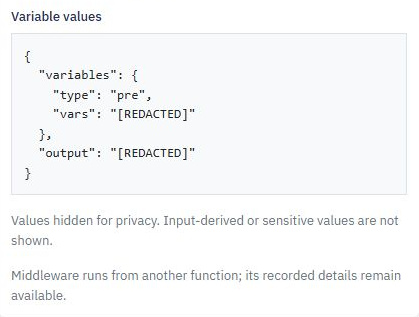
Values derived from workflow inputs and sensitive values are hidden for privacy. Safe workflow constants may appear, but including values does not show every input or result. In this example, type is pre, while vars and the output are hidden. Middleware runs from another function, so you can review its recorded details here without jumping to an unrelated current command.
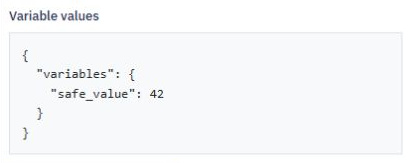
For comparison, a workflow variable set directly to a safe number can appear in the selected step when Include variable values is on. This sample records safe_value as 42.
Copied or duplicated middleware stays unpublished until you publish it, so copying does not activate unfinished changes.
Before deleting middleware, remove its references from workspace defaults and workflows. Published workflows can still refer to an earlier configuration even after you edit a draft.
Changes
In Twidget, every modification you make in our no-code builder is meticulously documented and stored as a change. Whether you are creating an input or editing a command, each action is captured in the platform. Important: Please note changes will not go live until they are published. Viewing Changes...
Live debugging
Pause an isolated editor test before a command runs, move through it one step at a time, and inspect its recorded outputs. Use this to find where a calculation or decision begins to differ from what you expected. Start a debug test. 1. Open a server function, endpoint or event and choose Test. 2. Ch...
Working on smaller screens
Twidget adapts its navigation, lists and editing panels to phones, tablets and smaller laptop windows. You can use the same workspace and saved workflows across these views. Open your workspace tools. On a phone, use the menu button at the top to open workspace navigation. Choose a tool from Build, ...
Commands in Twidget
Commands are the building blocks of Twidget's no-code platform. They function like code statements and can perform various operations such as creating and updating variables, loops, conditionals, retrieving and manipulating data in the datastore, and much more. Creating a Command. 1. Navigate to the...
Safer Releases
Move a reviewed set of published workflows from a Dev workspace to a Prod workspace. Releases let you review the changes together, keep a release history and review a rollback if you need to restore the previous workflows. Prepare your workspaces. Use two existing workspaces in the same organization...