Test a customer journey across several endpoints in a single ordered run. For example: sign in, create an order, retrieve it, then check its status.
Every run shares its own isolated database across its steps. Your workspace records are not changed by those database actions. This version supports isolated endpoint journeys. External requests, email, file storage actions, cache, realtime, background jobs and streaming are unavailable in suite runs. Database-change triggers are not run; test triggered events separately.
The image, PDF and XLSX processing commands can work on file contents already supplied to the workflow when file processing is available. They do not upload, save or share the resulting files. See Image processing, PDF processing and Spreadsheets. Suites use published endpoint versions: publish your intended workflow changes before testing them in a suite.
Open Test suites in the sidebar and select Create suite.
Give it a name and, optionally, a description.
Add any Run inputs, such as a test customer's email or a sample order quantity.
Optionally add Starting records for an existing table.
Select Add endpoint step and choose an endpoint from this workspace.
Give each step a different alias, such as login or create_order.
Add request inputs, captures and assertions, then Save suite.
Use the arrow buttons to move a step up or down. Later steps can use earlier responses. Reordering steps may mean a reference is no longer available; review references after moving a step. Leave Stop main steps after the first failure enabled to stop at the first failed check.
You can save up to 25 suites in a workspace, with 20 endpoint steps and five cleanup steps per suite. No extra workspace is needed.
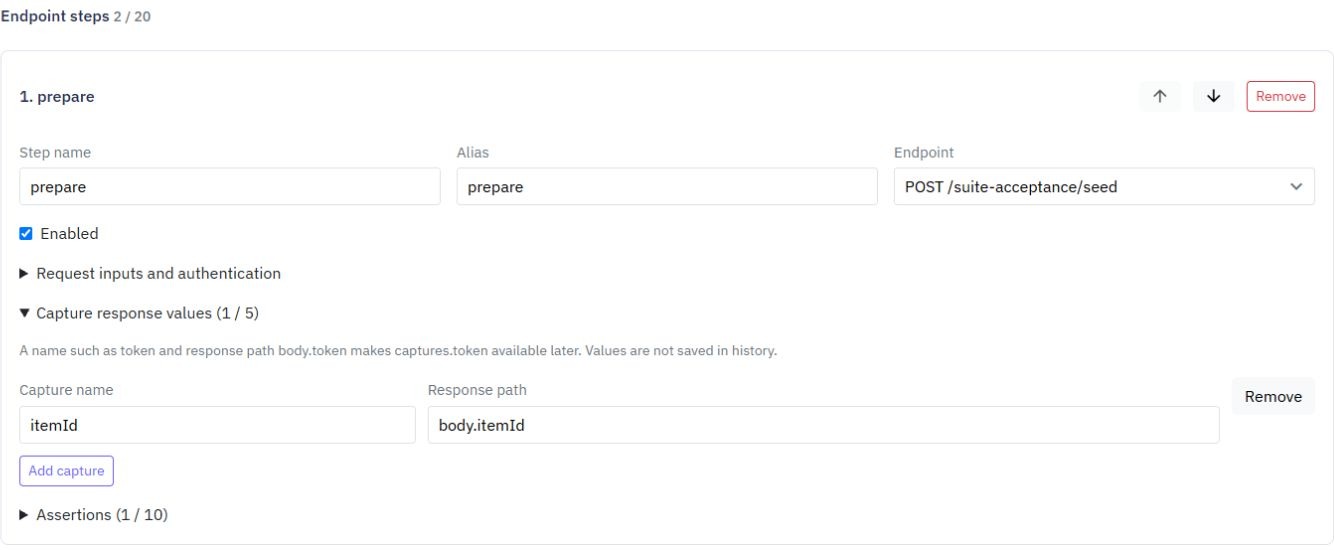
Expand Request inputs and authentication to set path parameters, query parameters, headers and the body. The usual variable editor lets you use a fixed value or a reference.
inputs.quantity uses an input supplied for this run.
steps.create_order.body uses the earlier step's response body.
steps.create_order.body.id uses a field inside that body.
captures.order_id uses a named captured response value.
A response also has status, headers and durationMs. Only earlier steps are available to the next step.
A suite calls your endpoints with their normal customer authentication rules. Your Twidget editor login does not sign in a customer or bypass protected endpoints.
For a sign-in journey, put the customer login endpoint first. Under Capture response values, enter a name such as token and the actual response path, for example body.token. In the next protected step, choose Customer bearer token and select the captures.token variable.
Saved bearer authentication must use a reference, not a pasted token. Supply sensitive test values when running the suite rather than saving them as defaults. Captured tokens and response bodies stay in memory during the run and are not saved in its history.
Expand Assertions and select Add assertion. Choose a response path, a comparison and the expected value. Examples include status equals 200, body.order_status equals pending, or durationMs less than 2000.
Each step supports up to ten assertions and five captures. An assertion checks the current response; it does not use the result prefix used by a saved function test.
Use cleanup steps to check how your endpoints remove the synthetic records created during a journey. They are attempted after main steps, including failures or a cancellation request. Twidget also removes the run’s isolated database after the worker has stopped.
Only one suite can run at a time. A run is bounded to two minutes, with time reserved for cleanup. Choose Test on a saved suite, enter its run inputs and select Run suite. Unsaved edits must be saved or discarded first.
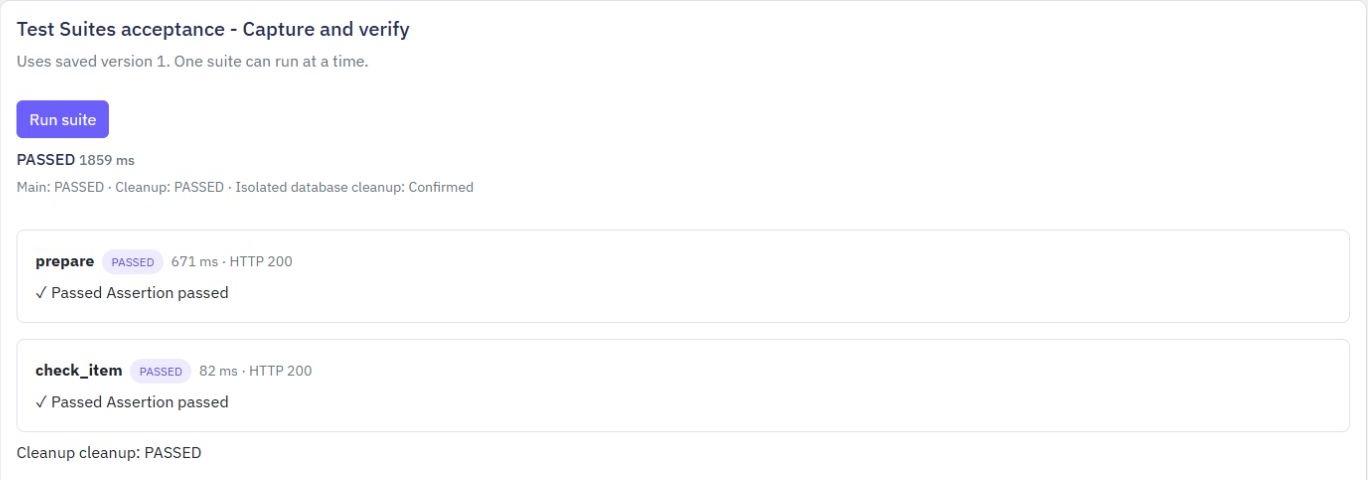
The results show step status, response status, duration and assertion outcomes, plus separate main-step and cleanup status. Isolated database cleanup: Confirmed means the temporary database has been removed. Review interrupted runs and incomplete cleanup before trying the journey again.
Choose Load older runs under Previous runs to see earlier results. Changing the selected suite or workspace starts a new history list.
Previous runs keep the outcome, not customer tokens, captures, response bodies or full headers.
Reusable Middleware
Middleware is a reusable workflow that runs before or after an endpoint, function or event. Build it once, then apply it wherever you need the same input checks, response formatting or logging. Create middleware. Open Middleware from the sidebar and choose Create Middleware. Give it a clear name, su...
Commands in Twidget
Commands are the building blocks of Twidget's no-code platform. They function like code statements and can perform various operations such as creating and updating variables, loops, conditionals, retrieving and manipulating data in the datastore, and much more. Creating a Command. 1. Navigate to the...
Inputs
Overview. In Twidget, inputs are essential elements that allow you to configure endpoints and functions. Events do not use inputs. Endpoint Inputs. Endpoint inputs are used to retrieve data from requests. The available types of endpoint inputs are: 1. Path: Variables that are part of the URL path. 2...
Testing
To pause an isolated test and move through commands, see [Live debugging](/docs/builder/live-debugging). In Twidget, you can easily test your endpoints and functions directly within our code builder. This guide will walk you through the steps to efficiently test your functions to ensure they meet yo...
Background jobs
Let a server function continue in the background while the original workflow returns a job ID. This is useful for work such as preparing a report or processing a batch of records. What counts as a job?. A function or endpoint is not automatically a background job. A job is created only when a workfl...

