Build JSON bodies and messages using values from your workflow. The Insert variable picker lets you choose inputs, earlier command results, nested object fields and list items without typing their references.
Open a command value or function output and choose JSON, Text or multiline text.
Place the cursor where the reference belongs. Select existing text or a JSON field value if you want to replace it.
Click Insert variable below the editor.
Search for a variable, field or item. For example, search payload.items to find payload.items[0].sku.
Choose the reference and click Insert. Continue editing, then save the command or output.
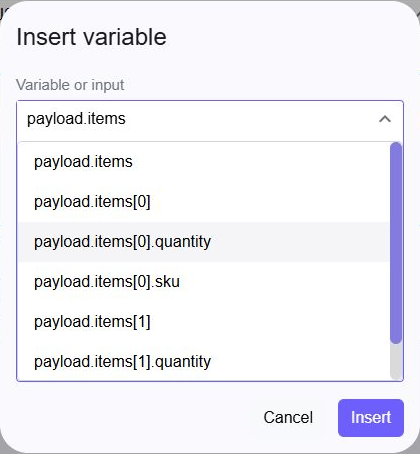
Object fields use dots: payload.customer.name. List items use an index: payload.items[0].sku is the first item's SKU; [1] is the second item. Parent objects and lists remain selectable when you want the complete value.
The picker uses the current workflow scope. A variable created later, inside another branch, or by a disabled command is not offered. Earlier variables can have fields defined with the Object/List editors or inside JSON, including fields whose current value is null. Choosing a field inserts its reference, not its current value.
For example, an earlier Create Variable command can define a JSON variable called payload:
{

  "customer": { "name": "Ada", "address": { "city": "London" } },

  "items": [

    { "sku": "FIRST", "quantity": 3 },

    { "sku": "SECOND", "quantity": 1 }

  ],

  "enabled": false,

  "optional": null

}
The picker can then offer payload.customer.address.city, payload.items[0].quantity, payload.items[1].sku, payload.enabled and payload.optional, as well as their parent values.
Place the cursor inside a JSON text value, or select a complete value within an object or list. The picker supplies the required quotes and enables Resolve variables when insertion succeeds.
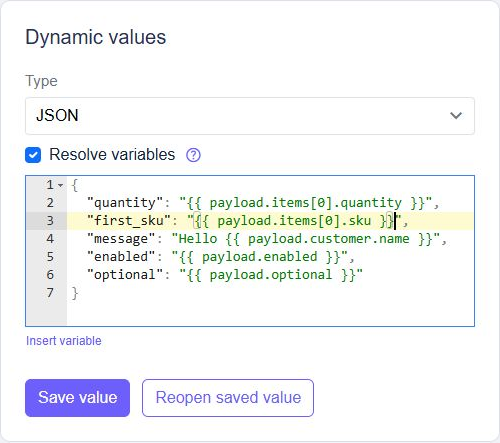
You can also enter references manually, keeping them inside JSON strings:
{

  "quantity": "{{ payload.items[0].quantity }}",

  "first_sku": "{{ payload.items[0].sku }}",

  "message": "Hello {{ payload.customer.name }}",

  "enabled": "{{ payload.enabled }}",

  "optional": "{{ payload.optional }}"

}
With the example data above, the result is:
{

  "quantity": 3,

  "first_sku": "FIRST",

  "message": "Hello Ada",

  "enabled": false,

  "optional": null

}
A complete placeholder preserves its value's type, including objects, lists, numbers, booleans and null. A placeholder mixed with other text produces text. Use complete placeholders for objects and lists; they cannot be inserted into a longer sentence.
Leave Resolve variables off to keep JSON literal. Existing saved JSON stays literal until you enable resolution or successfully insert a reference. Cancelling the picker leaves the contents and setting unchanged. JSON field names remain literal; the picker does not insert references into keys. To use a variable as the entire output, choose the Variable type instead of JSON.
In a Text or multiline text value, position the cursor or select text to replace, then use Insert variable. Surrounding words and punctuation are preserved.
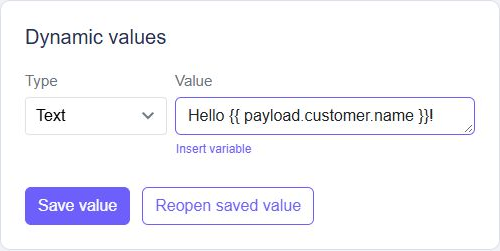
For example, choose payload.customer.name after Hello to create Hello {{ payload.customer.name }}!. With the example data, the result is Hello Ada!. A function input named customer_name appears as $inputs.customer_name; the picker adds that prefix for you. Text values do not need the JSON Resolve variables checkbox.
The picker discovers fields from declared object/list shapes, local JSON definitions and available database result schemas. Literal lists expose their defined indexes. For a list described only by a schema, [0] is a suggested first item, not a guarantee that the list contains data. Check that a result exists before reading an optional field or list item.
Fields known only when an HTTP request, connector or other command runs cannot be discovered from an unspecified shape. You can still enter a known path manually, or use an earlier structured variable. Large or deeply nested shapes have bounded suggestions to keep the editor responsive.
References use field names and fixed non-negative list indexes. Calculations, function calls and variable indexes are not supported inside JSON placeholders. Calculate a value in an earlier command, then reference its result. A missing reference stops the command with an error; an existing null is preserved. Quotes and line breaks in referenced values are handled automatically, and inserted text is not expanded a second time.
Static, global-value and secret-value editors do not offer the picker. Server workflows can reference available workspace secret names without displaying their values. Workspace secrets are unavailable to page workflows. For page workflows, use a qualified input such as $inputs.name or a distinct variable name such as customerName when a bare name conflicts with a browser global.
See Variables for creating and editing variables, and Global variables for shared values.
Data Types
Twidget supports six main data types to facilitate interactions within the platform. These data types are essential for defining inputs, outputs, and table fields, helping users understand the nature of the data being handled. The available data types in Twidget are as follows: Text. - Description: ...
Changes
In Twidget, every modification you make in our no-code builder is meticulously documented and stored as a change. Whether you are creating an input or editing a command, each action is captured in the platform. Important: Please note changes will not go live until they are published. Viewing Changes...
Functions
In Twidget, you can build custom reusable functions. These functions can be utilized across various sections including endpoints, events, and other functions. Instead of creating the same commands repeatedly, you can create a function once and reuse it wherever necessary, making your workflow more e...
Realtime channels
Send live updates to your app while your customers are signed in. Use a channel for order progress, notifications or a shared activity feed, instead of asking the app to repeatedly check for changes. Realtime messages are temporary notifications. Keep important information in your database so your a...
Reusable Middleware
Middleware is a reusable workflow that runs before or after an endpoint, function or event. Build it once, then apply it wherever you need the same input checks, response formatting or logging. Create middleware. Open Middleware from the sidebar and choose Create Middleware. Give it a clear name, su...

