Connector Commands allow you to integrate Twidget projects with external services such as Google Drive, Slack, OpenAI’s ChatGPT, and many others. These commands provide ready-made actions that communicate with third-party APIs, removing the need to manually create and maintain external HTTP requests.
For text generation, chat, model lists and embeddings across OpenAI, Claude, Gemini and other providers, see AI connectors.
Browse the business connector library for Notion, Airtable, CRM, Microsoft 365, commerce, support and messaging apps, together with the updated Google and Slack actions.
For every command’s inputs, results, examples and common errors, open the detailed connector reference. The command editor’s help button opens its exact reference section.
A connector is a collection of prebuilt commands designed for a specific external service.
Each connector exposes multiple actions—known as connector commands—which map directly to the service’s public API.
Examples of what connectors can do:
Google Drive → Upload files, list folders, read documents
Slack → Send messages, create channels, manage reminders
OpenAI → Generate text/chat responses, perform embeddings
Google Sheets → Append rows, read sheet values, update cells
These built-in actions allow you to interact with external platforms without having to know their API details.
You can add connector commands anywhere you can run Twidget logic:
Endpoints
Reusable Functions
Events (scheduled or triggered)
In these areas, a connector command behaves just like any other Twidget command, you simply insert it into the command flow and configure its inputs.
Note:
Connector commands cannot be used inside Pages or Page Components.
They run only on the backend.
Most external services require authentication before their API can be used. Connector commands support this by letting you attach credentials securely.
Common methods include:
Google OAuth – for Google Sheets, Drive, Calendar, etc.
OpenAI API keys – for ChatGPT, embeddings, and other OpenAI models
Slack OAuth – for reading channels, sending messages, or using the Slack API
Select an existing saved connection for the command's provider. Twidget stores its credentials privately and injects them when the server command runs. Reconnect if authorization expires, is revoked or needs different permissions; an account's status does not guarantee every provider action is allowed. Some providers need administrator setup before authorization is available. See Business connectors.
When adding a connector command you will be prompted to select:
A previously authenticated credential
or
Start the authentication process for that connector
This ensures each connector action can securely interact with the external service.
Using a connector command is similar to adding any other command:
Open an endpoint, function, or event.
Click Add Command.
Select the connector category (e.g., Google Drive, Slack, OpenAI).
Choose the specific connector command you want to run.
Provide inputs such as:
File IDs
Folder paths
Text prompts
Channel IDs
Payloads required by the external API
Select or authenticate the necessary credential.
Save your resource.
Once added, the connector command becomes part of your backend workflow and will run in sequence with your other commands.
Upload a file
List files in a folder
Get file metadata
Send a message to a channel
List user channels
Create a reminder
Generate a chat response
Create embeddings
Generate speech or transcribe supported audio with the corresponding commands
Each connector includes a variety of commands tailored to that service.
Connector commands cannot be used in Pages or Page Components.
Only supported authentication types can be used for each connector.
The number of available commands depends on the provider’s public API.
The command description appears beneath the editor title. The question-mark View documentation button opens the selected command’s full reference in the documentation sidebar.
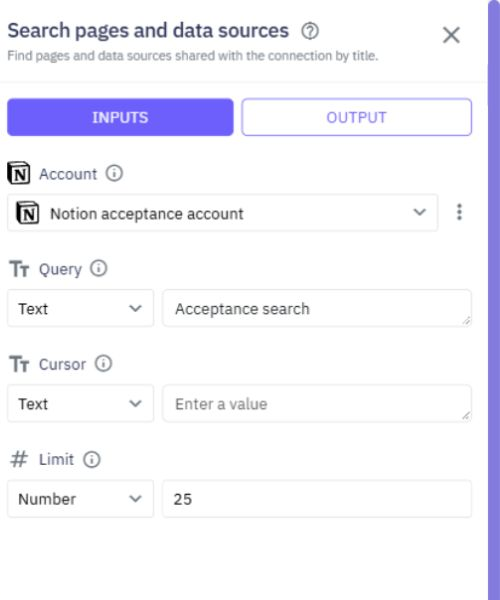
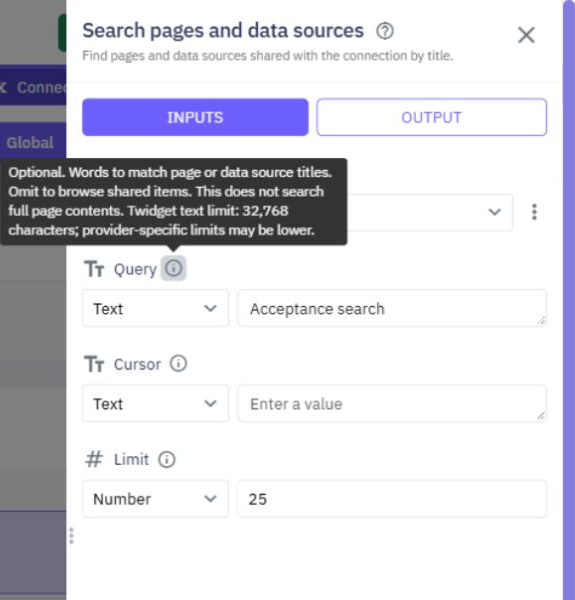
Each field’s info button explains the expected value, units, format and relevant limits. These tooltips can be opened by keyboard or touch. Validation errors remain visible when a value needs fixing.
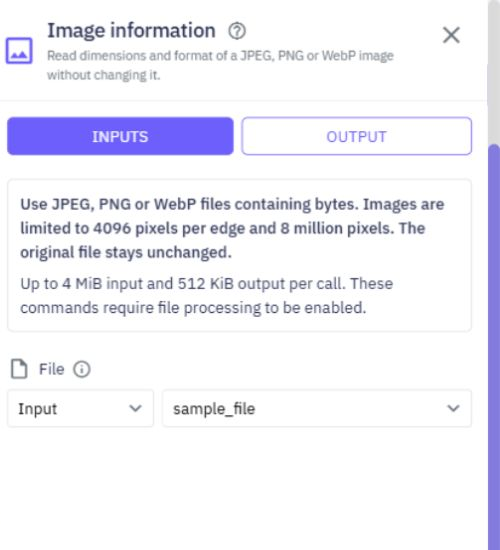
General guidance that applies to the command, such as supported file formats and processing limits, appears in a bordered information box above the inputs.
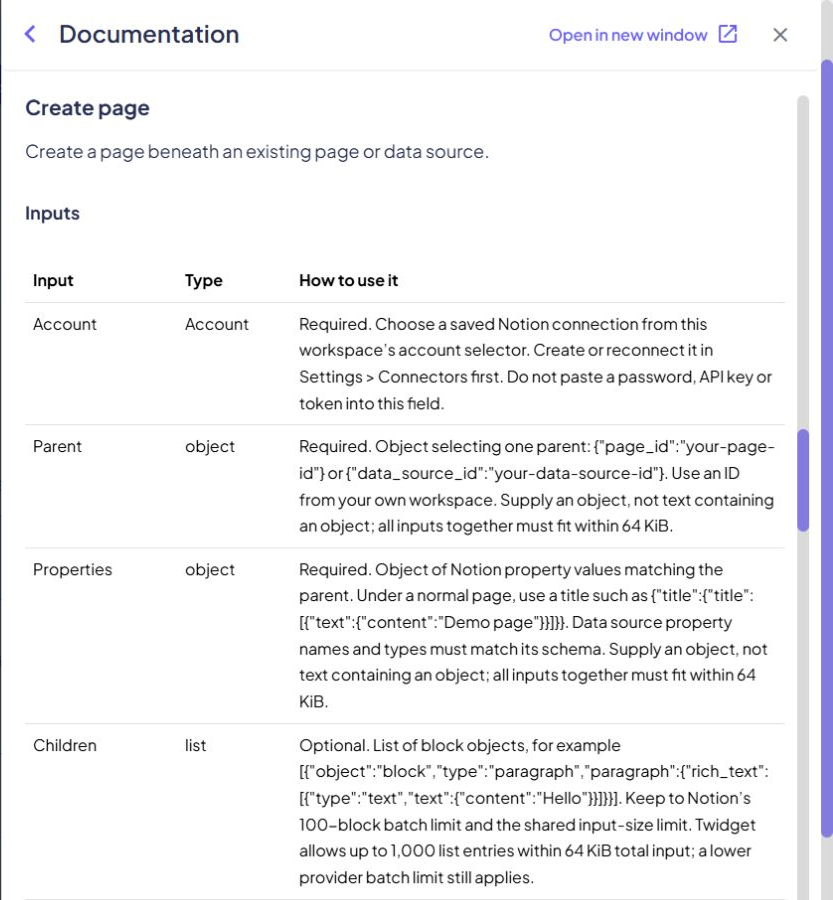
The reference includes exact inputs, the returned result, an illustrative example and common errors. Use its command index to switch actions without leaving your workflow.
Error Handling
When building applications with Twidget, you may encounter situations where you need to handle errors gracefully to ensure your application runs smoothly. Twidget provides two powerful commands for error handling: `try-catch` and `throw-error`. This documentation will guide you on how to use these c...
Session Storage
Twidget includes a suite of session storage commands that enable no-code interaction with the browser’s `sessionStorage` API. These tools allow temporary storage of key-value data for the current page session. Purpose. Session storage commands allow developers to manage transient data tied to a sing...
Text
Twidget offers a variety of commands to manipulate text in various ways. To Uppercase. Converts all characters of the provided text to uppercase. - text: The text to be converted to uppercase. - A text string with all characters in uppercase. To Lowercase. Converts all characters of the provided tex...
Security
Twidget provides several built-in functions to enhance the security of your applications. Below is an overview of each security command, including its description, inputs, and outputs. For checksums, shared-secret signatures, webhook verification and safe text comparison, see [Cryptography commands]...
Send External HTTP Request
Using Twidget, you can send external HTTP requests effortlessly. This functionality allows you to communicate with external servers or APIs. Below, you will find the necessary parameters and structure to set up an HTTP request. Parameters. - URL: The endpoint to which the request will be sent. - Met...